
What Is a Domain Name?
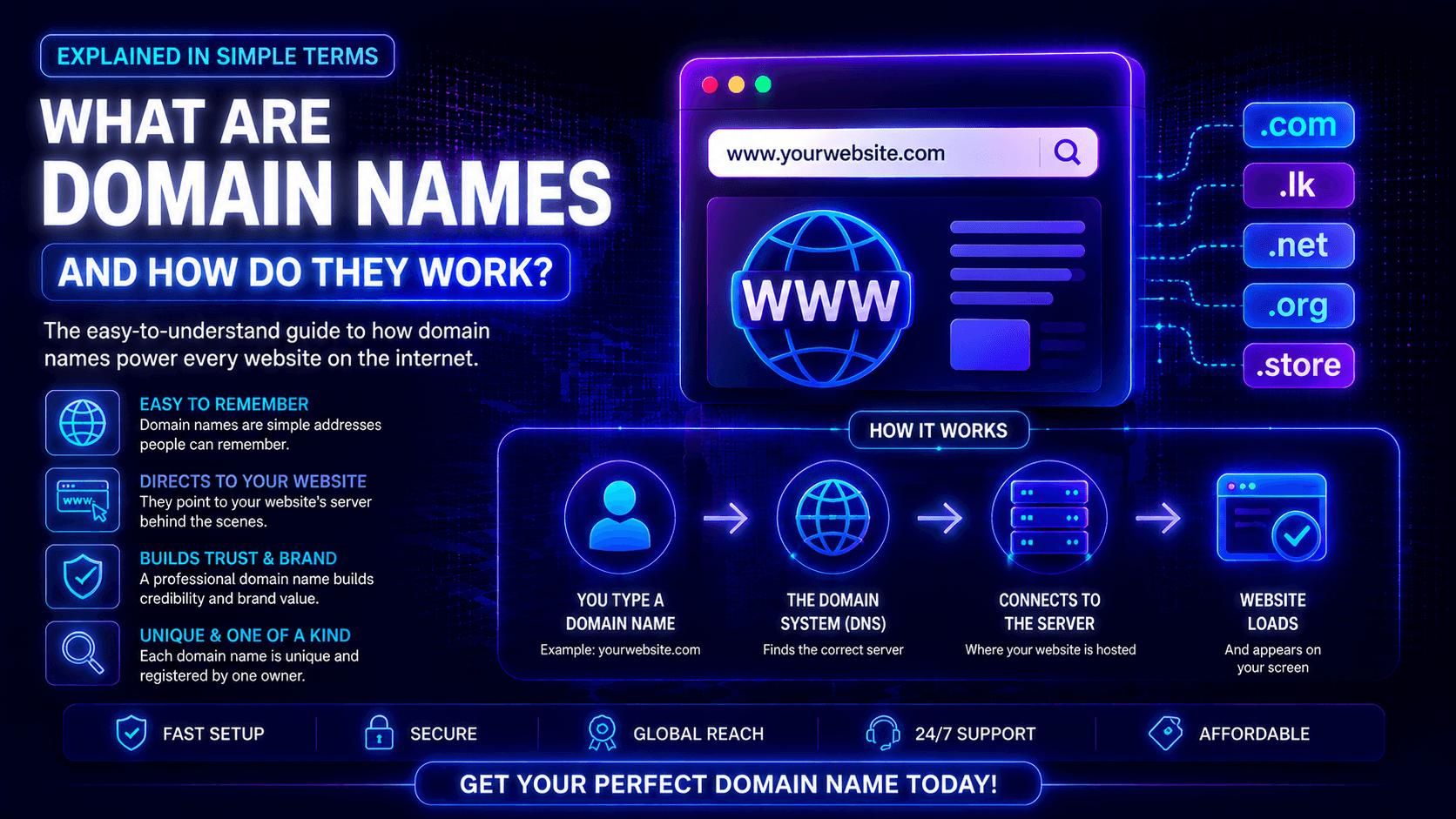
A domain name is your website’s address. People type it into their browser to visit you. It represents your business, group, or personal brand online.
Forget long number strings called IP addresses. You do not need to memorize them. Just type a simple name like google.com or yourbusinessname.com.
Definition of a Domain Name
Here is the technical side. A domain name is text that connects to an IP address. IP stands for Internet Protocol. An example IP looks like 192.0.2.45 or 2001:db8::1.
Computers and servers use these numbers to talk to each other online. But humans struggle with random number strings. So domain names were created to fix this problem.
Human-Friendly Alternative to IP Addresses
Picture this. You need to memorize every website’s IP address. 142.250.190.46 for Google. 157.240.22.35 for Facebook. 104.244.42.65 for Twitter. It is impossible.
Domain names act as a translator. You type google.com. The Domain Name System (DNS) finds the matching IP address. That is 142.250.190.46. Your browser then goes to the right server. You never see the numbers. You just type the name.
Examples of Domain Names
google.com – The most visited search engine in the world.
amazon.com – The biggest online store.
wikipedia.org – A free online encyclopedia.
yourbusinessname.com – Your own website address.
Domain names can use letters a to z. They can use numbers 0 to 9. Hyphens are also allowed. Capital letters do not matter. Example.com is the same as example.com. Every domain ends with an extension. Like .com, .org, .net, .ca, or many others.
Why Do Websites Need Domain Names?
Domain names save you from memorizing long IP addresses. They make websites easy to find and share. They support your brand. They help users get where they want to go fast.
Easier to Remember Than IP Addresses
Here is the main reason we use domain names. People forget numbers. Try recalling 142.250.190.46. Hard, right? Now try google.com. Easy.
Your brain processes words faster than numbers. Words carry meaning. Numbers do not. A domain name lets you tell someone your website once. They will remember it. You cannot do that with a raw IP address.
Helps Build Brand Identity
Your domain name is part of your brand. It appears on your business cards. In your email signature. On your social media. In your ads.
A good domain name strengthens your brand. amazon.com tells you the company name and website address at the same time. Yourbusinessname.com does the same for you. Customers who know your brand already know your website.
Makes Websites Accessible Online
Your website can work without a domain name. People could still reach it through its IP address. But who would find it?
Search engines index domain names. Not raw IPs. People share domain names. Not IPs. They link to domain names. Not IPs.
A domain name makes your site part of the public internet. Search engines can discover it. Users can share it. Without one, your site is technically online. But practically invisible.
Improves Professionalism and Trust
Look at this address. http://192.0.2.45/~user/site/ Would you trust a business with that? Probably not.
It looks amateur. It looks suspicious. Now look at yourbusiness.com. That signals professionalism. It shows you are a real business. One that invested in its online presence.
Customers are more likely to buy from you. Or sign up. Or contact you. When your website has its own proper domain name.
How Domain Names Work
Type a domain into your browser. DNS turns it into an IP address. Your browser connects to the server. The website appears. This all happens in milliseconds. You never see the numbers. You just get the site.
Step-by-Step Process
Step 1: You type a name. Open Chrome, Safari, or Firefox. Type example.com. Hit Enter.
Your browser now has a problem. It knows the name. It does not know where the site lives. Example.com could be at IP address 192.0.2.45. But your browser has no clue. It needs help.
Step 2: Your browser asks for directions. It contacts a DNS resolver. Think of this as an internet helper. Your internet provider gives you one. Or you use a public service like Google’s 8.8.8.8 or Cloudflare’s 1.1.1.1.
Your browser asks the resolver one question. “Where is example.com? Give me its IP address.”
Step 3: DNS finds the address. The resolver checks its memory first. Maybe it already answered this question recently. If not, it starts searching.
It asks a root server. That is the top of the DNS chain. The root server says, “Go ask the .com server.”
The .com server says, “Go ask the server in charge of example.com.”
That final server gives the answer. “Example.com is at 192.0.2.45.”
The whole search takes 20 to 50 milliseconds. Faster than a blink.
Step 4: Your browser connects. Now your browser has the IP address. It knows exactly where the website lives. It opens a connection to that address.
It uses port 80 for regular HTTP. Or port 443 for secure HTTPS. Then it sends a request. “Send me the files for this website please.”
Step 5: The website loads. The hosting server gets the request. It finds the right files. HTML, CSS, images, everything. It sends them back to your browser.
Your browser reads the code. It turns that code into pictures, text, and buttons. The website appears on your screen.
Understanding DNS (Domain Name System)
DNS is the phonebook of the internet. It turns domain names into IP addresses. This lets browsers find websites. The system translates easy names into numeric server addresses. It works through a fast lookup system using nameservers.
What DNS Is
DNS is a global database. It spreads across millions of servers. No single computer holds it all. These servers work together as one system.
You type example.com into your browser. DNS finds the matching IP address. You send an email. DNS finds the receiver’s mail server. Almost everything you do online uses DNS behind the scenes.
How DNS Works Like the Internet’s Phonebook
Remember old paper phonebooks? You look up a name. The book gives you a number. DNS works the same way. Just much bigger.
The domain name is the person’s name. DNS is the phonebook. The IP address is the phone number.
Type amazon.com. DNS looks up that name. It returns the IP address where Amazon lives. Your browser connects there. You never see the numbers. Only the name.
Role of Nameservers
Nameservers are special servers. They store DNS records for domain names. Every domain has at least two nameservers. A primary and a backup. This provides redundancy.
These nameservers are the source of truth for that domain. You buy a domain from a registrar. The registrar gives you default nameservers. You can change them later. Point them to your hosting provider instead. That is how you connect your domain to your website.
DNS Lookup Process Simplified
Here is what happens behind the scenes.
First: Your browser asks a DNS resolver for help. Your internet provider gives you this resolver. Or you use a public one like Google’s 8.8.8.8. The browser says, “Find example.com for me.”
Second: The resolver checks its cache. Maybe it looked up example.com recently. If yes, it returns the IP address immediately. Very fast.
Third: No cache? The resolver asks a root server. “Where do I find .com domains?” The root server points to the .com TLD server. TLD stands for Top-Level Domain.
Fourth: The resolver asks the .com server. “Where do I find example.com?“ The .com server points to the authoritative nameserver for example.com.
Fifth: The resolver asks that nameserver. “What is the IP address for example.com?“ The nameserver gives the answer. Something like 192.0.2.45.
Sixth: The resolver sends the IP address back to your browser. Your browser connects to that address. The website loads.
Seventh: The resolver saves the result in its cache. Next time someone asks for example.com, it will be faster.
The whole process takes 20 to 50 milliseconds. That is faster than you can blink.
Parts of a Domain Name
Every domain name has three main pieces. The top-level domain (TLD). The second-level domain. And subdomains. Read a domain name from right to left. That shows you its structure. It helps you understand how websites are organized.
Top-Level Domain (TLD)
The TLD is the last part. It comes after the final dot. “com” in google.com. “org” in wikipedia.org. “ca” in canada.ca. TLDs help group websites. But the lines between them have become blurry over time.
Common TLDs explained.
.com – The most popular and trusted one. Meant for commercial businesses. But now any website can use it.
.net – Started for network companies. Now it is a general backup choice when .com is taken.
.org – Originally for non-profits. Still popular with them. But anyone can register one today.
.ca – The country code for Canada. You need a Canadian presence to use it.
.bd – The country code for Bangladesh.
.edu – Only schools and colleges can get this one. Strict rules.
.gov – Only government offices. Very restricted.
Hundreds of TLDs exist now. .shop, .blog, .tech, .app, and many more. Your choice depends on your audience, your industry, and your brand.
Second-Level Domain
The second-level domain sits right next to the TLD. On the left side. It is the main name you pick for your website.
In google.com, the second-level domain is “google.” In amazon.ca, it is “amazon.”
This is the most important part for your brand. People remember this word. They type it first. Choose carefully. Make it short. Easy to spell. Easy to remember. Match it to your business name.
Subdomain
A subdomain is optional. You add it to the left of your second-level domain. It creates separate sections of your site. You do not need a new domain name. Subdomains help organize content or host different services.
Examples of subdomains.
blog.example.com – Keeps your blog separate from your main site.
shop.example.com – Runs your online store on its own subdomain.
support.example.com – Holds customer help pages.
mail.example.com – Points to your webmail login page.
The www prefix is actually a subdomain too. www.example.com is a subdomain of example.com. Long ago, www meant “World Wide Web.” It showed the site was on the web. Today, most sites work fine with or without it.
Putting It All Together
Look at this full domain name: blog.example.com
-
blog is the subdomain
-
example is the second-level domain (SLD)
-
.com is the top-level domain (TLD)
Each part has a job. Together, they point to a specific place on the internet.
Different Types of Domain Extensions
Domain extensions come in three main types. First, generic ones like .com. Second, country codes like .ca. Third, newer options like .tech or .store. Each type serves a different purpose. Each fits different branding needs.
Generic TLDs (gTLDs)
Generic TLDs are the original extensions. They are the most common ones. No country owns them. Anyone worldwide can register them.
.com – The most trusted extension. It started for commercial businesses. Now every type of website uses it. If you can get the .com version of your name, take it. Visitors type .com first without thinking.
.org – Started for non-profit groups. Today it still feels like a non-profit extension. Charities use it. Community websites use it. It carries trust and a sense of purpose.
.net – Started for network companies. Internet providers. Hosting companies. Now it is a backup choice when .com is taken. Less popular for mainstream sites, but it works.
Other generic TLDs include .info for information sites, .biz for businesses, and .name for personal websites.
Country Code TLDs (ccTLDs)
Country code TLDs have two letters. Each one belongs to a specific country. They show geographic targeting.
.ca – Canada. You need a Canadian presence to register one. Citizen, permanent resident, or registered business. Canadian shoppers trust .ca domains. They also rank well for Canada-specific searches.
.us – United States. Open to US citizens and businesses. Less popular than .com. But useful if you only target American customers.
.uk – United Kingdom. Very popular for British businesses.
.bd – Bangladesh. You need local presence. This is the standard for Bangladeshi websites.
.eu – European Union. Open to EU residents and businesses.
Using a ccTLD sends a clear signal. Visitors know you are local. Search engines know too. If your business serves only Canadian customers, a .ca domain builds trust. It also improves local search rankings.
New Domain Extensions
Hundreds of new extensions have appeared in recent years. People call them vanity TLDs. They let you be more creative with your domain name.
.tech – For tech companies. Startups. Tech blogs.
.store – For online stores and eCommerce sites.
.online – A general choice for any website.
.blog – For bloggers and content creators.
.shop – Another option for online stores.
.app – For mobile and web apps. These require HTTPS security built in.
.design – For designers, agencies, and portfolios.
.lawyer – For legal professionals. Some verification required.
New extensions offer better availability. Your dream name is probably taken in .com. But the same word might be free in .tech or .store.
One warning though. .com is still the most trusted and memorable extension. Especially in Canada and the US. Use new extensions for branding. Or use them when the .com is already gone.
Domain Name vs Web Hosting
A domain name is your website’s address. Web hosting is the storage space for your files. You need both. Without both, your site cannot go live.
Domain Name – Website Address
A domain name is your online address. People type it into their browser to find you. google.com. facebook.com. yourbusiness.com.
The domain name points to where your site lives. But it does not store any files itself. It is just a pointer. Nothing more.
Think of a domain name like a street address. The address tells people where to go. But the address is not a building. You rent a domain from a registrar. Namecheap, GoDaddy, or Cloudflare. It costs about 10to15 per year. You own the address as long as you keep paying the renewal fee.
Web Hosting – Storage Space for Website Files
Web hosting is the actual space for your files. Every piece of your website lives on a hosting server. HTML pages. Images. CSS files. JavaScript. Databases.
Someone types your domain name. The internet sends them to your hosting server. That server delivers your files to their browser. The website appears.
Think of web hosting like a physical house. The address tells people where to go. The house is what they find when they arrive. You rent hosting from a provider. Hostinger, Bluehost, or SiteGround. It costs 3to30 per month. The provider stores your files. They keep your site online.
Simple Analogy – Domain = Home Address, Hosting = Actual House
| Concept | Domain Name | Web Hosting |
|---|---|---|
| Analogy | Street address | The actual house |
| What it does | Tells people where to go | Stores your stuff |
| What you rent | The name and address | Space on a server |
| Example | yourbusiness.com | Files stored on Hostinger’s server |
Imagine you want people to visit your home. You need two things. An address so they know where to go. And an actual house with walls, rooms, and furniture.
The address without a house is useless. People show up. Nothing is there. The house without an address is invisible. No one can find it.
Your website works the same way. The domain name is the address. The web hosting is the house. You need both. The domain points visitors to your hosting server. The hosting server stores your files. It delivers them when visitors arrive.
Tips for Choosing the Perfect Domain Name
Pick a name that is short and simple. Easy to spell. Use relevant words if you can. Skip numbers and hyphens. Choose a trusted extension like .com. This improves your brand. People will remember it better.
Keep It Short and Simple
Short names are easier to type. Easier to remember. Less likely to get misspelled. Aim for under 15 characters. Under 10 is even better. Every extra letter adds more chance of typos.
Look at these short domains. google.com has 6 letters. amazon.com has 6. etsy.com has 4. canva.com has 5. The biggest brands have the shortest names. If your ideal short name is taken, get creative. Combine words. Or pick a different extension.
Make It Easy to Spell
Your domain name should be obvious to spell. Avoid unusual spellings. Skip invented words. No creative substitutions that need explaining.
If you have to say “it is spelled with a K instead of a C,” your name is too hard.
Test your name. Say it out loud to a friend. Ask them to write it down. If they misspell it, your name is not clear enough. Read it over the phone to someone. If they cannot understand it, pick something simpler.
Use Keywords If Possible
A good keyword in your domain helps search engines. It also tells people what you do right away.
Example: bestplumber.ca tells visitors you fix pipes. torontobakery.com tells visitors you sell bread in Toronto.
But do not force it. Names like cheap-flights-airline-tickets.com look fake and spammy. A short, brandable name beats a long, keyword‑stuffed one every time. Put your brand first. Keywords second.
Avoid Numbers and Hyphens
Numbers and hyphens confuse people. Say a domain name out loud. Does the listener know “four” or “4”? Do they know “expert” or “ex-pert”? They might forget the hyphen completely. Just avoid them.
Problem examples. best-4-you.com. Is it four or 4? Is there a hyphen? my-expert-site.net. Is it hyphenated or not? top5plumber.ca. Is it five or 5?
Stick to letters only. Your visitors will thank you.
Choose the Right Extension
The extension is the part after the dot. .com, .ca, .org, .net, and so on. Your choice affects trust, memory, and local search ranking.
.com is the gold standard. Most trusted. Most remembered. If the .com of your name is free, take it.
.ca is best for businesses that only serve Canadian customers. It signals local relevance. Canadian shoppers trust it.
.org is standard for non‑profits, charities, and community groups.
.net is a backup when .com is taken. Less popular but still fine.
New extensions like .tech, .store, .blog, and .design can be creative and descriptive. But they lack the instant trust of .com. Use them for niche branding. Or when the .com is already gone.
Best practice. Register both the .com and .ca versions if your budget allows. Point both to the same website. This stops competitors from taking your name with a different extension.
Domain Security and Privacy
Domain security has several layers. Privacy protection hides your personal details. SSL certificates secure data between visitors and your site. Domain locking stops unauthorized transfers. These features guard your domain against theft and misuse.
Domain Privacy Protection
When you register a domain, ICANN collects your information. Your name. Your address. Your phone number. Your email. ICANN runs the domain name system. Registrars must pass along this data.
Then it goes public. Into a database called WHOIS. Anyone can look up your domain and see your personal contact details.
The problem. Your personal info is now public. Spammers grab emails from WHOIS. Telemarketers call your number. Scammers use your data for fake attacks. Even upset customers can find your home address.
The solution. Domain privacy protection steps in. Also called WHOIS privacy. It replaces your personal info with generic contact details from your registrar. You still own the domain. But the public only sees the registrar’s information.
Most registrars give free privacy protection. Namecheap, Porkbun, and Cloudflare include it. Others charge 5to15 per year. Pay for it if you must. The cost is small. The protection is worth it.
SSL Certificates
SSL stands for Secure Sockets Layer. It encrypts data between your website and your visitors. SSL is mainly a security tool. But it also affects your domain.
How SSL connects to domains. SSL certificates are made for specific domain names. A certificate for example.com will not work on example.net.
Install SSL on your site. Browsers show a padlock icon next to your domain name. Visitors feel safe. They trust that your domain is real. They trust that their data is protected.
No SSL? Browsers label your domain as “Not Secure.” Trust drops. Search rankings drop too.
Many hosting providers give free SSL certificates through Let’s Encrypt. Make sure your domain has SSL turned on.
Domain Locking
Domain locking is also called registrar lock. It stops someone from moving your domain to another registrar without your okay.
How it works. A hacker gets into your email. They request a domain transfer. With domain locking on, the transfer request gets rejected automatically.
To move the domain, you must log into your registrar account. Turn off the lock. Then approve the transfer. That extra step blocks unauthorized moves.
Most registrars turn on domain locking by default. Double-check yours. Make sure it is enabled.
Protecting Against Domain Theft
Domain theft is real. Hackers want valuable domains. They use several tricks.
Phishing emails trick you into giving away your registrar login. Social engineering fools customer support into transferring a domain without proper approval. Email account hacks let someone reset your registrar password. Expired domains become free for anyone to grab.
How to Keep Your Domain Safe
-
Use a strong password. Make it unique for your registrar account. Do not use the same password on other websites.
-
Turn on two-factor authentication (2FA). Add this extra layer to your registrar account. It blocks hackers even if they steal your password.
-
Get a separate email address. Use it only for domain registrations. Do not use your everyday email here.
-
Keep your contact info current. Update your phone number and email address. This ensures you receive security alerts.
-
Enable domain locking. This stops anyone from transferring your domain without your permission.
-
Try registry lock for valuable domains. This adds another verification step for any changes. Good for high-value names.
-
Renew for multiple years. Pay for 2, 5, or even 10 years upfront. This lowers the risk of accidental expiration.
Conclusion
Domain names are the friendly addresses people type to find websites. They are much easier than remembering long number strings called IP addresses.
Behind the scenes, the DNS system connects each domain name to its matching IP address. This happens in milliseconds. Your browser then loads the site. You never see the numbers.
A domain name needs web hosting too. The domain is the address. Hosting is the actual building where your files live. You need both to put a website online.
Every domain has three parts. A subdomain (optional). A second-level domain (your chosen name). And an extension like .com or .ca.
Pick a name that is short, simple, and easy to remember. This helps your brand. It also builds trust with visitors.
Register your domain early. Even before you build your site. Turn on privacy protection so your personal details stay hidden. Set auto-renewal so you never lose your name by accident.
Your domain is one of your most valuable online assets. Protect it carefully. It will serve you for years.






Leave a Comment