
What Is Web Hosting?
Web hosting is a service. It stores your website files on a special computer called a server. Someone types your domain name into their browser. Their computer connects to that server. The server sends your website files back. Their browser shows your website. Without hosting, your files sit on your personal computer. Invisible to everyone else.
How Hosting Stores and Delivers Website Files
Hosting servers run special software. Apache or Nginx are common examples. They are built to run all day, every day. 365 days a year. They have backup power supplies. Multiple internet connections. Redundant systems.
Hosting companies own thousands of these servers. They keep them in data centers worldwide. You rent a small piece of one server.
A visitor requests your site. The server finds your files. HTML, CSS, images, videos, databases. It sends them across the internet. The whole process takes milliseconds. How fast? That depends completely on your hosting quality.
Different Types of Hosting
Shared Hosting places your website on a server with dozens or hundreds of other sites. Everyone shares the same CPU, RAM, and storage. Affordable ($3-15/month) but performance varies based on neighbors’ traffic.
VPS Hosting carves a physical server into isolated virtual compartments. Your site gets dedicated resources that neighbors cannot touch. Consistent performance ($20-100/month). Ideal for growing businesses.
Cloud Hosting spreads your site across a network of interconnected servers. Resources scale automatically during traffic spikes. Pay-as-you-go pricing ($10-150+/month). Excellent for variable traffic.
Dedicated Servers give you an entire physical machine. No sharing. Maximum performance and security ($100-500+/month). Best for large eCommerce stores and high-traffic sites.
Managed WordPress Hosting is shared, VPS, or cloud infrastructure specifically optimized for WordPress. Includes server-level caching, CDN integration, automatic updates, and WordPress-trained support ($10-100+/month). Best for WordPress sites of any size.
Why Website Speed Matters
Website speed changes everything. User experience. SEO rankings. Bounce rates. Sales numbers. Fast sites keep people engaged. They improve conversions. They work better on phones. Slow sites? They frustrate users. They push potential customers away.
Impact on Visitor Experience
Someone clicks a link to your site. They expect it to load almost instantly. If it does not, they get frustrated. Frustrated visitors leave. They do not blame their internet. They do not blame their phone. They blame your website.
A slow site looks unprofessional. Outdated. Untrustworthy. Visitors will not fill out forms. They will not buy products. They will not stick around on a sluggish site.
Bounce Rate and Engagement
Bounce rate tells you how many people leave after seeing just one page. Slow pages push that number up fast.
A one-second delay raises mobile bounce rates by 32 percent. A three-second delay? Over 50 percent of mobile visitors abandon the page completely.
Engagement drops too. People on slow sites view fewer pages. They spend less time on each page. They do not click links. They do not watch videos. They do not fill forms. Poor engagement signals tell search engines your site does not satisfy users.
Conversion and Sales Impact
Speed hits your wallet directly. A one-second delay cuts conversions by up to 7 percent.
Imagine an online store making 10,000 sales per day. That one-second delay costs them 700 sales daily. In lost revenue. Over a full year, that delay costs over 250,000 dollars.
Amazon found that every 100 milliseconds of delay cost them 1 percent in sales. Walmart reported that speeding up load time by one second increased conversions by 2 percent. Speed is not just about user experience. It is about money.
Mobile Browsing Expectations
Over 60 percent of searches happen on phones. Mobile users often run on cellular networks. Speeds vary. A site that loads fine on desktop might be unusable on mobile.
Mobile users are also less patient. They expect faster load times than desktop users. Why? They multitask. They commute. They wait in line.
Google uses mobile-first indexing now. They check your site’s mobile version for rankings. Not the desktop version. If your mobile site is slow, your rankings drop. No matter how fast your desktop version runs.
Key Stats to Remember
How Web Hosting Affects Website Speed
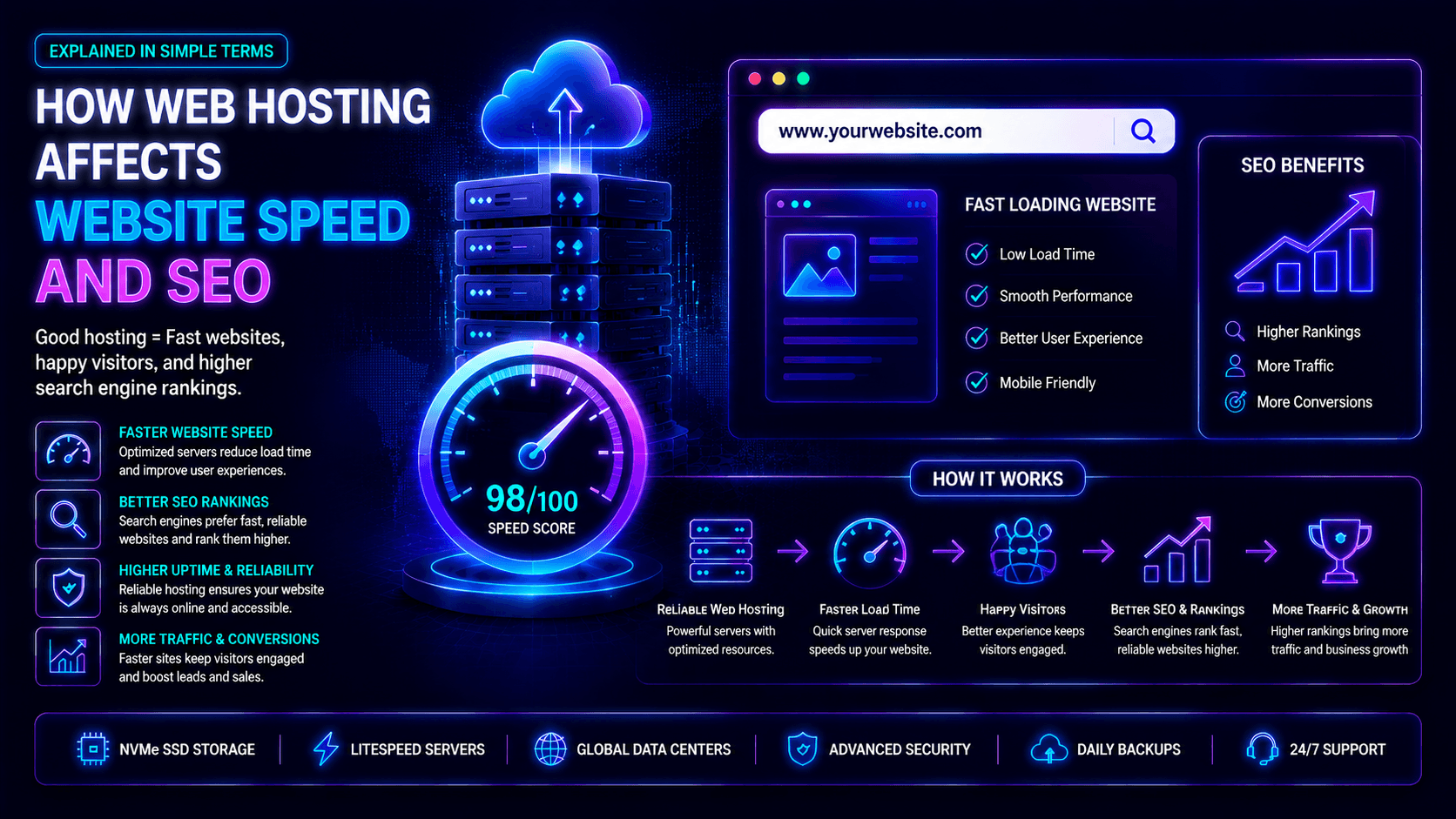
Web hosting changes your speed through several factors. Server performance. Server location. Shared resources. Uptime. Caching. CDN integration. Bandwidth capacity. Good hosting delivers content fast. It handles traffic well. That improves user experience and SEO.
Server Performance (CPU, RAM, and SSD Storage)
Your hosting provider’s hardware directly affects speed. Think of your server as a computer just for your website. Like your personal computer, its speed depends on its parts.
CPU handles all the calculations your server does. More cores and faster clock speeds mean your server can process more requests at once. When many people visit your site at the same time, your CPU builds pages, runs database searches, and runs scripts. A slow CPU creates a bottleneck. It slows down every visitor.
RAM holds temporary data your server needs quickly. Website files, database searches, and active apps all live in RAM. Not enough RAM? Your server uses slower storage as a backup. This “swap memory” slows your site a lot. Enough RAM stops this problem.
Storage type is critical. SSD storage runs 5 to 10 times faster than old HDD storage. SSDs have no moving parts. They find data almost instantly. Many premium hosts now use NVMe SSDs. These connect directly to the system bus. They are 5 to 10 times faster than standard SSDs. If your host still uses HDDs, your site will be slow. No other fix will help. NVMe is the standard for fast hosting in 2026.
Server Location (Data Center Proximity)
Data moves at light speed. But distance still matters.
A server in Toronto sends files to a visitor in Saskatoon in about 20 to 30 milliseconds. A server in Tokyo sends files to that same visitor in 150 to 200 milliseconds. Every millisecond adds up. Your site needs multiple files. HTML, CSS, JavaScript, images. Each one takes time.
Pick a host with data centers in or near Canada. Many top hosts offer Canadian locations. SiteGround has Toronto and Montreal. Cloudways offers Toronto through DigitalOcean. Hostinger has Toronto. The closer your server is to your audience, the faster your site loads. For Canadian businesses serving Canadian customers, a Canadian data center is a must.
Shared Resources (Overcrowded Shared Hosting)
Shared hosting puts your site on one server with dozens or even hundreds of other sites. Everyone shares the same CPU, RAM, and storage space. This keeps costs low. But it comes with big risks.
The “noisy neighbor” problem: Another site on your server gets a traffic spike. A viral post. A good ad campaign. Just normal growth. That site eats server resources. Your site slows down. You cannot control this.
Traffic spikes and slow performance: Even your own well-built site cannot get steady speed on shared hosting. Peak hours hit. Evenings, weekends, holidays. Server load goes up. Every site on that server slows down together.
VPS, cloud, and dedicated hosting fix the noisy neighbor problem. They give you dedicated resources. Other users cannot touch them.
Uptime and Reliability
Uptime is the percent of time your website is available and working. Your site goes down? Speed becomes zero. No one can reach it. Google cannot crawl it. Sales stop.
Why uptime matters for SEO and user trust: Google’s crawlers visit your site now and then. They find downtime. They cannot index new content. Downtime keeps happening? Your rankings may drop. Users who find your site down may never come back. They think your business is unreliable. They go to a competitor.
What uptime to expect: Industry standard is 99.9 percent uptime. That allows about 8.76 hours of downtime per year. Premium hosts promise 99.95 percent. That is 4.38 hours per year. Or 99.99 percent. That is 52 minutes per year. Big enterprise hosts may promise 99.999 percent. That is only 5 minutes per year.
Check a host’s uptime promise before you buy. Look at their service level agreement. Do not trust marketing claims alone. Check independent monitoring services.
CDN Integration (Global Speed)
A CDN is a network of servers spread around the world. Each server holds copies of your static files. Images, CSS, JavaScript. The CDN updates these copies when your site changes.
How a CDN speeds up your site: Someone visits your site. The CDN sends static files from the server closest to them. A visitor in Vancouver gets files from Seattle or Vancouver. A visitor in London gets files from London. This cuts load times for faraway visitors a lot. Even for local visitors, a CDN takes work off your main server. That server can focus on dynamic content instead.
What a CDN does for speed: It cuts delay by shortening distances. It lowers server load because static files come from the CDN, not your main server. It handles traffic spikes because CDNs are built for big delivery. It improves Time to First Byte.
Many hosting plans include a free CDN. Cloudflare is common. Turn it on. Your visitors will notice the difference.
Caching Technology (Server-Side Caching)
Caching saves copies of your pages. The server does not have to build them from scratch for every visitor.
Without caching, each request runs a database search, PHP code, and dynamic page building. With caching, the server sends a pre-built HTML file. Milliseconds instead of hundreds of milliseconds.
Server-side caching benefits: It cuts server processing time a lot. It lets your server handle more visitors at once. It improves Time to First Byte. It lowers database load. Good server caching is faster than plugin-based caching. It happens at the server level, before your website code even runs.
What to look for in a host: LiteSpeed web servers have built-in LiteSpeed Cache. Nginx with FastCGI cache or Nginx Helper. Redis or Memcached for saving database searches. Varnish for full-page caching. Good caching can speed up your site 2 to 5 times. Many budget shared hosts have little or no server caching. You are stuck with slower plugin-based caching.
Bandwidth and Traffic Handling
Bandwidth is the amount of data your server can send to visitors each month. Every time someone views a page, they download your files. Each download uses bandwidth.
Handling high traffic without slowing down: Your server must have enough bandwidth for your busiest times. Your plan has 10 GB of monthly bandwidth. A popular post sends 50,000 visitors. Your server will likely block or slow down traffic. You get “resource limit reached” errors. The visitors who do get through see slow loading.
Scalability importance: Good hosting grows with your traffic. Cloud hosting is best for this. CPU, RAM, and bandwidth scale up on their own during busy times. VPS hosting lets you add more resources without moving to a new server. Shared hosting has fixed, small limits. Go over them? Your site slows down or crashes.
How Website Speed Impacts SEO
Website speed changes your SEO through several paths. Core Web Vitals. Crawl efficiency. Bounce rates. Mobile-first indexing. User engagement. Faster sites give people a better experience. That helps your search rankings, visibility, and conversions.
Google Uses Speed as a Ranking Factor
Google’s job is to organize information and make it useful. A slow page is not useful. Google’s system favors fast pages. Why? They give people a better experience.
Two pages have similar content and similar backlinks. The faster one ranks higher. This is not a guess. Google has confirmed it.
Core Web Vitals overview: These are specific, measurable metrics Google uses to judge page experience. They became ranking factors in 2021. They are still critical in 2026.
Largest Contentful Paint (LCP): This measures loading performance. It marks when the main content of a page has loaded. Hero image. Video. Large text block. Google says LCP should happen within 2.5 seconds. LCP is directly affected by server response time. That is Time to First Byte. And that is directly affected by your web hosting quality.
First Input Delay (FID): First Input Delay (FID) and Interaction to Next Paint (INP) measure interactivity. FID measures the delay between a user’s first action and the browser’s response. Clicking a link. Tapping a button. INP is newer. It measures overall responsiveness during the whole page life. Slow servers increase processing delays. That makes these metrics worse.
Cumulative Layout Shift (CLS): Cumulative Layout Shift (CLS) measures visual stability. Does page content jump around as it loads? This is less directly hosting-dependent than LCP or INP. But slow loading can make layout shift worse. Elements load out of order. Images pop in late.
Page Experience signals: Core Web Vitals are part of Google’s larger Page Experience ranking signals. They also include mobile-friendliness, HTTPS security, intrusive ad rules, and safe browsing protection. Your hosting affects Core Web Vitals directly. Core Web Vitals affect your page experience score.
Better Crawl Efficiency
Google’s crawlers visit your site now and then. They look for new or updated content. They have a “crawl budget.” That is the number of pages Google will check on your site in a given time.
How speed affects crawling: Your server is slow. Googlebot waits longer for each page to load. The crawler spends its limited budget on fewer pages. New content gets found and indexed more slowly. Your server times out? Googlebot may stop crawling completely for that session. Important pages could stay undiscovered for days or weeks.
How good hosting improves crawling: Fast server response lets Googlebot crawl more pages per session. New content appears in search results faster. Large sites with over 10,000 pages benefit the most. But all sites benefit from reliable, speedy access.
Lower Bounce Rates
Bounce rate is the percent of visitors who leave after seeing just one page. High bounce rates tell Google your page did not satisfy the user. Low bounce rates tell Google users found what they wanted and stayed.
The speed-bounce rate connection: A one-second delay raises mobile bounce rates by 32 percent. A three-second delay makes over 50 percent of mobile visitors leave completely.
Visitors bounce. They do not click internal links. They do not view multiple pages. They do not spend time on your site. Google’s system sees high bounce rates as a bad sign. Your rankings may drop.
The positive cycle: Fast loading times lead to lower bounce rates. That leads to more engagement. That leads to better user signals. That leads to higher rankings. Your hosting affects the first step in this cycle.
Improved Mobile SEO
Over 60 percent of searches happen on phones. In 2019, Google switched to mobile-first indexing. That means Google mostly looks at the mobile version of your site for rankings. The desktop version matters less.
Why hosting matters for mobile SEO: Mobile phones often have slower processors than desktops. Less memory too. Cellular networks are slower and less reliable than home internet. A site that loads fine on desktop may be unusable on mobile if your hosting is slow. Slow mobile loading directly hurts your mobile-first indexing rankings.
The solution: Pick hosting with fast server response. Time to First Byte under 200 milliseconds. Make sure your mobile site is fully optimized. Compressed images. Minified code. Responsive design. Use a CDN and caching to speed up delivery. Check your Core Web Vitals for mobile devices separately.
Higher Conversion Rates (The SEO-Sales Connection)
SEO traffic is valuable because it is targeted. People searching for your keywords are actively interested in what you offer. But targeted traffic only turns into sales if your site loads fast enough for them to act.
The speed-conversion connection: A one-second delay cuts conversions by up to 7 percent. For an online store, that is direct revenue loss. But conversion rate is also an SEO signal. Google’s system cannot directly measure conversion rates. But it can measure user engagement signals that match up with conversions. Pages that convert well tend to have longer visits, lower bounce rates, and more pages per visit. All positive SEO signals.
SEO traffic performs better on fast websites: Your site is fast. Visitors are more likely to fill out forms. Make purchases. Come back again. These engaged users are more likely to link to your content. Share it on social media. Return for future visits. All of this builds your site’s authority and search rankings.
Signs Your Hosting Is Hurting SEO
Bad hosting shows clear signs. Slow page loads. Frequent downtime. High bounce rates. Weak Core Web Vitals scores. Crashes during traffic spikes. These problems hurt user experience. They also drop your search rankings.
Slow Loading Pages
Slow loading is the most obvious sign of bad hosting. But how slow is too slow? Google says Largest Contentful Paint should happen within 2.5 seconds. Industry data shows pages that take 5 seconds or more see huge bounce rate jumps. Often 90 percent or higher.
What to check: Use Google PageSpeed Insights. Use GTmetrix. Use WebPageTest. Measure your page load speed. Check your Time to First Byte. A TTFB consistently above 200 to 300 milliseconds on a well-built site suggests hosting problems. Run tests at different times of day. Speed varies a lot? Your shared hosting environment may be too crowded.
Frequent Downtime
Downtime means your website is completely unreachable. Even a few minutes can hurt your SEO. Google’s crawlers visit your site now and then. They find downtime. They cannot index new content. They may visit your site less often. Repeated downtime signals unreliability. Your rankings may drop.
What to check: Watch your uptime with free tools. UptimeRobot checks every 5 minutes. Pingdom is another option. Industry standard is 99.9 percent uptime. That allows about 8.76 hours of downtime per year. Your site has more downtime than that? Your hosting is not good enough. Also check your error logs. Look for server-related errors. 500 Internal Server Error. 503 Service Unavailable.
High Bounce Rate
Bounce rate is the percent of visitors who leave after seeing just one page. High bounce rates tell Google your page did not satisfy the user. Slow loading is a major cause of high bounce rates.
What to check: In Google Analytics, review your bounce rate by page. Compare fast-loading pages to slow-loading pages. Pages with slower server response consistently have higher bounce rates? Your hosting is to blame. Also check by device type. Mobile bounce rates are usually higher if hosting is poor. Mobile devices are more sensitive to delays.
Poor Core Web Vitals Scores
Core Web Vitals are specific, measurable metrics that Google uses to evaluate page experience: Largest Contentful Paint (LCP) measures loading performance (target under 2.5 seconds). Interaction to Next Paint (INP) measures interactivity (target under 200 milliseconds). Cumulative Layout Shift (CLS) measures visual stability (target under 0.1).
What to check: Use Google Search Console’s Core Web Vitals report. It shows which pages have “Poor” (failing), “Need Improvement” (borderline), and “Good” (passing) scores. Also use PageSpeed Insights for individual page analysis.
If your hosting is slow, your LCP will be poor regardless of other optimizations. Server response time (TTFB) directly affects LCP. If TTFB is high, LCP will be high. No amount of image optimization or code minification can fix a slow server.
Website Crashes During Traffic Spikes
A good marketing campaign brings more customers. A viral social post brings more visitors. Seasonal shopping brings more traffic. These should help your business. But your hosting crashes during traffic spikes? You lose those customers. Worse, you may lose SEO rankings.
What to check:Review your server logs and error logs after known traffic events. Email blasts. Ad campaigns. Holiday shopping. Look for “resource limit reached” errors. Database connection timeouts. 503 Service Unavailable errors. Your site crashes during moderate traffic spikes? Your hosting is not good enough.
How to Choose SEO-Friendly Web Hosting
Pick hosting with SSD or NVMe storage. Strong uptime promises. Server locations near your audience. Built-in caching. CDN and SSL support. Helpful customer service. Good customer reviews. These features improve speed, reliability, and SEO.
Look for SSD or NVMe Storage
Storage type changes how fast your server reads and sends files. Old HDDs use spinning magnetic plates with moving arms. SSDs use flash memory. No moving parts. NVMe drives connect directly to the system bus. They are even faster.
What to look for: Hosts that advertise “SSD hosting” or “NVMe storage.” Avoid hosts that still use HDDs. The speed difference is huge. NVMe SSDs run 5 to 10 times faster than standard SSDs. Your budget allows it? Pay the small extra cost for NVMe storage.
Choose Reliable Uptime Guarantees
Uptime is the percent of time your website is available. Google’s crawlers cannot index your site when it is down. Users cannot visit. Sales cannot happen.
What to look for: Industry standard is 99.9 percent uptime. That allows about 8.76 hours of downtime per year. Premium hosts promise 99.95 percent. That is 4.38 hours per year. Or 99.99 percent. That is 52 minutes per year.
Read the SLA. Do they offer service credits when they miss their promise? Check independent monitoring data. Many hosts claim 99.9 percent uptime but actually deliver less.
Check Server Locations
Data travels at light speed. But distance still matters. A server in Toronto sends files to a Saskatoon visitor faster than a server in Tokyo.
What to look for: Hosting providers with data centers in or near Canada. Top hosts with Canadian locations include SiteGround (Toronto, Montreal), Cloudways (Toronto on DigitalOcean), and Hostinger (Toronto). You serve international audiences? Choose a host with many global data center locations.
Prioritize Speed Optimization Features
Your hosting should include built-in performance tools. You should not have to set them up yourself.
What to look for:Server-side caching. LiteSpeed Cache, Nginx FastCGI Cache, Redis, or Varnish. HTTP/2 or HTTP/3 support. These are faster than old HTTP/1.1. PHP 8.x or newer. Older PHP versions are slower and less secure. Gzip or Brotli compression. This shrinks file sizes. Built-in CDN integration. Cloudflare is common.
Ensure Good Customer Support
Problems happen. You need help right away. Slow support means longer downtime. Lost rankings. Frustrated visitors.
What to look for: 24/7/365 support across many channels. Live chat, ticket, and phone. Test support before you buy. Send a pre-sales question at a strange hour. See how fast they reply. Check the quality of their answer. Look for hosts that focus on your platform. WordPress. WooCommerce. Whatever you use.
Look for Free CDN and SSL
A CDN stores copies of your static files on servers around the world. This speeds up delivery for faraway visitors. SSL encrypts data between your site and visitors. It is also a confirmed ranking factor.
What to look for: Free CDN integration. Cloudflare is the most common. Free SSL certificates. Let’s Encrypt is standard. Make sure SSL auto-renews. Expired certificates break your site. They also cause security warnings that scare visitors away.
Read Real Customer Reviews
Marketing websites show the good stuff. Customer reviews show the problems.
Where to look: Trustpilot. G2. Reddit (r/webhosting). Facebook groups. YouTube reviews. Look for recent reviews from the last 3 to 6 months. Look for patterns. Consistent mentions of uptime, speed, and support quality.
What to look for: Specific mentions of speed improvements after switching to the host. Positive support experiences during outages. Consistent uptime over months or years.
Red flags: Many complaints about slow loading. Frequent downtime. Unresponsive support. Hidden fees. Avoid hosts with consistently bad reviews.
Best Hosting Types for Different Websites
| Website Type | Recommended Hosting | Why It Works | Estimated Monthly Cost |
| Small Blog | Shared Hosting | Affordable, easy to manage, sufficient for low traffic | $3-15 |
| Business Website | VPS or Cloud Hosting | Consistent performance, dedicated resources, scalable | $20-100 |
| Ecommerce Store | Managed or Cloud Hosting | PCI compliance, fast checkout, handles traffic spikes | $15-100+ |
| High-Traffic Site | Dedicated Server | Maximum resources, no resource contention, full control | $100-500+ |
Extra Tips to Improve Website Speed
Make your site faster by shrinking images. Turn on caching. Shrink CSS and JavaScript files. Remove plugins you do not need. Pick a lightweight theme. These fixes cut load times. They improve user experience. And they work alongside fast hosting.
Optimize Images
Images are often the biggest files on a page. One uncompressed photo can be 5 to 10 MB. The same photo properly compressed can be 200 to 500 KB. That is 95 percent smaller.
How to optimize:Compress images before you upload them. Use TinyPNG, Squoosh, or ImageOptim. Pick the right format. JPEG for photos. PNG for graphics with clear backgrounds. WebP for everything else. WebP is 25 to 35 percent smaller than JPEG.
Resize images to the size they will be shown at. Do not upload a 4000 pixel wide image to display at 800 pixels. Use lazy loading. Images load only when the user scrolls down to see them.
Tools: ShortPixel, Imagify, or Smush for WordPress. For command line users, try jpegoptim, optipng, or cwebp for WebP conversion.
Use Caching Plugins
Caching saves copies of your pages. The server does not have to build each page from scratch for every visitor. A good caching plugin can speed up your site 2 to 5 times.
WordPress caching plugins: WP Rocket is premium and easiest. W3 Total Cache is free, complex, and very powerful. LiteSpeed Cache works best if your host uses LiteSpeed servers. WP Super Cache is free and simpler than W3TC.
Server-side caching is better. Plugin-based caching helps. But server-level caching built into your hosting is faster. Pick a host with LiteSpeed, Nginx FastCGI cache, or Redis support.
Minify CSS and JavaScript
Minification removes unnecessary characters from code. Spaces, line breaks, comments, unused code. It changes nothing else. Smaller files load faster.
What to minify: CSS stylesheets. JavaScript files. HTML output.
How to minify:
Use plugin tools. Autoptimize for WordPress. WP Rocket includes minification. W3 Total Cache includes it too. For custom sites, use build tools like Webpack, Gulp, or Grunt. For manual work, try online tools like CSS Minifier or JSCompress.
Test everything after minifying. Minification can break features if done wrong. Check your site fully after turning it on. Exclude problem files if needed.
Reduce Unnecessary Plugins
Every plugin adds code that runs on your site. More code means more processing. More database searches. Slower page loads.
How plugins affect speed: Each plugin loads its own CSS and JavaScript files. Each extra file adds more HTTP requests. Badly coded plugins run slow database searches. Some plugins load on every page, even when not needed. That wastes resources.
How to audit your plugins: Turn off and delete plugins you are not using. Replace many plugins with one that does all the same jobs. For WordPress, use the Query Monitor plugin. It shows database searches and loaded scripts. Load the same page with plugins on and then off. Measure the difference.
Use Lightweight Themes
Your theme controls how your site looks. Some themes are lightweight and fast. Others are bloated. They pack in sliders, animations, and custom scripts that slow everything down.
What to look for in a theme: Minimal code. Clean, well-built themes with fewer features load faster. No bundled page builders. Elementor, Divi, and Beaver Builder add major bloat. Regular updates. Good support.
Fast theme recommendations: GeneratePress is lightweight and very customizable. Kadence focuses on performance. Astra is popular and fast. Blocksy is modern and fast. Avoid multipurpose themes with dozens of demo layouts and built-in page builders. They are famously bloated.
Common Hosting Mistakes to Avoid
Do not pick hosting only by price. Do not ignore uptime reliability. Do not wait too long to upgrade as traffic grows. Do not use servers far from your audience. These mistakes slow your site. They hurt your SEO. They ruin user experience.
Choosing Hosting Only Based on Price
The cheapest plan looks good. But low price almost always means trade-offs. Overcrowded servers. Your site slows when neighbors get traffic. Strict resource limits. Your site may get slowed down or even turned off. Slow support replies. Ticket-only help with 24 to 48 hour wait times. Essential features as paid add-ons. Backups, CDN, malware scans all cost extra.
Add up the total cost. Include the necessary add-ons. Compare value, not just price. A 10to15 monthly plan with free backups, CDN, and 24/7 live chat is often better value than a $3 plan with no backups and slow ticket support.
Ignoring Uptime History
A host’s uptime promise is just marketing. Real uptime history tells the truth. Many budget hosts claim 99.9 percent uptime. But they actually deliver less. Especially during busy hours.
Before you buy, check independent monitoring data. Third-party services like UptimeRobot Status Page show real results. Read recent customer reviews. Look for mentions of uptime.
Watch for patterns. Consistent downtime at certain hours. Evenings or weekends. Downtime during traffic spikes. Or no uptime data published at all.
Not Upgrading as Traffic Grows
Shared hosting works fine for new sites. But traffic grows. Shared hosting limits become problems. The same hosting that worked at 1,000 monthly visitors will cause slow loading, timeout errors, and crashes at 10,000 or more monthly visitors.
Watch your hosting numbers. CPU usage consistently above 70 or 80 percent. RAM usage above 80 percent. Frequent “resource limit” errors. Page load times getting longer over time.
When you see these signs, upgrade to VPS or cloud hosting. Do it before your site crashes. Not after.
Using Servers Far from Visitors
Server location directly changes page load time. A server in Tokyo sends files to a visitor in Saskatoon. Each round trip takes 150 to 200 milliseconds. A server in Toronto? 20 to 30 milliseconds. That difference adds up for every request. HTML, CSS, JavaScript, images, fonts. Every single one.
Before picking a host, ask where their data centers are. Your audience is mostly Canadian? Prefer Canadian locations. Toronto, Montreal, Vancouver. You serve people around the world? Pick a host with many global data center locations. Or use a CDN.
Conclusion
Your web hosting changes everything. Website speed. SEO rankings. User experience. Sales numbers.
Fast hosting improves your Core Web Vitals. It keeps your site online. It helps Google crawl your pages. It speeds up loading times. The result? Higher rankings. Visitors who stick around.
Good hosting uses SSD or NVMe storage. It includes CDN integration and caching. It promises strong uptime. This prevents slowdowns and crashes when traffic spikes. Better performance means lower bounce rates. Higher conversions. Stronger search visibility.
Test your current host today. Use Google PageSpeed Insights or GTmetrix. Your host delivers poor speed or bad uptime? Upgrade to a faster, SEO-friendly provider. That one change can lift your rankings, traffic, and overall website performance. Significantly.
Frequently Asked Questions
1. How much does web hosting affect my website speed?
A lot. Your hosting decides how fast your server responds to requests. A slow server adds seconds to every page load. No amount of image shrinking or code cleanup can fix a bad host. Good hosting makes every other speed fix work better.
2. Can I just use a CDN instead of good hosting?
No. A CDN helps deliver static files faster. But your main server still handles dynamic content. Database searches. User logins. Checkout processes. A slow host with a CDN is still slow. You need both. Good hosting as your foundation. A CDN as an extra layer.
3. What is a good Time to First Byte (TTFB) score?
Under 200 milliseconds is excellent. Under 300 milliseconds is acceptable. Above 500 milliseconds is slow. Above 1 second is a problem. TTFB measures how fast your server responds to a request. It is a direct test of your hosting quality.
4. Will upgrading my hosting improve my Google rankings?
Yes. Faster hosting improves your Core Web Vitals. Google uses those as ranking factors. Faster hosting also lowers your bounce rate. That sends positive signals to Google. Many site owners see ranking improvements after switching from slow shared hosting to faster VPS or cloud hosting.
5. How often should I test my website speed?
At least once per month. More often if you make changes. Add new plugins? Change your theme? Run new ads that bring traffic? Test again. Use Google PageSpeed Insights. Use GTmetrix. Track your scores over time. Watch for sudden drops that signal hosting problems.
6. What is the best hosting type for SEO?
Managed WordPress hosting or cloud hosting. Both offer fast server response. Built-in caching. CDN integration. Strong uptime. Shared hosting works for new sites. But upgrade before your traffic grows. Do not wait until your site crashes.
7. Can my host cause high bounce rates?
Absolutely. A slow host makes your pages load in 3, 4, or 5 seconds. Visitors leave. They do not wait. A one-second delay raises mobile bounce rates by 32 percent. A three-second delay loses over half your mobile visitors. Your host directly controls that speed.
8. How do I know if my hosting is hurting my SEO?
Check three things. First, your Core Web Vitals in Google Search Console. Second, your uptime history. Third, your page load times during peak hours. All three are poor? Your hosting is the problem. Switch to a faster provider.
9. Is expensive hosting always better for SEO?
Not always. But very cheap hosting almost always hurts your speed. Overcrowded servers. Old hardware. No caching. Poor support. The best value is mid-range hosting. 20to50 per month. That gets you SSD storage, server-side caching, CDN, and good uptime.
10. Should I move my hosting if my site is slow?
First, test to confirm the problem. Use PageSpeed Insights. Check your TTFB. Run tests at different times of day. TTFB stays high no matter what? Your hosting is the bottleneck. Move to a faster provider. Many hosts offer free migration. Take advantage of that.

Leave a Comment