
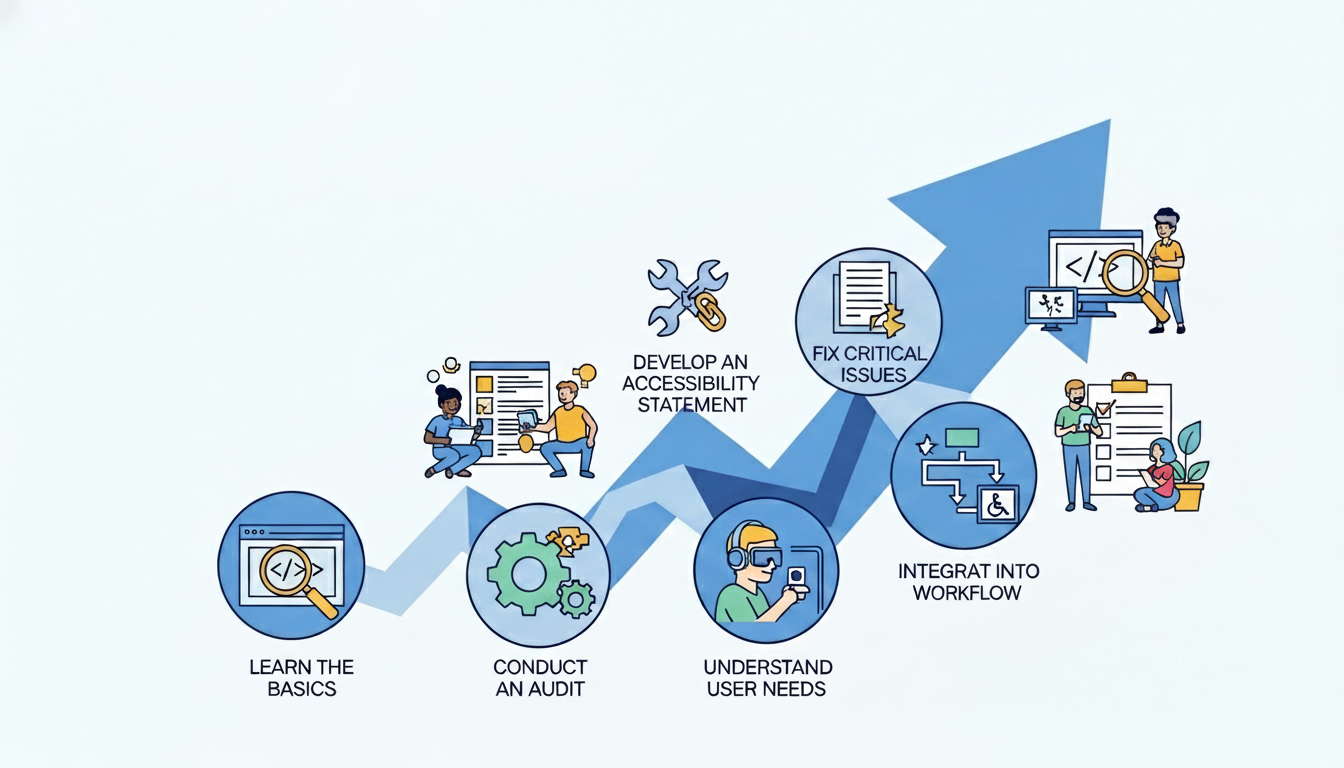
Web accessibility is the practice of designing and building websites that everyone can use, including the over one billion people worldwide—15% of the global population—who live with disabilities. This means creating digital experiences that work for users with visual, auditory, motor, or cognitive impairments through features like keyboard navigation, screen reader compatibility, and proper color contrast. Beyond being an ethical responsibility, accessibility makes good business sense: it expands your potential audience, improves your search engine rankings, helps you avoid legal complications, and typically results in better usability for all visitors. Whether you’re a designer crafting layouts, a developer writing code, or a business owner managing your online presence, this simple checklist will help you take the first steps toward making your website more inclusive and effective for everyone.
What Is Web Accessibility?
Web accessibility means designing websites that everyone can use, including people with disabilities. It ensures that all users can perceive, understand, navigate, and interact with your content, regardless of their abilities.
Simple definition: Web accessibility removes barriers that prevent people with disabilities from accessing information online. Think of it as making the digital world as inclusive as a building with ramps and elevators.
Types of disabilities to consider:
- Visual: Blindness, low vision, color blindness. These users may rely on screen readers or need high contrast and zoomable text.
- Hearing: Deafness or hard of hearing. They need captions for videos and transcripts for audio content.
- Motor: Difficulty using a mouse due to paralysis, tremors, or limited fine motor control. They may rely on keyboard-only navigation or voice control.
- Cognitive: Learning disabilities, distractibility, or memory issues. These users benefit from clear layouts, simple language, and consistent navigation.
Brief mention of accessibility standards (WCAG overview):The Web Content Accessibility Guidelines (WCAG) is the global standard. It organizes requirements under four principles: Perceivable, Operable, Understandable, and Robust (POUR). Following WCAG helps you meet legal requirements and serve all users equally.
3. Why Accessibility Is Important for Your Website
Web accessibility isn’t optional—it’s essential for modern websites. Here’s why you should prioritize it:
Better user experience for everyone: Accessibility features like clear navigation, readable fonts, and logical structure benefit all users, not just those with disabilities. When your site is accessible, everyone finds it easier to use.
Legal compliance and risk reduction: Many countries have laws requiring web accessibility. The Americans with Disabilities Act (ADA) and similar regulations mean inaccessible websites can face lawsuits and penalties. Following standards protects you legally.
SEO benefits: Search engines love accessible websites. Proper heading structure, image alt text, and descriptive links help search engines understand your content better, improving your rankings.
Brand reputation and trust: Showing that you care about all users builds a positive brand image. People appreciate inclusive businesses and share their positive experiences with others.
Wider audience reach: An estimated 15% of the global population lives with some form of disability. Making your site accessible opens your business to millions of potential customers you might otherwise exclude.
4. Web Accessibility Quick-Start Checklist
Ready to make your website more accessible? Here’s a simple checklist to get started. Implement these items one by one, and you’ll immediately improve the experience for all users.
✅ 1. Use Proper Heading Structure
Headings are the backbone of your webpage’s organization. They guide users through your content and help everyone—especially screen reader users—navigate easily.
One H1 per page: Your H1 is the main title of your page, like a book’s title. Use only one H1 per page to clearly communicate what the page is about. This helps both users and search engines understand your content’s main topic.
Logical H2–H3 hierarchy: Think of headings as an outline. Use H2 for main sections, H3 for subsections under H2, and so on. Never skip heading levels—going from H1 to H3 confuses screen readers. A proper hierarchy looks like:
- H1: Page Title
- H2: Main Section
- H3: Subsection
- H3: Another Subsection
- H2: Next Main Section
- H2: Main Section
Helps screen readers and SEO: Screen reader users can jump between headings to scan content quickly, like sighted users scanning visually. Search engines also use heading structure to understand your content’s hierarchy and relevance. Proper headings mean better accessibility and better SEO—a win-win!
✅ 2. Add Alt Text to Images
Alt text (alternative text) describes images for people who cannot see them. Screen readers read this text aloud, making visual content accessible to blind and low-vision users.
Describe the purpose of images: Write concise, meaningful descriptions that convey the image’s purpose. For a product, include brand and key details—”blue cotton t-shirt with round neck.” For charts, summarize the key data shown. Think: what would you tell someone over the phone?
Avoid keyword stuffing: Alt text is for accessibility, not SEO. Don’t cram keywords like “buy cheap shoes online.” This frustrates screen reader users and can hurt your SEO. Keep descriptions natural and helpful—usually under 125 characters.
Decorative images should be marked properly: If an image is purely decorative (like a decorative border or stock photo with no meaning), use empty alt text (alt=””) so screen readers skip it. Otherwise, users waste time hearing “image” with no useful information.
✅ 3. Ensure Good Color Contrast
Good color contrast makes your text readable for everyone, especially users with low vision or color blindness. When contrast is too low, content becomes invisible.
Text readable against background: Text must stand out clearly from its background. Dark text on light backgrounds or light text on dark backgrounds work best. WCAG guidelines require a contrast ratio of at least 4.5:1 for normal text and 3:1 for large text.
Avoid light gray text on white: This common design mistake makes content nearly impossible to read. Light grays, yellows, and pastels on white create insufficient contrast. If you struggle to read it, so will your users.
Use contrast checking tools: Free tools can check your contrast instantly:
- WebAIM Contrast Checker
- Chrome DevTools
- Color Contrast Analyzer extensions
Simply enter your colors—the tool tells you if they meet WCAG standards. Aim for AA rating at minimum. Good contrast means better readability for everyone.
✅ 4. Make Your Website Keyboard-Friendly
Many users cannot use a mouse—they rely on keyboards to navigate websites. Making your site keyboard-friendly ensures everyone can access your content.
Users should navigate without a mouse: Test your site by unplugging your mouse. Can you reach all links, buttons, and forms using only the Tab key? Every interactive element must be keyboard-accessible. If you can’t reach something, neither can keyboard users.
Clear focus indicators: When users tab through your site, they need to see where they are. Browsers show a default outline (usually a blue ring) around the focused element. Never remove this outline completely—it’s essential for keyboard users. Make sure the focus indicator is clearly visible.
Logical tab order: The tab order should follow the visual layout—top to bottom, left to right. Users should move through content naturally without jumping unexpectedly. Test this by tabbing through your entire site. If the focus jumps randomly, fix the HTML structure.
Quick tip: Interactive elements like links, buttons, and form fields should be focusable. Non-interactive elements should not trap keyboard users.
✅ 5. Use Clear, Simple Language
Clear language makes your content accessible to everyone—including people with cognitive disabilities, non-native speakers, and busy readers. Simple writing benefits all users.
Short sentences: Break long, complex sentences into shorter ones. Aim for 15-20 words per sentence maximum. One idea per sentence works best. Short sentences are easier to read and understand.
Plain English: Use everyday words instead of fancy alternatives. Say “use” not “utilize,” “help” not “facilitate,” “show” not “demonstrate.” Write like you’re explaining something to a friend. This makes content accessible to more people.
Avoid jargon: Industry terms and technical acronyms exclude readers who aren’t experts. If you must use specialized terms, explain them simply. Ask yourself: “Would my grandmother understand this?” If not, simplify it.
Quick tip: Read your content aloud. If it sounds unnatural, rewrite it. Clear language isn’t just accessible—it’s more persuasive too.
✅ 6. Label All Forms Properly
Forms are essential for user interaction. Poorly labeled forms create barriers for everyone, especially screen reader users.
Every input must have a label: Each form field needs a clear, visible label describing what information to enter. Use the HTML <label> element. Placeholder text alone is not enough—it disappears when users start typing.
Clear error messages: When users make mistakes, tell them clearly what went wrong and how to fix it. Don’t just say “Error.” Specify “Please enter a valid email address.” Highlight the problematic field.
Required fields clearly marked: Indicate which fields are required before submission. Use an asterisk (*) with explanatory text like “Required fields are marked with *” at the top. Don’t rely on color alone—not everyone sees color differences.
Quick tip: Test forms with keyboard only. Can you reach all fields? Does tab order make sense?
✅ 7. Add Captions to Videos
Video content is popular, but without captions, you exclude deaf and hard-of-hearing users. Captions also help people in noisy environments or those learning your language.
Closed captions for spoken content: Provide synchronized captions for all spoken dialogue and important sounds. Closed captions let users turn them on or off. YouTube and Vimeo offer automatic caption generation—but always review and edit for accuracy.
Transcripts when possible: A full written transcript provides even more accessibility. Transcripts help deaf users, but also benefit those who prefer reading, need to search content, or want to quote your video. Place transcripts near the video or link to them clearly.
Quick tip: Don’t forget to caption live videos too. Services like StreamText offer real-time captioning. Good captions mean your message reaches everyone, regardless of hearing ability.
✅ 8. Make Links Descriptive
Links are how users navigate your content. Descriptive links help everyone—especially screen reader users—understand where a link will take them.
Avoid “Click here”: This tells users nothing about the destination. Screen reader users often tab through links to scan content quickly. Hearing “click here, click here” is frustrating and unhelpful.
Use meaningful link text: Write links that make sense out of context. Instead of “Click here to read our guide,” use “Read our complete accessibility guide.” Instead of “Learn more,” use “Learn more about web accessibility.”
Quick tip: Imagine reading only the links on your page. Would you know where each one goes? If not, rewrite them. Good link text improves navigation for everyone and helps search engines too.
5. Common Accessibility Mistakes to Avoid
Even well-intentioned websites make these common accessibility errors. Avoid them to ensure your site works for everyone.
Missing alt text: Images without alt text leave screen reader users confused. Every meaningful image needs descriptive alt text. Decorative images should have empty alt attributes (alt=””).
Poor contrast: Light gray text on white or yellow on light backgrounds is unreadable for many users. Always check contrast ratios—aim for at least 4.5:1 for normal text.
Auto-playing media: Videos or music that start automatically can be disorienting, especially for screen reader users. Always let users control when the media plays. Provide pause buttons.
Using color alone to convey meaning: Don’t rely only on color to show errors, required fields, or status. Add icons, labels, or patterns so color-blind users understand too.
6. Tools to Test Your Website Accessibility
Testing your website for accessibility is easier with the right tools. Here are simple options to get started:
Browser accessibility checker extensions: Install extensions like Axe or Siteimprove in your browser. They scan pages instantly and highlight issues with clear explanations and fix suggestions.
Lighthouse (Chrome DevTools): Built into Chrome, Lighthouse generates accessibility reports with scores and specific improvement recommendations. Find it under “More Tools” in Developer Tools.
WAVE tool: This popular free tool from WebAIM shows accessibility errors visually on your page with icons. Just enter your URL and see problem areas highlighted.
Manual keyboard testing: Unplug your mouse and navigate using only Tab, Enter, and arrow keys. Can you reach everything? Is focus visible? This simple test reveals many issues instantly.
7. How to Make Accessibility Part of Your Workflow
Accessibility isn’t a one-time fix—it needs to be part of your regular process. Here’s how to make it stick:
Include accessibility in the design phase: Don’t wait until development to think about accessibility. Design with contrast, readable fonts, and clear layouts from the start. Involve accessibility in wireframes and mockups.
Accessibility checklist before launch: Before any site goes live, run through a simple accessibility checklist. Test keyboard navigation, check alt text, verify contrast, and run automated tools. Make it a standard launch requirement.
Regular audits: Schedule quarterly or bi-annual accessibility audits. Websites change constantly—new content, updates, features. Regular checks catch issues before they pile up.
Team training: Train your designers, developers, and content creators on accessibility basics. When everyone understands why it matters, they’ll build it into their daily work naturally.
8. Conclusion
Web accessibility isn’t optional—it’s essential for building an inclusive internet. When sites exclude users with disabilities, they create real barriers to participation. The good news? Small changes make a significant impact. Simple fixes like adding alt text, ensuring color contrast, or enabling keyboard navigation can transform someone’s experience. Start with the basics from this checklist, then build from there. Listen to feedback, test regularly, and keep improving. Accessibility is a continuous journey, not a one-time task. Every step forward creates a more equitable digital world where everyone can participate fully. Begin today—your users will thank you.
9. Call to Action
Need help making your website accessible? You don’t have to figure it out alone. Our team specializes in creating inclusive digital experiences that work for everyone. Contact us today to schedule a comprehensive accessibility audit—we’ll identify barriers and provide clear, actionable solutions tailored to your site. Whether you’re just starting out or ready to take your efforts to the next level, we’re here to support you. Book your free consultation now and take the first step toward a website that truly welcomes all users. Let’s build a more accessible web together.

Leave a Comment