
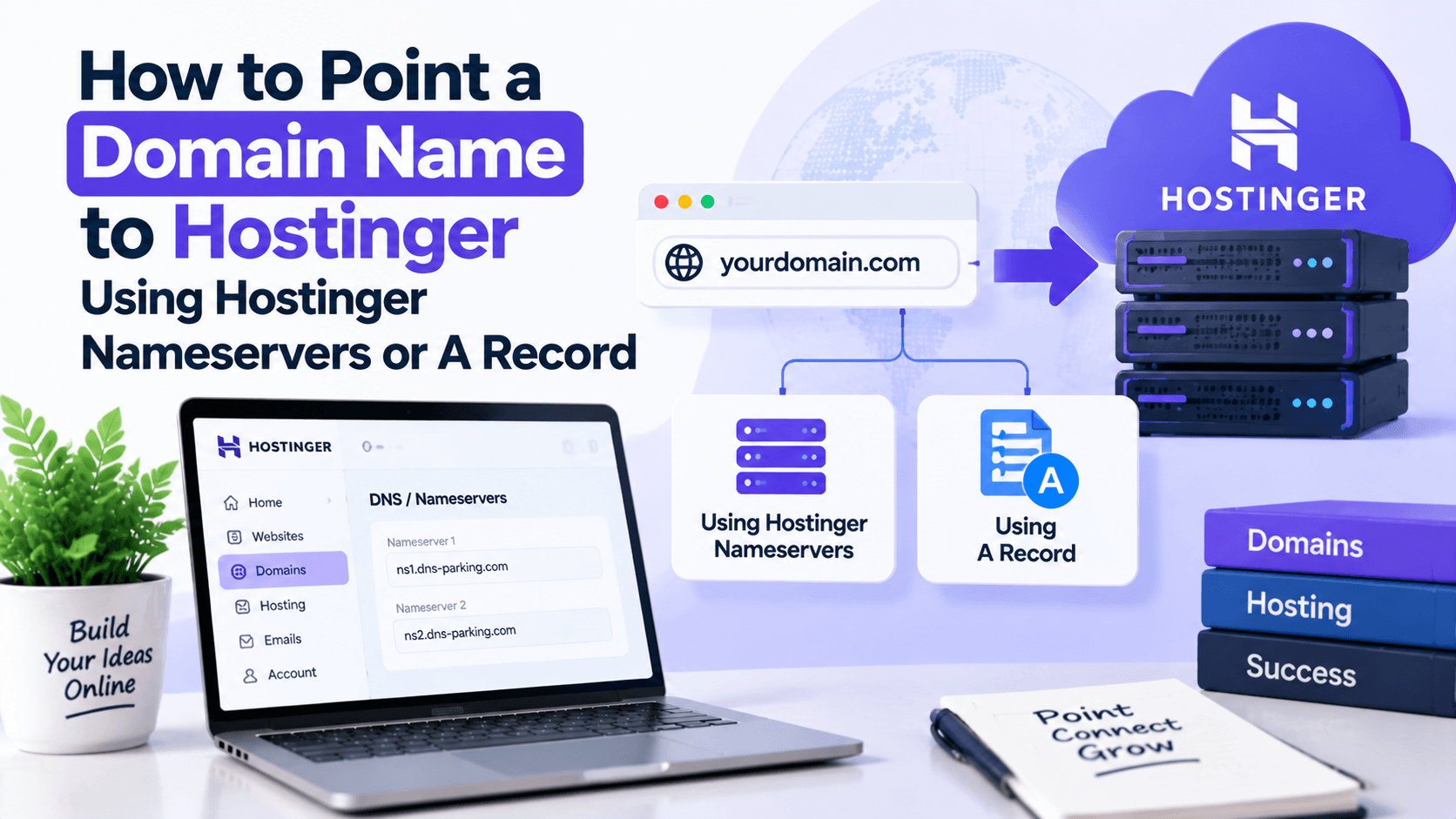

Planning to host a website with Hostinger? Knowing How to Point a Domain Name to Hostinger is key to ensuring a smooth setup.
This guide explains how to transfer a domain without downtime. Follow these simple, step-by-step instructions to direct a domain to Hostinger quickly and easily.
There are two main methods to point to a domain. Use Hostinger nameservers or update A records. Both options ensure fast integration with Hostinger’s hosting services. This helps avoid downtime and keeps the website running smoothly for visitors.
Whether setting up for the first time or optimizing an existing connection, this guide covers everything needed. From basic steps to advanced tips, learn how to manage a domain efficiently.
Let’s get started and learn how to point a domain to Hostinger without any issues.
What Does Domain Pointing Mean?
Domain pointing connects a domain name to the web server where a website’s files are stored. This process ensures visitors can access a website using the correct domain name. It’s an important step for linking a domain to web hosting or other services.
When pointing to a domain, it directs the domain to the server’s IP address. This allows it to work with hosting providers, website builders, or email platforms. It makes websites live and accessible to users online.
This setup also helps businesses manage multiple providers. It improves performance and offers flexibility. Whether hosting a site or setting up email, domain pointing is essential for creating a strong online presence.
How to Point Your Domain to Hostinger – Video Tutorial
Learn how to point a domain name to a new host with Hostinger Academy’s video. This guide is for anyone with a domain from any registrar. Follow step-by-step instructions.
How to Point a Domain Name to Hostinger Nameservers
Finding Hostinger’s nameservers on hPanel is easy. They are:
- ns1.dns-parking.com
- ns2.dns-parking.com
Pro Tip: Add the domain to a hosting plan before pointing it elsewhere. This ensures an active DNS zone.
Use these nameservers to point your domain to Hostinger. Here are two methods:
- Change the nameservers at your domain registrar: This is best. Your DNS zone automatically configures to match the hosting’s IP address. It also transfers domain settings control to Hostinger’s hPanel for easy management.
- Point the domain via an A record: Change the IP address linked to the DNS records. This keeps domain control with the registrar. Use this method if the IP address is static. Remember to create and check a new A record for each subdomain.
Changing Domain Nameservers (Recommended Method)
Switching your domain nameservers is easy with most registrars. Here’s a step-by-step guide to point your domain to Hostinger.
- Find Hostinger’s Nameservers: Go to Hostinger’s hPanel. Open the DNS Zone Editor and look for “ns” to get the nameservers. They keep your domain stable. If one fails, the other takes over.
- Locate IP Address: Each nameserver has an IP address. Check the Details section in hPanel. Some registrars might ask for this.
- Log into the Registrar Control Panel: If you forget your registrar, use a WHOIS lookup to find it.
- Find DNS Zone Editor: Look for options like “DNS Editor,” “Manage DNS Settings,” or “Change Nameservers.”
- Update Nameservers: Remove the old nameservers and enter Hostinger’s. Save your changes.
- Propagation Time: DNS updates can take up to 24 hours globally. You can also update nameservers in the dedicated section.
These steps help change nameservers with ease. Improve your hosting experience with Hostinger.
Pointing a Domain Name via A Record
If you prefer to manage your DNS zone with the original registrar, choose the A record option. It’s a straightforward way to control your domain settings.
Many find this method useful for keeping everything in one place. By choosing the A record, you maintain full oversight of your DNS without switching providers.
Step 1: Update A Records
A Records connect your domain name to its IP address. To point your domain to Hostinger, replace the old IP address with Hostinger’s nameservers. Usually, create two A Records: one for the root domain and one for the “www” subdomain.
Example: For domain.tld, if the IP is 185.185.185.185, you need to set A Records like this:
- Name/Host: This is the domain or subdomain. Some registrars use “@” for the main domain.
- TTL: Stands for time-to-live. It shows how long a server keeps DNS info. Default is 14,400 seconds.
- Type: The kind of DNS record.
- Record/Address: The IPv4 address you are pointing to.
Don’t worry if your registrar’s view is different—just enter details similar to the example above. This ensures your domain points correctly.
Step 2: Update MX Record for Email (Optional)
The MX record is crucial for directing emails to the right mail servers. If you want emails sent to your domain to go to Hostinger servers, you’ll need to update your domain’s MX records.
You can find the necessary MX records in Hostinger’s DNS Zone Editor. Note down the mail server address and follow these steps to make the change:
- Name: Use the “@” symbol to represent your domain name.
- Priority: This sets the order of servers. A lower number means higher priority. Stick with a priority of “5” or “10”.
- Type: Choose “MX” for the record type.
- Address/Points to: This is where you direct emails. Hostinger’s default MX records are available in the DNS Zone Editor.
By updating these MX records, ensure emails land in the right place, providing smooth communication for your domain.
Step 3: Update Your AAAA Record (Optional)
Updating your domain’s AAAA record links its IPv6 address, unlike the A record that connects the IPv4 address. If you want to use both AAAA and A records for your domain, follow these steps.
Don’t worry if you only have an A record; your hosting will still function perfectly.
At Hostinger, locate AAAA records in the DNS Zone Editor. Fill in the fields as shown. Here’s what they mean:
- Name/Host: Enter the domain or subdomain to point. Use “@” or your root domain, depending on the registrar.
- TTL (Time-to-Live): This controls how long the server caches DNS info before updating. The usual default is 14,400 seconds.
- Type: Choose AAAA for record type.
- Record/Address: Input the target IPv6 address.
Conclusion
Connecting your domain to Hostinger is key for a strong online presence. Learn how to point a domain to Hostinger using nameservers and A records.
Using nameservers is the easiest way. It makes website management simple. It also integrates seamlessly with no extra configurations needed.
For those who want more control, A records are a good choice. They offer detailed management of domain settings.
Knowing how to effectively point your domain to Hostinger boosts site performance and access. If questions arise, ask in the comments. With these tips, handle domain management confidently and grow your digital footprint.
How to Point a Domain – FAQs
Here are a few of the most frequently asked questions on how to point a domain.
Why Is My Domain Not Pointing to Hostinger?
Wondering why your domain isn’t connecting to Hostinger? This can take a few hours if your domain is new. Changes may also take up to 24 hours to propagate. Check issues with domain verification as well. Use DNS Checker to monitor propagation status live.
How Do I Point My GoDaddy Site to Hostinger?
Need to point your GoDaddy site to Hostinger? Log into GoDaddy and go to the DNS management page. Look for the NS records. Update these in the domain’s DNS zone. Consider transferring your domain entirely to Hostinger for convenience.
How Do I Check My DNS Pointing?
Want to check your DNS settings? Log into the hosting account. Select your domain to view NS and A records. Use tools like DNS Checker to see real-time propagation updates.

Leave a Comment