
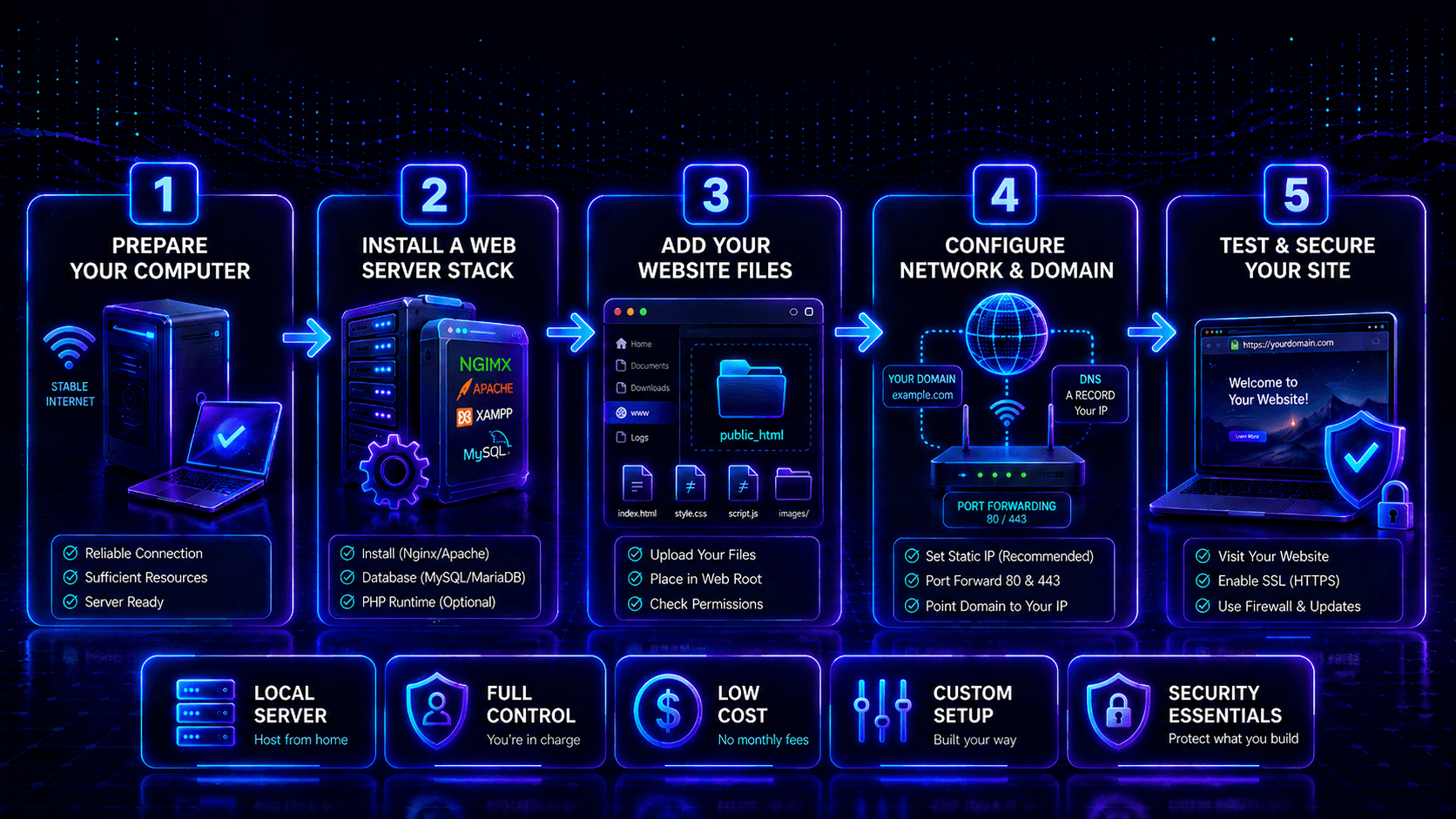
How to Host on your own computer means using your local machine as a web server. You do this instead of using a hosting provider. Learning How to Host a Website on Your Own Computer is useful for testing and small personal projects. You get full control without monthly hosting fees.
However, self-hosting has some challenges. Your computer must stay online 24/7. You also face limited home internet, dynamic IPs, downtime risks, and security concerns.
For most users, self-hosting works best for experimentation and learning. It is not ideal for high-traffic or business-critical websites.
Requirements Before You Start
Before you self-host, check a few things. You need the right computer, operating system, stable internet, IP setup, and basic networking knowledge.
Computer
A Windows, Linux, or macOS computer will work. For basic websites, 4GB RAM and 20GB+ storage are recommended. A Raspberry Pi is also a good choice for lightweight projects.
Operating System
- Linux: This is recommended for its performance, stability, and low resource usage.
- Windows: This is beginner-friendly. It supports IIS, Apache, and Nginx.
- macOS: This is good for development. However, it is less practical for running a 24/7 server.
Stable Internet Connection
A reliable connection is essential. Your upload speed matters. Visitors access your website through your home connection. Fiber or cable is generally better than unstable mobile or satellite connections.
Static vs Dynamic IP
Your public IP address lets visitors connect to your self-hosted website.
- Static IP: This stays the same. It makes it easier to connect your domain and keep your website accessible. Some ISPs offer static IPs for an extra monthly fee.
- Dynamic IP: This can change from time to time. It can cause your domain to point to the wrong address. You may need Dynamic DNS or regular DNS updates to keep your website accessible.
Basic Networking Knowledge
You should understand IP addresses, DNS, ports, firewalls, and port forwarding. Websites typically use ports 80 (HTTP) and 443 (HTTPS). You must configure these correctly on your router and server.
Choose Your Tech Stack
First, pick your tech stack. This choice depends on your website’s needs. For simple sites, Nginx or Apache work well. For dynamic websites, you might need PHP, MySQL, Node.js, or Python.
Web Server Options
- Apache: This is beginner-friendly. It is flexible and widely supported. Apache is great for WordPress and PHP websites.
- Nginx: This server is fast and lightweight. It is ideal for high-traffic sites, static content, and reverse proxy setups.
- IIS: This is Microsoft’s web server for Windows. It works best for ASP.NET and other Windows-based applications.
Programming Support
- PHP: This is a popular choice. It powers WordPress, blogs, and database-driven websites.
- Node.js: This is ideal for APIs and real-time apps. It is also great for modern JavaScript applications.
- Python: This works well with Django, Flask, and FastAPI for web apps and APIs.
For beginners, the Apache + PHP + MySQL stack is a simple starting point. For modern applications, Nginx + Node.js or Python offers more flexibility.
Install a Local Server Environment
Installing each component separately is complex. Tools like XAMPP or similar bundles include the web server, PHP, and database together. They let you set up a fully working local hosting environment quickly. You also face fewer configuration errors.
Easy setup tools:
-
XAMPP is a popular cross-platform local server environment. It works on Windows, macOS, and Linux. It bundles Apache, MySQL/MariaDB, PHP, Perl, phpMyAdmin, and FileZilla. This allows you to run dynamic websites easily.
Its control panel lets you start services with a click. This makes it very beginner-friendly. It is also widely supported by tutorials and PHP-based applications like WordPress.
-
WampServer is a Windows-only local server stack. It bundles Apache, MySQL/MariaDB, and PHP into one easy package. It runs from a system tray icon. You can start or stop services and manage settings quickly.
It is lightweight and integrates well with Windows. It is popular for local development. However, it is Windows-specific. It also has a smaller ecosystem compared to XAMPP.
-
MAMP focuses on macOS, though a Windows version also exists. MAMP stands for Mac, Apache, MySQL, PHP. The clean, polished interface looks like native Mac software. MAMP includes a simple “Start Servers” button. This button launches everything. For Mac users, MAMP feels more natural than XAMPP.
MAMP Pro ($49) adds advanced features. These include virtual hosts and easy WordPress installation. The free MAMP version works fine for most beginners. MAMP is Mac-only. Windows users should use XAMPP or WAMP.
Step-by-Step Installation Overview (XAMPP on Windows)
These steps work similarly for WAMP on Windows or MAMP on Mac. The screens look different, but the concepts are the same.
Step 1: Download XAMPP. Go to apachefriends.org and download for your operating system. The latest PHP version (currently 8.2 or 8.3) works fine for most projects.
Step 2: Run the installer. Windows may show a security warning. Click “Run anyway.” The installer asks which components to install. Apache, MySQL, PHP, and phpMyAdmin are required. Uncheck other components unless you need them (FileZilla FTP, Tomcat, etc.). Installing fewer components saves disk space and reduces confusion.
Step 3: Choose the installation folder. The default C:\xampp works perfectly. Avoid Program Files folders, which have permission issues.
Step 4: Install. Click Next through remaining prompts. The installer copies files and creates start menu shortcuts. This takes 1-3 minutes.
Step 5: Launch XAMPP Control Panel. Find XAMPP in your Start Menu. The control panel shows modules with “Start” buttons next to each. Click “Start” next to Apache. The entry turns green, showing running status. Click “Start” next to MySQL if your project needs a database (WordPress does). Leave other modules stopped.
Step 6: Test your server. Open your web browser. Type http://localhost or http://127.0.0.1 in the address bar. Press Enter. You can see the XAMPP welcome page. Your web server works.
Testing Your Local Server (localhost)
Your server is running. Now learn how to use it.
Where your website files go:
- XAMPP: C:\xampp\htdocs\
- WAMP: C:\wamp\www\
- MAMP: /Applications/MAMP/htdocs/ (Mac) or C:\MAMP\htdocs\ (Windows)
Create a folder inside htdocs for each website you build. For example, C:\xampp\htdocs\myfirstsite\. Your index.html or index.php file goes inside that folder.
Access your site: Open your browser. Type http://localhost/myfirstsite/. Your page appears. Congratulations! You are hosting a website from your own computer.
Testing PHP: Rename index.html to index.php. Add <?php echo “This text comes from PHP!”; ?> somewhere in the body. Refresh your browser. PHP generates the text. Your server supports dynamic content.
What localhost means: Every computer has a special IP address 127.0.0.1 that always points to itself. “Localhost” is the human-readable version. Your browser asking for localhost talks to your own computer. This works without internet connection.
The htdocs folder is your website root: Your web server treats the htdocs folder as the top level of your website. The folder structure becomes your URL structure. htdocs/images/logo.png → http://localhost/images/logo.png. htdocs/myblog/wp-admin/ → http://localhost/myblog/wp-admin/.
Configure Your Website Files
Place your website files in the server’s root directory (e.g., htdocs or www). Copy or upload HTML, PHP, and assets there, then test using http://localhost in your browser.
Where to Place Files (htdocs / www Folder)
Your web server needs a home directory. This is the folder where all your website files live. The server serves files from this folder to anyone who requests them.
XAMPP location: C:\xampp\htdocs\ on Windows. /Applications/XAMPP/htdocs/ on macOS. /opt/lampp/htdocs/ on Linux.
WAMP location: C:\wamp\www\ on Windows.
MAMP location: /Applications/MAMP/htdocs/ on macOS. C:\MAMP\htdocs\ on Windows.
Creating projects: Inside the htdocs folder, create a new folder for each website project. For example, C:\xampp\htdocs\myblog\. This keeps projects organized and separate.
Understanding the URL mapping: Your htdocs folder maps directly to http://localhost/. Here is how it works: htdocs/index.html → http://localhost/index.html. htdocs/myblog/index.php → http://localhost/myblog/index.php. htdocs/myblog/images/logo.png → http://localhost/myblog/images/logo.png.
The folder structure you create inside htdocs becomes your website’s URL structure automatically. No configuration needed.
Uploading Your HTML, CSS, JS, or CMS Files
You have several ways to get your website files into the htdocs folder.
Method 1: Direct copy is the simplest way. Open File Explorer or Finder, go to the XAMPP htdocs folder, create a project folder, and drag your HTML, CSS, JS, and images inside. Replace or rename the default index file if needed.
Your site is now served locally without FTP, terminal commands, or extra setup.
Method 2: Using a code editor works if you build your site in an editor like VS Code, Sublime Text, or Brackets. Many code editors let you “Open Folder” directly. Navigate to htdocs\myproject. Save files directly into that folder. Your editor acts as both development environment and file manager.
Method 3: Installing a CMS (WordPress, Joomla, Drupal) requires more steps, but works exactly like paid hosting. Download WordPress from wordpress.org. Extract the ZIP file. Copy the wordpress folder into your htdocs folder. Rename it to something simple like myblog. Create a MySQL database using phpMyAdmin (access at http://localhost/phpmyadmin). Visit http://localhost/myblog. Follow the WordPress installation wizard. WordPress runs locally, just like on paid hosting.
Method 4: Using Git works for developers who store code on GitHub, GitLab, or Bitbucket. Install Git on your computer. Open terminal in your htdocs folder. Run git clone [repository-url] [foldername]. Your code appears in htdocs. Future updates use git pull.
Testing in Browser Using Localhost
Your files are in place. Now verify everything works.
Step 1: Start your server. Open XAMPP Control Panel (or WAMP/MAMP). Click “Start” next to Apache. The entry turns green. If you need a database, also start MySQL.
Step 2: Open your browser. Use any modern browser: Chrome, Firefox, Edge, Safari, or Brave.
Step 3: Navigate to your site. Type http://localhost/yourfoldername/ in the address bar. Replace yourfoldername with the folder name you created inside htdocs.
For example:
- http://localhost/myblog/ (WordPress site)
- http://localhost/portfolio/ (your portfolio HTML site)
- http://localhost/test/ (testing area)
Step 4: Verify everything loads correctly. Images appear. CSS styles apply. JavaScript runs. Links work. Forms submit (if you have form handling configured).
Step 5: Check the browser’s developer tools. Press F12 (Windows/Linux) or Cmd+Option+I (Mac). Click the Console tab. Look for red errors. Click the Network tab. Reload the page. Check for missing files (404 errors). Fix any issues by correcting file paths or adding missing files.
Make Your Website Public
To make your site public, find your public IP first. Then configure router port forwarding to your local server on ports 80 and 443. Allow these ports in your firewall. After that, others can access your site using your IP address instead of localhost.
Find your public IP address
Your public IP is the address your home network uses on the internet, unlike your local IP (e.g., 192.168.x.x). You can find it by searching “what is my IP” on Google or using sites like whatismyip.com. It will look like 203.0.113.45.
This is what others use to access your website once port forwarding is set up. However, most home ISPs use dynamic IPs that change, so your address may not stay the same. Some ISPs also block hosting on ports 80/443, so check their policies first.
Port Forwarding Setup on Router (Port 80 / 443)
Port forwarding tells your router: “When a request comes in on port 80 (HTTP) or port 443 (HTTPS), send it to the specific computer running my web server.”
Step 1: Find your computer’s local IP address. Open Command Prompt (Windows) or Terminal (Mac/Linux). Type ipconfig (Windows) or ifconfig (Mac/Linux) or ip a (modern Linux). Look for your active network connection (usually “Ethernet” or “Wi-Fi”). Find the IPv4 Address, which looks like 192.168.1.100 or 10.0.0.50. Write this down. You need it for port forwarding.
Step 2:Internet Protocol addresses like 192.168.1.1 or 10.0.0.1 are used to access your router’s admin panel. Most routers use default credentials like “admin/admin” or “admin/password,” though exact values vary.
To log in, open a browser, enter the router IP, and authenticate. If needed, reset the router to restore defaults and regain access.
Step 3: Find port forwarding settings. Router interfaces vary wildly, but look for these sections: Advanced → Port Forwarding, NAT → Port Forwarding, Security → Port Forwarding, Applications → Port Forwarding, or Firewall → Port Forwarding. Check your router manufacturer’s support site if stuck.
Step 4: Create port forwarding rules in your router for HTTP (port 80) and HTTPS (port 443). Set both external and internal ports to match, and point them to your computer’s local IP (e.g., 192.168.1.100). Use TCP protocol.
Some routers allow one combined rule; others require two separate entries. Save changes after configuration.
Step 5: Save and reboot (if required). Click Save, Apply, or OK. Some routers need a reboot for changes to take effect. Others apply instantly.
Firewall configuration
You must allow inbound traffic on ports 80 and 443 in your firewall after setting up port forwarding.
On Windows, create an inbound rule in Windows Defender Firewall for TCP ports 80,443 and allow all profiles. On macOS, enable incoming connections for your web server process in Firewall settings. On Linux, use Uncomplicated Firewall commands like ufw allow 80/tcp and ufw allow 443/tcp.
Test locally first using your private IP (e.g., 192.168.x.x) before checking external access.
Access your site using IP address
Now your site is reachable from outside your home network using your public IP.
First, confirm your server is running (Apache/Nginx/IIS should show active status). Then get your latest public IP and test from a different network (mobile data, not Wi-Fi). Enter http://your-public-ip in a browser.
If it loads, your home server is live on the internet.
If not, recheck port forwarding, firewall rules, and ensure your local IP hasn’t changed. Also test locally via http://localhost to confirm the server itself is working. Many failures come from NAT issues or ISP blocking ports 80/443.
Connect a Domain Name
Connect a domain to replace your numeric IP with a readable name like example.com. Buy a domain, then update DNS records to point to your public IP. Use Dynamic DNS if your home IP changes often for continuous access.
Buy a domain (e.g., from GoDaddy or Namecheap)
You must register a domain through a registrar like Namecheap, GoDaddy, or Cloudflare. A typical .com costs about $8–$15 per year, though renewal prices may be higher.
Choose a short, simple, and memorable name without numbers or hyphens. If taken, try other extensions like .net or .org.
When you buy a domain, you control its DNS settings, which link your domain to your server’s IP address so browsers can find your website.
Point domain to your IP (DNS settings)
Log into your domain registrar (e.g., Namecheap or GoDaddy) and open DNS management or Zone Editor. Add an A record pointing your domain to your public IP address (e.g., 203.0.113.45). This tells browsers where your server is located.
DNS changes may take minutes to hours to propagate worldwide.
Create an A record: An A record maps a domain name to an IPv4 address. Add a new record with these values:
- Type: A
- Name/Host: @ (this represents your root domain, like example.com)
- Value/Destination: Your public IP address (e.g., 203.0.113.45)
- TTL: 300 or 3600 (seconds; lower means faster updates)
Create another A record for www: Add a second A record so www.example.com also works:
- Type: A
- Name/Host: www
- Value/Destination: Your public IP address (same IP)
- TTL: 300 or 3600
Save your DNS changes after adding the A record. Propagation usually takes 5 minutes to 24 hours for global updates. You can point multiple domains to the same server. Just create separate A records with the same IP address.
Once active, test by visiting http://yourdomain.com. This confirms your home server is reachable via domain name.
Use dynamic DNS if IP changes:
Dynamic DNS (DDNS) solves changing IP issues. It automatically updates your domain’s IP whenever it changes. This keeps your self-hosted website always accessible. You avoid manual DNS edits.
No-IP DDNS
No-IP is the most well-known and beginner-friendly DDNS provider. Since 1999, No-IP has served over 30 million customers worldwide, from home users to Fortune 500 companies. No-IP’s Anycast network includes 100 points of presence globally, providing excellent reliability.
Free vs Paid Plans:
-
Free: 1 hostname, choose from 30 No-IP owned domains (e.g., yourname.hopto.org, yourname.ddns.net). The only catch: you must confirm your hostname via email every 30 days to keep it active.
-
Enhanced ($2.99/month or $29.99/year after discount): 3 hostnames. 80+ domain options. Hostnames never expire. Includes 1 SSL certificate. No monthly confirmation emails. A 25% discount promo code is available.
-
Pro ($14.99/month): 50-100+ hostnames. 100 update clients. 10 SSL certificates. 3-20+ DNS zones. Team login with multi-factor authentication.
Setting up No-IP:
-
Create a free account at noip.com
-
Confirm your account via email
-
Log in and add a hostname (e.g., mywebsite.hopto.org)
-
Download and install the Dynamic Update Client (DUC) software on your computer
-
The DUC runs in the background, automatically updating No-IP whenever your IP changes
Alternative DDNS Options:
DuckDNS provides a free DDNS hostname like yourname.duckdns.org and updates your IP automatically, often using a GitHub login. It’s lightweight and reliable for home hosting.
Dynv6 offers free, permanent DDNS with IPv4/IPv6 support and no expiration.
After setup, your site can be accessed via the DDNS address, or linked to a custom domain using a CNAME record.
Secure Your Website
Secure your site by enabling HTTPS with an SSL certificate. Follow basic security practices like updates and strong passwords. Limit exposed services to protect your self-hosted server from attacks.
Install SSL certificate:
Install SSL using Let’s Encrypt. This encrypts traffic between users and your server. It prevents data theft. It also removes browser “Not Secure” warnings.
Use Certbot to obtain certificates. Linux setups are easiest. Certbot can auto-install and configure Apache or Nginx. On Windows (XAMPP/WAMP) or Mac (MAMP), you manually place certificate files. You also update Apache settings.
After setup, test with https://yourdomain.com. Look for the padlock icon in your browser. Certificates renew every 90 days. On most Linux systems, this happens automatically.
Basic security practices:
Basic security is essential beyond SSL. Keep your system and server software updated. This patches known vulnerabilities. On Linux, do this with regular package updates.
Use strong, unique passwords for router, server, and database accounts. Use 16 or more characters. Generate them with a password manager like Bitwarden.
Limit exposed services. Only open ports 80 and 443. Disable UPnP. Close unused ports. Regularly review active connections. Ensure nothing unnecessary is exposed.
Performance & Uptime Considerations
Home hosting depends on your computer, internet, power, and hardware. Good power management, monitoring, and backups can improve reliability.
- PC Must Stay ON 24/7: Disable sleep mode on your computer. Consider using a UPS. This protects against power outages and unexpected shutdowns.
- Internet Limitations: Your upload speed determines how quickly visitors can access your site. Home connections work best for low-traffic projects.
- Hardware Constraints: CPU, RAM, and storage limit how many visitors your server can handle. SSD or NVMe storage can improve performance.
- Backup Strategy: Create automatic daily backups. Keep copies offsite as well. Test restores regularly. This helps you recover after hardware failure or data loss.
Common Problems & Fixes
Self-hosted websites can face several issues. You may have problems with access, speed, IP changes, or security. Most problems come from incorrect ports, firewall settings, DNS, or SSL configuration.
-
Website Not Loading: Check that ports 80 and 443 are forwarded correctly. Verify your firewall rules allow traffic. Make sure your server is running.
-
IP Address Changed: Use Dynamic DNS (DDNS). It automatically updates your domain when your public IP changes.
-
Slow Loading Speed: Compress your images. Enable Gzip or Brotli compression. Check your upload speed, CPU, and RAM usage.
-
Security Warnings: Install a valid SSL certificate like Let’s Encrypt. Check for expired certificates. Look for mixed-content issues on your site.
Self-Hosting vs Paid Hosting
Self-hosting gives you full control. You pay no monthly fees. But it requires technical work. You must manage uptime and handle security.
Shared hosting (e.g., Hostinger, Bluehost):
- Cost: $3-15 monthly. Includes domain for first year often.
- Control: Low to medium. You cannot install custom software or modify server configuration extensively.
- Technical skill required: Low. The hosting company manages servers, security, and backups. You manage your website files via control panel (cPanel).
- Uptime & reliability: High (99.9%+). Professional data centers with redundant power, internet, and hardware.
- Performance: Shared resources mean performance varies based on other customers’ activity. Suitable for 100-1,000 daily visitors.
- Security: Hosting company handles server-level security. You secure your website (passwords, plugins, updates).
VPS hosting (e.g., DigitalOcean, Vultr, Linode):
- Cost: $5-50 monthly. Pay for dedicated virtual resources.
- Control: High. Root access, install any software, full configuration control. You manage the server operating system.
- Technical skill required: Medium to high. You need Linux command-line knowledge.
- Uptime & reliability: High (99.9%+). Same professional infrastructure as shared hosting.
- Performance: Dedicated CPU cores and RAM. No noisy neighbors. Suitable for 1,000-10,000+ daily visitors.
- Security: You secure the server OS; provider secures the physical infrastructure.
When to Switch to Professional Hosting
Consider moving from self-hosting to paid hosting in these cases:
- Your website is important to your business or reputation. If downtime costs you money or credibility, professional hosting is worth the monthly fee. It offers a 99.9% uptime guarantee.
- You have more than 20-50 daily visitors. Your home upload speed will become the bottleneck. Professional hosting provides much higher bandwidth. It also offers content delivery networks.
- You need email hosting. Most paid hosting plans include professional email like yourname@yourdomain.com. They also offer good deliverability. Self-hosted email from a home IP is almost always marked as spam.
- You are tired of maintenance. Professional hosting means no more worries. You don’t deal with power outages, Windows updates, hardware failures, or ISP IP changes.
- Your website uses dynamic content like WordPress, PHP, or databases. Self-hosted dynamic sites require more CPU and RAM than static HTML. A $5-10 VPS will outperform most home computers for dynamic content.
- You want to learn professional web hosting skills. Managing a VPS teaches you real system administration. Employers value these skills. Self-hosting on Windows or Mac teaches fewer transferable skills.
Cost vs Convenience
Self-hosting appears free. Your hardware is already paid for. Your internet already costs the same. But your time has value.
True cost of self-hosting:
- Hardware depreciation. An old computer still has value. You also face replacement cost when it fails.
- Electricity. A typical desktop running 24/7 consumes 100-200 watts. This costs $10-25 monthly depending on your electricity rates.
- Your time for setup, troubleshooting, updates, and monitoring. This is valuable for learning. It is wasted if you just want your site to work.
- Downtime risk. This means lost visitors and lost opportunities.
True cost of shared hosting ($3-15 monthly):
- Very low financial cost.
- Zero hardware or electricity expense.
- Zero time spent on server management.
- Much higher reliability.
The convenience is significant.
True cost of VPS ($5-50 monthly):
- Low to moderate financial cost.
- Plus your time for server administration.
- This is valuable for learning Linux and web technologies.
- It is an excellent platform for learning professional skills.
Recommendation: Use self-hosting for learning, testing, and personal projects. Choose shared hosting for convenience. Choose VPS when you need greater control and performance.
Conclusion
You’ve completed the full self-hosting journey—from setup and networking to DNS, SSL, security, and troubleshooting. Now your computer can run a real public website, just like professional servers.
Self-hosting is best for learning, testing, and small personal projects where cost matters more than uptime. It teaches how the web actually works—servers, DNS, ports, and security.
However, for serious or growing websites, paid hosting or a VPS is more reliable, scalable, and easier to maintain. The key takeaway: self-hosting builds strong technical skills, but production sites usually benefit from professional infrastructure.

Leave a Comment