
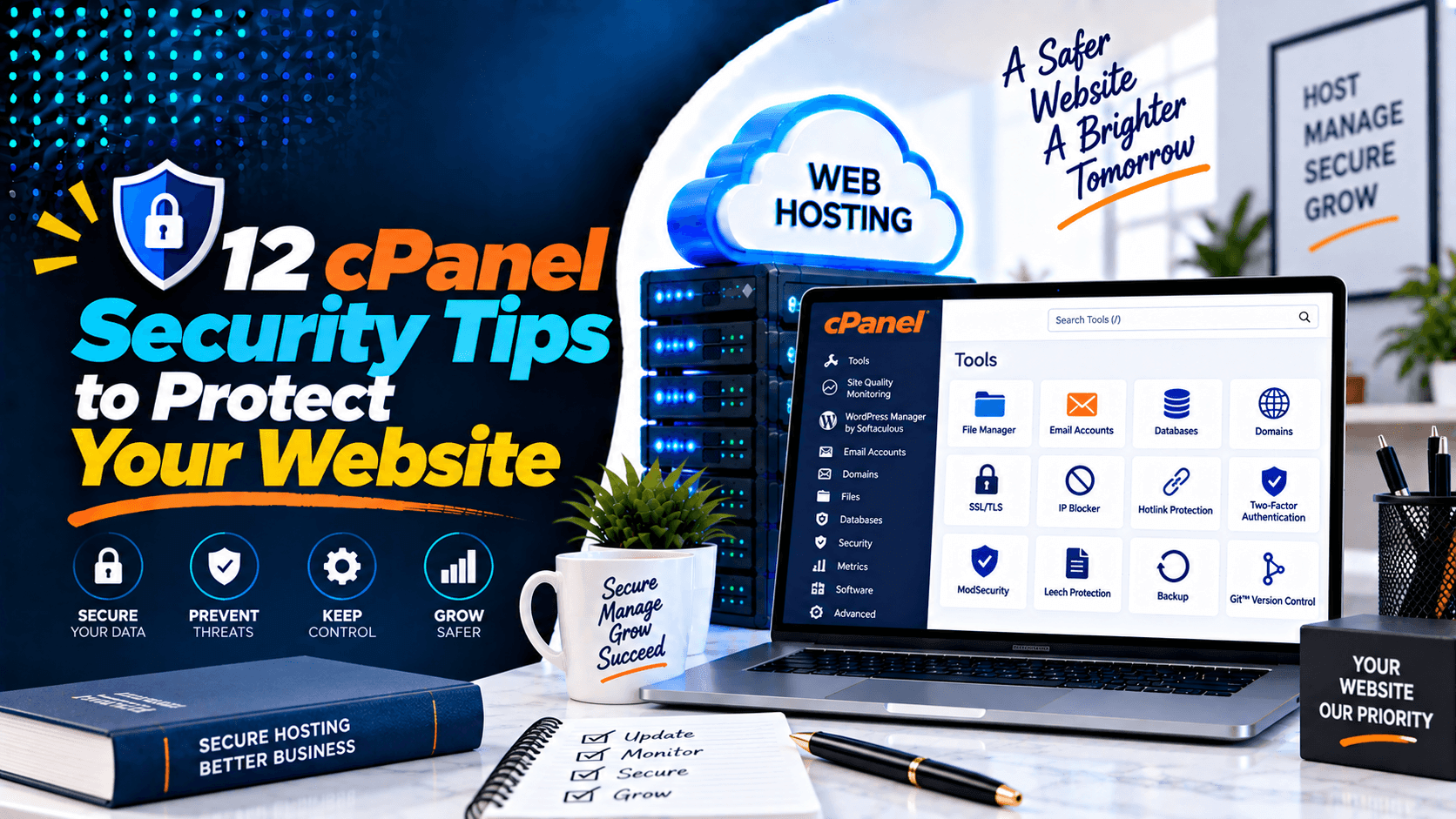
Website security is critical today. Hackers, malware, and bots are always looking for weak spots. They target vulnerable websites without rest. One successful attack can lead to big problems. You might lose data. Your site could go down. Your reputation may suffer. And you could lose revenue.
Thankfully, cPanel includes many built-in security features. These tools make protection easier. You can use SSL certificates. You can set up password protection. You can run backups. You can block suspicious IP addresses. Together, they reduce common risks.
This guide covers 12 key cPanel security tips. They will help shield your site from online threats. You will also learn about common security errors. We include bonus best practices too. And we answer frequent questions at the end.
1. Use a Strong, Unique cPanel Password
2. Enable Two-Factor Authentication (2FA)
Two-factor authentication adds another security layer to your cPanel login. It asks for a unique code from your smartphone. You still need your password too. So even if someone steals your password, they cannot get in without your phone.
How it adds extra protection:
-
It needs both your password and your phone. One is something you know. The other is something you have.
-
It stops stolen passwords and automated attacks that guess many passwords quickly.
-
It blocks access even if your password leaks in a data breach.
Setting up 2FA in cPanel:
- Step 1: Install a TOTP app- Download Google Authenticator, Duo Mobile, or Microsoft Authenticator on your phone.
- Step 2: Enable 2FA- In cPanel, go to “Security” and click “Two-Factor Authentication.” Then select “Set Up Two-Factor Authentication.”
- Step 3: Connect the app- Scan the QR code shown with your authenticator app. Or enter the Account and Key details manually.
- Step 4: Verify the code- Type the six-digit code from your app before it expires. Then click “Configure Two-Factor Authentication.” Now you need both your password and a code to log in.
3. Keep Your Software Updated
Outdated software is one of the biggest causes of website compromises.
- Update WordPress, plugins, and themes: Go to Dashboard → Updates in WordPress. Install the latest versions from there. You can also use WP-CLI. It lets you update many sites at once.
- Update PHP: In cPanel, go to Software → MultiPHP Manager. Pick a supported PHP version. But first, check that your plugins and themes work with it. Then upgrade safely.
- Remove unused software: Delete old WordPress installs. Remove scripts, plugins, and themes you no longer use. Also clean up cPAddons that are not needed. Extra software gives attackers more ways to break in. So cut it out.
4. Install and Maintain an SSL Certificate
An SSL certificate is now a must-have. It is not optional for modern websites. Here is why HTTPS matters for your cPanel sites.
Why HTTPS matters
- Protect visitor data: SSL/TLS encrypts data between a browser and your server. This keeps login details and payment information safe from hackers.
- Improve SEO and user trust: Search engines rank HTTPS sites higher. Browsers also show warnings for sites without encryption. A valid SSL certificate displays a padlock icon. That helps visitors trust your site.
- Use free SSL certificates if available: cPanel includes AutoSSL with Let’s Encrypt™ at no extra cost. By default, the system installs and renews certificates for your domains automatically. You can also add custom certificates. Use the SSL/TLS Manager in cPanel. Or install an SSL certificate on a domain in WHM.
5. Back Up Your Website Regularly
Backups are your safety net if something goes wrong.
Full vs. Partial Backups
- Full Backup – This captures everything. It includes your home directory, databases, email, DNS, and SSL settings. You need this for major recoveries.
- Partial Backups – These let you pick specific items. Choose your home directory, certain MySQL databases, or email filters. They work faster for restoring single files or databases.
Automatic Backup Options
- WHM Backup Configuration – Do you have WHM access? Schedule full and incremental backups every day. Store copies off‑server using remote storage like S3 or another server. This protects you from hardware failure and ransomware.
- cPanel’s Backup Wizard – For individual accounts, use this tool to generate on‑demand backups. But for steady protection, depend on your host’s automated system.
Test Your Backups by Restoring Them Periodically
A backup helps only if you can restore it. Test often. Restore a backup to a staging account or a test file. Check that your databases and files are intact. This is the only way to know your recovery plan will work when you need it most.
6. Secure Your File Permissions
Incorrect file permissions can expose your website to attackers.
Recommended File and Folder Permissions
As a general rule, files should be set to 644 and folders (directories) to 755. This means:
- 644 (files): The owner can read and write; the group and public can only read.
- 755 (folders): The owner can read, write, and execute; the group and public can only read and execute.
These settings let your website work properly. They also stop unauthorized users from changing files or running scripts.
Avoid Overly Permissive Settings
Permissions like 777 are risky. They give read, write, and execute access to everyone. This includes attackers. They can change or delete your files. If one account gets hacked, weak permissions let the attack spread to other parts of your server.
Never use 777 on any file or folder. If a script needs write access, only grant it to the specific folder that requires it. Set that folder to 755 or 775 instead of 777.
Protect Sensitive Configuration Files
Some files hold secret data. These include wp-config.php for WordPress and .env files. They store database credentials and API keys. These need stricter permissions.
- Set wp-config.php to 600 or 640. This gives the owner read and write access. Others get no access.
- Set .htaccess to 644 (owner read/write, group and public read-only).
- Store configuration files outside the public root directory (public_html) whenever possible.
7. Remove Unused Files, Themes, and Applications
Getting rid of unused files is a smart security move. It shrinks your attack surface.
- Delete unused WordPress themes and plugins: Start with your WordPress installation. Delete deactivated themes you no longer use. Remove plugins that are not active. Keep only what you really need. A single default theme is fine as a backup.
- Remove old scripts and temporary files: Old files can cause problems. Delete outdated installation scripts and readme files. Remove old backup archives you do not need anymore. Attackers can use these files to learn about your system.
- Reduce your attack surface:Check your cPanel File Manager often. Remove unused applications and files you find there. A tidy website structure is simpler to manage. It also gives attackers fewer places to hide.
8. Protect Important Directories with Passwords
ome folders should never be publicly accessible.
Key Points:
- Use cPanel’s Directory Privacy Feature: This is the easiest method. It creates a simple login screen for specific folders. Select a folder like wp-admin. Check the “Password protect this directory” box. Then create a username and password for access.
- Secure Admin Folders: Apply this to your site’s admin directory. It adds a powerful defense. This extra security layer sits in front of your login page. It blocks many automated attacks. It also stops brute force attempts.
- Limit Unauthorized Access: This method protects files from web browser viewing. It works well for hiding configuration files. It also keeps personal data safe. Once set, users must provide credentials. Only then can they view the folder’s contents. This gives you precise control over who sees what.
9. Monitor File Changes and Website Activity
Early detection helps prevent major security incidents.
Check File Modifications
Watch for:
- Unexpected file changes
- Newly created files
- Modified PHP scripts
- Unknown uploads
Review Logs
Regularly inspect:
- Access logs
- Error logs
- Visitor activity
- Login attempts
Detect Suspicious Behavior Early
Look for:
- Multiple failed logins
- Unknown IP addresses
- Sudden traffic spikes
- Unexpected admin activity
Early action can stop attacks before they cause damage.
10. Limit FTP Access and Use Secure Connections
FTP accounts need careful management.
Create Separate FTP Accounts
Never share your main cPanel login for file transfers. Make separate FTP accounts for each user. This gives you control over directory access. You can also remove access easily. You won’t need to change your master password.
Remove Unused FTP Users
Old FTP accounts are security risks. Hackers can exploit them. Check your FTP users regularly. Delete any that are no longer active. Fewer active accounts mean fewer attack points.
Use FTPS or SFTP Whenever Possible
Standard FTP sends data in plain text. This makes it easy to intercept. Always choose encrypted options instead:
-
FTPS (FTP over SSL/TLS): This adds encryption to standard FTP. It supports both explicit mode (port 21) and implicit mode (port 990).
-
SFTP (SSH File Transfer Protocol): This runs over SSH. It also makes firewall setup simpler.
cPanel offers Web Disk and FTPES/FTP-SSL as secure choices. To force secure connections, change your FTP server settings. Set it to require TLS. Otherwise, insecure connections may still work.
Restrict Access to Necessary Directories
When you create FTP accounts, limit each user. Give them only the directory they need. Don’t grant access to entire home folders. Don’t grant access to system folders either. For developers, allow access only to the public_html folder of their specific website.
11. Block Suspicious IP Addresses
Repeated attacks often come from the same IP addresses.
How to block an IP address in cPanel:
- Log into your cPanel account and navigate to the Security section.
- Click on IP Blocker.
- In the Add an IP or Range field, enter the IP address you want to block (e.g., 203.0.113.50).
- Click Add to apply the block immediately .
Where to find suspicious IP addresses:
- Raw Access Logs – Look for high request rates or repeated failed login attempts .
- AWStats – Check the Hosts list to identify IP addresses generating unusual traffic .
- WordPress security plugins – Many plugins log blocked login attempts. Wordfence is one example. These logs show you the IP addresses to block.
12. Scan Your Website for Malware Regularly
Malware can hide on your website for months. You might not notice it. It quietly steals data or harms visitors.
- Use hosting malware scanners: Many hosting providers include security tools. Imunify360 is one example. It automatically scans your cPanel for signs of infection. It also cleans suspicious files it finds. WHM offers ClamAV Scanner too. You can find it in the plugins section.
- Run security scans: Turn on automated scanning. This checks your files for malicious code. If the scan finds threats, you’ll see a list. The list shows infected files. Then you can take action to remove them.
- Remove infected files quickly: Once you identify malware, act fast. Delete or clean the affected files. Use File Manager or FTP to do this. Don’t wait. The infection could spread.
- Consider website firewall solutions: Solutions like Imunify360 add another defense layer. They provide real-time proactive protection. They block suspicious activity. They also stop malicious scripts. This prevents damage before it happens.
Bonus Security Best Practices
For even stronger protection, follow these additional cPanel Security Tips:
- Disable unused hosting services and features.
- Change important passwords every few months.
- Monitor CPU, memory, and bandwidth usage for unusual activity.
- Secure all email accounts with strong passwords and 2FA where available.
- Give users only the permissions they need.
- Enable automatic updates for WordPress core, plugins, and themes when possible.
- Remove inactive user accounts regularly.
- Review security settings after major website changes.
Common cPanel Security Mistakes
Avoiding common mistakes is one of the most important cPanel Security Tips for keeping your website protected.
- Using weak or predictable passwords.
- Ignoring WordPress, plugin, and PHP updates.
- Never creating website backups.
- Leaving unused applications installed.
- Running a website without an SSL certificate.
- Giving full cPanel access to multiple users instead of limiting permissions.
- Forgetting to monitor website logs and security alerts.
- Using unsecured FTP instead of FTPS or SFTP.
Frequently Asked Questions
How secure is cPanel?
cPanel is very secure when set up correctly. It offers many safety features. These include SSL management and two-factor authentication. You also get password protection, backups, and IP blocking. Together, they guard against common threats.
Does cPanel include malware protection?
Some hosting providers include malware scanners with cPanel. Others offer them as optional add-ons. Check your hosting plan. See which security tools come with it.
Should I enable two-factor authentication?
Yes, you should. Two-factor authentication stops unauthorized access. It works even if someone steals your password. This makes it one of the most effective security tools available.
How often should I back up my website?
-
Daily for eCommerce or frequently updated websites
-
Weekly for business websites
-
Monthly for websites with minimal changes
Always create a backup before making major updates.
What file permissions are recommended?
General best practices are:
-
Folders: 755
-
Files: 644
-
Sensitive configuration files: 600 or 640 where supported
Avoid using 777 permissions. They are too open and risky.
Can SSL prevent website hacking?
SSL encrypts data between your website and visitors. This protects sensitive information during transit. However, it does not stop all hacking attempts. Combine SSL with strong passwords. Keep software updated. Run regular backups. Scan for malware. Use all these measures together for full protection.
Conclusion
Website security is an ongoing process. It is not a one-time task. By following these 12 cPanel Security Tips, you can protect your website from common threats. You can also reduce the risk of hacking, malware, and unauthorized access.
Update your software regularly. Use strong passwords. Enable 2FA. Create backups. Secure file permissions. Monitor suspicious activity. These simple steps help protect your website. They also safeguard customer data and your online reputation.
Ready to improve your website security? Start applying these cPanel Security Tips today. Make website protection a regular part of your maintenance routine.

Leave a Comment