
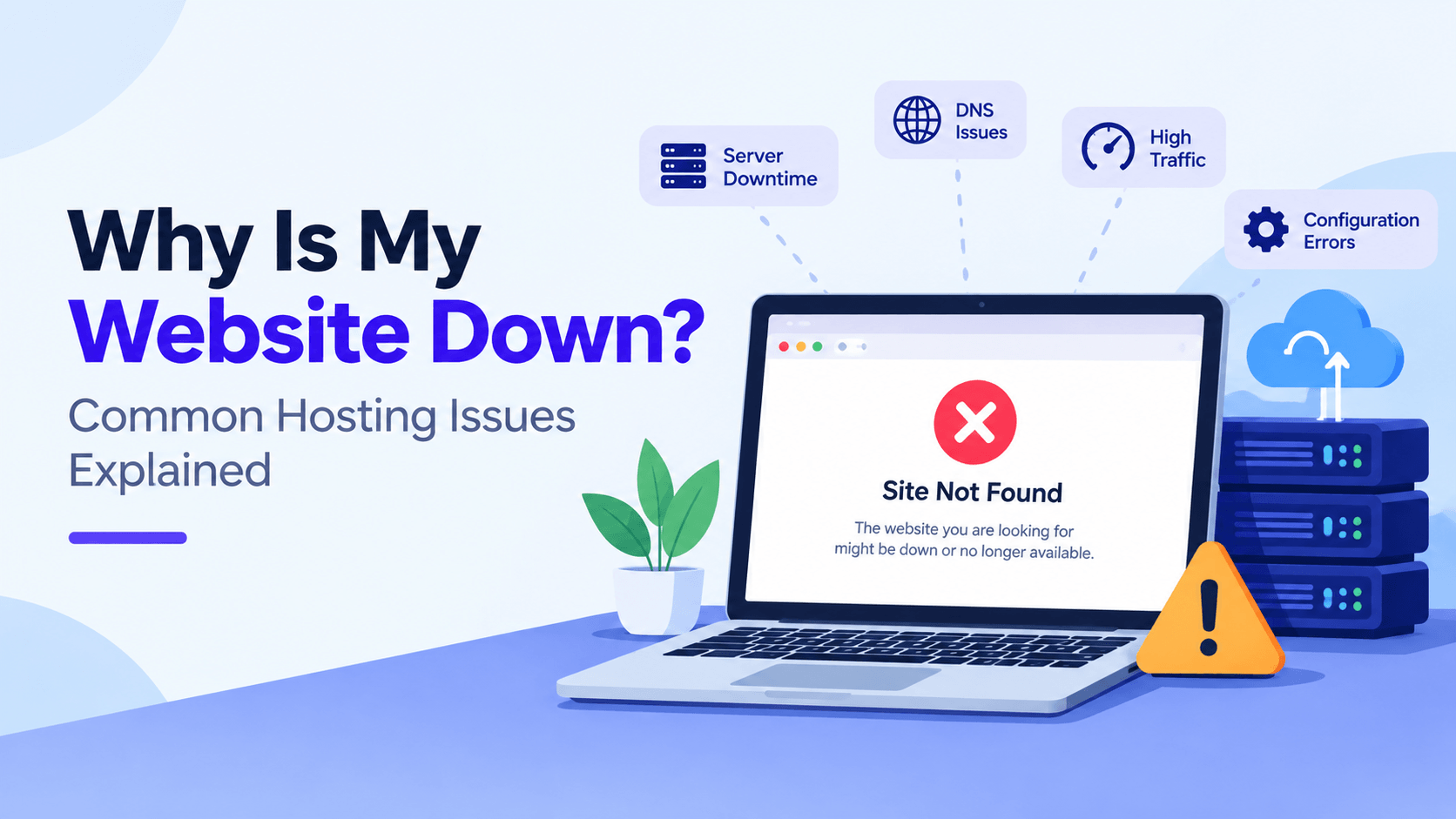
Your website stops loading. You panic. Visitors can’t reach you. Leads disappear. Sales stop. Customer messages go unanswered.
Why does this happen? Many things can cause downtime. Hosting outages are common. DNS problems break connections. Domains expire without warning. WordPress errors crash sites. Database issues stop content from loading. SSL certificates fail. Server resources run out. Security attacks overwhelm your site.
Sometimes, your hosting provider isn’t responsible. Other times, they are.
Why Is My Website Down? Knowing these common causes helps you act fast. You can spot problems quickly. You’ll know when to call your host. You’ll fix issues sooner.
Server Downtime or Hosting Outage
A server outage stops your website. Your files live on that server. When the server goes offline, your site disappears. Think of it like your home address. If your house is blocked, nobody can reach you.
Planned vs. Unexpected Downtime
- Planned Downtime: Your host does maintenance. They upgrade systems. They make repairs. They tell you about it first. They choose quiet hours to work. This limits the impact on you.
Unexpected Downtime: This comes without warning. A power failure hits the data center. A hard drive breaks. Cooling systems fail. Servers shut down to avoid damage. You have no control over this.
How Data Center Issues Can Affect Websites
Data centers hold your server. They are large buildings. Problems there cause big trouble. Cooling failures happen. The network gets attacked. These issues take your site offline. You cannot fix them yourself.
How to Check Hosting Server Status
If you suspect your hosting provider is experiencing an outage:
- Check the provider’s official status page.
- Look for maintenance announcements.
- Check the provider’s support channels.
- Contact technical support if the outage is not listed.
Are other sites on the same server down too? Then it might be an infrastructure problem.
DNS Problems
DNS stands for Domain Name System. It connects your domain name to your server. Think of it like a phonebook. It translates your website name into an address. When DNS settings are wrong, your site won’t load. This happens even if your server works fine.
Common DNS Configuration Errors
Bad DNS records break the connection. Your domain can’t find the right server.
Common issues include:
- Incorrect A records pointing to the wrong IP address.
- Incorrect CNAME records for specific subdomains.
- Missing or accidentally deleted DNS records.
- Incorrect name servers assigned to the domain.
- DNS records still pointing to an old hosting provider.
Domain Expiration and DNS Issues
Your domain can expire. Your site goes down. Your hosting might still be active. But nobody can find you.
- Check that your domain registration is still active.
- Renew an expired domain as soon as possible.
- Confirm that the domain is connected to the correct hosting account.
- Make sure the domain’s DNS settings have not been changed unexpectedly.
Nameserver Problems
Nameservers tell the internet which DNS provider manages your domain. Incorrect nameservers can stop visitors from reaching your website.
- Verify that the correct nameservers are configured.
- Check nameservers after transferring your domain or hosting.
- Confirm that your DNS provider is managing the required records.
- Allow time for nameserver changes to update across the internet.
DNS Propagation
DNS changes are not always visible everywhere immediately. Internet service providers and devices may temporarily use cached DNS information.
- Wait for DNS changes to propagate after making updates.
- Clear your local DNS and browser cache if necessary.
- Check whether the website works from another network or device.
- Avoid making repeated DNS changes before the previous update has propagated.
Domain Name Expired
When your domain name expires, your website and email instantly stop working . Here’s what happens and how to fix it:
How an expired domain takes your website offline
The moment a domain passes its expiration date, DNS resolution is disabled . Even if your hosting is active, visitors cannot reach your site because the domain can no longer be found .
Checking domain registration status
You can check your domain’s status anytime using:
- Your registrar account dashboard – shows expiration date and auto-renewal settings
- WHOIS lookup tools – check registration status, expiration date, and nameservers
- RDAP lookup – more detailed public registration data, including domain status codes
Look for clientHold or serverHold status codes. These indicate the registrar suspended DNS resolution. This usually means your domain expired.
Auto-renewal problems
Auto-renewal should prevent this, but it often fails due to:
- Expired or replaced credit cards – the most common culprit
- Billing address issues – banks may block renewal charges
- Registrar system errors – billing system bugs during renewal cycles
- Domain transfers – auto-renewal may need to be re-enabled after transferring
What happens after domain expiration
Most domains follow this timeline:
- Grace period (~30 days): Renew at normal price, but services may already be offline
- Redemption period (~30 days): Recovery possible but with additional fees (often $150+)
- Pending deletion (~5 days): Cannot be recovered
- Released: Anyone can register your domain
Hosting Account Suspended
Let us break down the common reasons and solutions.
Why Hosting Accounts Get Suspended
Hosting providers do not suspend accounts without reason. Here are the most common causes:
- Unpaid Hosting Bills – The most frequent reason. Missed payments or expired credit cards trigger automatic suspension.
- Resource or Policy Violations – Exceeding CPU, memory, or bandwidth limits. Running scripts that consume excessive server resources. Violating the host’s terms of service.
- Malware or Security-Related Suspension – The host finds malware on your site. They detect phishing activity. They spot malicious code. Your account gets suspended to protect others on the same server.
- Content Violations – You host prohibited material. This includes adult content. It covers illegal downloads. Spam scripts also trigger suspension.
How to Contact Your Hosting Provider
Your account is suspended. Act fast. Contact your hosting provider right away.
- Check your email – Hosts typically send warnings before suspending an account. Review your inbox (including spam folder) for notices.
- Log into your hosting account – If you can still access the dashboard, check for suspension notifications. Look for support tickets too.
- Contact customer support – Use live chat. Call them. Open a support ticket. Ask why your account was suspended. Find out what you need to do.
Most hosts will restore your account. You just need to fix the problem. Pay past-due invoices. Delete malicious files. Upgrade your plan to handle resource usage.
Website Has Exceeded Server Resources
Websites run on server resources like CPU (processing power) and RAM (memory). When your site exceeds those limits, the server can’t handle requests, and your site goes down. Let’s break down the common causes.
CPU and RAM Limits
- CPU (Central Processing Unit): Handles all the calculations and processes running your site. If too many things happen at once, the CPU gets overloaded.
- RAM (Memory): Stores temporary data for quick access. When your site runs out of RAM, it can’t operate efficiently, leading to crashes.
Too Many Visitors
- The most straightforward reason. You’ve shared your site, and suddenly hundreds or thousands of people are trying to access it at the same time.
- While this is a “good problem” to have, a shared hosting plan often can’t handle a sudden crowd.
Traffic Spikes
- A viral post, a successful ad campaign, or even a seasonal sale can cause a rapid surge in traffic.
- If your host doesn’t offer auto-scaling, these spikes will push you over your resource limits.
WordPress Plugins Consuming Excessive Resources
- Not all plugins are created equal. Poorly coded plugins or plugins that run heavy background tasks can hog CPU power.
- Running too many plugins simultaneously can also bloat your database and drain memory.
How Resource Limits Can Cause 503 Errors
- A 503 Service Unavailable error is the server’s way of saying, “I’m overwhelmed and can’t process your request right now.”
- This typically happens because your site has exhausted the CPU or RAM allocated to your account, often during traffic spikes.
WordPress or Plugin Problems
Using WordPress? A plugin, theme, or update can break your site. You might see error messages. Pages might look wrong. Your entire website could go down. Here’s what to check.
Plugin Conflicts
When two plugins try to do the same thing or use the same resources, they can clash. A simple update from one plugin can break another. The result? Your site crashes, shows a white screen, or throws cryptic errors.
How to fix: Deactivate all plugins via FTP or File Manager. Reactivate one by one until you find the one causing the problem. Then either update, replace, or remove the conflicting plugin.
Theme Issues
Your theme controls your site’s design. It affects how things work too. A poorly coded theme causes errors. An outdated version creates problems. A theme that doesn’t match your WordPress version can break everything.
How to fix: Switch to a default WordPress theme (like Twenty Twenty-Four) temporarily. If the site loads, your theme is the issue. Update the theme or contact the developer for support.
Failed WordPress Updates
Automatic updates sometimes fail. Your site gets left in a broken state. Incomplete file transfers cause issues. Database errors happen. Server timeouts stop the process. All these problems occur during updates.
How to fix: Restore your site from a backup. Or update WordPress manually. Use FTP to upload the latest version files. Just avoid replacing the wp-content folder.
PHP Compatibility Problems
WordPress and its plugins require specific PHP versions. If your hosting provider updates PHP to a newer version, older code may break. If you are using outdated plugins that do not support newer PHP, your site may fail.
How to fix: Go to your hosting control panel. Switch to an older PHP version temporarily. Then update your plugins and themes. Make sure they work with newer PHP. Switch back when everything is compatible.
How to Identify the Problematic Plugin
Your site broke after installing or updating a plugin. Start there. That plugin is likely the cause.
Follow these steps:
- Disable the recently installed or updated plugin.
- Check if your website works again.
- Re-enable plugins one by one to find conflicts.
- Always back up before making major changes.
Can’t access your WordPress dashboard? Disable plugins through your hosting control panel. Use your file manager instead. Still stuck? Contact your hosting provider. Or reach out to a WordPress expert for help.
PHP Errors and Server Configuration Issues
Let’s talk about one of the sneakiest reasons your website goes down. Your site runs on PHP, and when PHP isn’t happy, your site isn’t happy.
We’ve covered DNS and server load—now it’s time to dig into the code. A simple misconfiguration in your PHP settings can be all it takes to break your site. Here’s what to watch for:
- Incorrect PHP version — Your site might need PHP 8.2, but your server is still running PHP 7.4 (or older). That’s a recipe for compatibility issues and errors.
- PHP memory limit — If your site runs out of allocated memory, it crashes. Plugins, themes, and large media files all demand memory.
- Fatal errors — A poorly coded plugin or theme can trigger a fatal error that halts your entire site.
- Missing PHP extensions — Some features rely on specific extensions. curl is one example. mbstring is another. gd is also common. When they’re missing, features break.
- Incorrect server configuration — Wrong file permissions cause problems. Misconfigured .htaccess files break things. Bad settings in php.ini silently kill your site.
Is your site showing a blank white screen? Do you see a 500 error? Is there weird behavior after an update? Start checking. Look at the PHP version first. Check memory limits next. Review your error logs too.
Database Connection Errors
You see the “Error Establishing a Database Connection” message. Your website cannot reach its database. This cuts off everything. Pages won’t load. Logins fail. Transactions stop working.
Why It Happens
- Incorrect Database Credentials: Wrong database name, username, password, or hostname in wp-config.php.
- Database Server Down: MySQL or MariaDB stops responding. Crashes happen. Overload occurs. Resource limits get exceeded.
- Database Overload or Corruption: High traffic causes problems. Too many connections slow things down. Corrupted tables lead to failure.
How to Troubleshoot
- Check credentials: Verify the database details in wp-config.php.
- Restart the database: If you have server access, restart the MySQL/MariaDB service.
- Repair the database: WordPress provides a built-in repair option using WP_ALLOW_REPAIR. Remove the setting after repairing.
- Contact your host: Your hosting provider can check server issues. They’ll look for database errors. They can see resource limits too.
SSL Certificate Problems
SSL certificates are your website’s “trust badge.” When they malfunction, your site can appear broken or dangerously unsafe to visitors.
Common SSL issues:
- Expired certificates – This happens most often. Once a certificate expires, browsers show a full-page warning. It says “Your connection is not private.” Visitors get scared away. From 2026 onward, certificate lifespans shrink to just 200 days. They become easier to miss.
- Incorrect installation – Missing intermediate certificates cause problems. Deploying only the main certificate breaks the “chain of trust.” Some visitors access your site. Others see errors instead.
- Domain mismatch – Your certificate covers example.com. But visitors access www.example.com. The browser blocks the connection.
- Mixed content – Your site loads over HTTPS. But some resources load over HTTP. Images are a common example. Scripts are another. Modern browsers block these insecure resources. Your site layout breaks.
Quick Fixes
Renew your SSL certificate before it expires. Verify the full certificate chain is installed. Make sure all website resources load securely over HTTPS.
.htaccess and Server Configuration Errors
A small configuration mistake can stop pages from loading. It can even take your entire website offline.
Common .htaccess Problems
Several configuration issues can affect website functionality, including:
- Incorrect or broken rewrite rules.
- Invalid or unsupported server directives.
- Redirect loops that prevent pages from loading.
- Conflicting rules created by plugins or manual changes.
- Incorrect file permissions.
- Security rules that accidentally block visitors or website resources.
500 Internal Server Error
A damaged .htaccess file causes a 500 Internal Server Error. This error means the server found a configuration problem. It couldn’t process your request.
- Check whether the error appeared after a recent configuration change.
- Temporarily rename or restore the .htaccess file if appropriate.
- Check your hosting error logs for additional information.
- Contact your host if you’re unsure which directive causes trouble.
Safely Testing Configuration Changes
Because .htaccess affects how your server handles website requests, make changes carefully.
- Create a backup before editing the file.
- Make one change at a time so problems are easier to identify.
- Test important pages after making configuration changes.
- Restore the previous version if your website becomes inaccessible.
- Avoid changing server settings you do not fully understand.
Malware, Hacking, or Security Attacks
Security attacks are one of the most serious reasons your website can go offline. Hackers don’t just steal data—they can take your entire site down.
How hacked websites can go offline:
- Attackers inject malicious code that crashes your site
- They delete critical files or change access permissions
- They use your server resources for spam or phishing
Malware and malicious scripts:
- Hidden backdoors allow repeated access
- Malware can overload your server, causing downtime
- Google may flag your site, blocking visitors entirely
DDoS attacks:
- Distributed Denial of Service attacks flood your server with fake traffic
- Legitimate visitors cannot reach your site
- Small to medium sites are often the most vulnerable without DDoS protection
Hosting providers blocking compromised websites:
- Hosts may suspend your account to prevent further damage
- They often lock the site until you clean the infection
- Recovery can take hours or days if you’re unprepared
Basic website security practices to avoid attacks:
- Keep all software (plugins, themes, CMS) updated regularly
- Use strong, unique passwords for all admin accounts
- Install a security plugin or firewall (like Wordfence, Sucuri)
- Enable two-factor authentication (2FA) for logins
- Run regular malware scans
- Take daily backups and store them off-site
Security is not optional. One breach can take your site down for days—and your reputation along with it.
CDN or Cloudflare Issues
A Content Delivery Network (CDN) speeds up your site. Cloudflare is a popular example. It caches content on servers near your visitors. But when the CDN has problems, your site goes down hard.
How a CDN works
CDNs store copies of your static files. These include images, CSS, and JavaScript. They spread these copies across a global network of edge servers. When someone visits, they connect to the nearest server. This reduces load time. It also cuts bandwidth costs.
Common Cloudflare problems
Several issues can occur:
- Origin connection errors – Cloudflare can’t reach your web server. Your firewall might block Cloudflare IPs. Your server could be down. Ports might be misconfigured.
- DNS or proxy misconfigurations – Wrong DNS records cause trouble. Incorrect SSL/TLS mode settings create redirect loops.
- Configuration mistakes – Using Flexible SSL when your server forces HTTPS. Pointing to a broken origin.
Cloudflare error codes
Here are common error codes and what they mean:
- 502 Bad Gateway – The origin returned an invalid response.
- 520 Unknown error – The origin sent an empty or malformed response.
- 521 Web server is down – The origin actively refused the connection.
- 522 Connection timed out – The origin didn’t complete the handshake in time.
How to Check Why Your Website Is Down
Let’s get your site back online!
Step-by-Step Troubleshooting:
- Check whether the domain is active Start by confirming your domain name is valid. Run a quick WHOIS lookup. See if your domain registration expired. Sometimes the simplest answer is the right one.
- Test the website from another network Try accessing your site from your smartphone’s cellular data. Ask a friend in a different location to visit. This shows if the issue is your local network or internet provider.
- Check hosting/server status Log into your hosting control panel like cPanel. Look for notifications or server status alerts. Many hosts have a public status page. Check there for outages.
- Check DNS records DNS changes take up to 48 hours to spread. Did you update your nameservers or DNS records recently? Your site might not be visible to everyone yet. Use online tools to verify your DNS setup.
- Check SSL An expired SSL certificate blocks access. It triggers browser security warnings. Check your certificate’s expiration date. Make sure it’s properly installed.
- Check hosting resource usage Did your site get a sudden traffic surge? Have you hit your hosting plan limits? Log into your control panel. Check CPU, memory, and bandwidth usage.
- Review server and WordPress error logs Error logs are your best friend. They tell you exactly what’s failing. PHP errors show up there. Database connection issues appear too. Missing files are listed as well.
- Disable recently added plugins or changes A new plugin often causes trouble. A recent theme update can break things too. Try disabling your last few changes. See if that fixes the problem.
- Contact hosting support Still stuck after all these steps? Bring in the experts. Your hosting provider’s support team has server-level tools. They can quickly pinpoint the problem. They’ll get you back online.
How to Check Why Your Website Is Down
Let’s get your site back online!
Step-by-Step Troubleshooting:
1.Check whether the domain is active
Start by confirming that your domain name itself is valid. You can run a quick WHOIS lookup to see if your domain registration has expired. Sometimes, the simplest answer is the right one.
2.Test the website from another network
Try accessing your site from your smartphone’s cellular data. Ask a friend in a different location to visit. This shows if the issue is your local network or internet provider.
3.Check hosting/server status
Log into your hosting control panel like cPanel. Look for notifications or server status alerts. Many hosts have a public status page. Check there for outages.
4.Check DNS records
DNS changes take up to 48 hours to spread. Did you update your nameservers or DNS records recently? Your site might not be visible to everyone yet. Use online tools to verify your DNS setup.
5.Check SSL
An expired SSL certificate blocks access. It triggers browser security warnings. Check your certificate’s expiration date. Make sure it’s properly installed.
6.Check hosting resource usage
Did your site get a sudden traffic surge? Have you hit your hosting plan limits? Log into your control panel. Check CPU, memory, and bandwidth usage.
7.Review server and WordPress error logs
Error logs are your best friend. They tell you exactly what’s failing. PHP errors show up there. Database connection issues appear too. Missing files are listed as well.
8.Disable recently added plugins or changes
A newly installed plugin or a recent theme update is a common culprit. Try disabling the last few changes you made, and see if that resolves the issue.
9.Contact hosting support
Still stuck after all these steps? Bring in the experts. Your hosting provider’s support team has server-level tools. They can quickly pinpoint the problem. They’ll get you back online.
Common Website Down Error Codes
Here are the most common errors you will encounter:
- 500 – Internal Server Error: The generic “something went wrong” code. Usually caused by faulty scripts, permission issues, or corrupt .htaccess files. The server knows something is broken but cannot pinpoint exactly what.
- 502 – Bad Gateway: One server received an invalid response from another. This often happens with proxy servers. Your application server like PHP-FPM might crash. It might also time out.
- 503 – Service Unavailable: The server is temporarily overloaded or undergoing maintenance. Your site may be getting too much traffic, or your host is performing updates.
- 504 – Gateway Timeout: One server waited too long for another to respond. A slow database query causes this. A script that takes too long to execute does too. Network congestion is another reason.
- 521 – Web Server Is Down: Cloudflare cannot connect to your origin server. Your server may be offline, firewalled, or unresponsive.
- 522 – Connection Timed Out: Cloudflare connected to your server. But it did not receive an HTTP response in time. Server overload causes this. Firewalls blocking Cloudflare IPs do too. Network issues are also a factor.
Most of these errors resolve quickly. They often clear up within minutes. Your hosting provider finds the root cause. Your system administrator fixes it too. The next section explains how to diagnose the problem step by step.
How to Prevent Website Downtime
Here is a quick checklist to keep your website online and running smoothly:
Choose reliable hosting – Pick a provider with 99.9% or higher uptime guarantees. Look for SSD storage. Avoid the cheapest plans. They often cause problems.
Keep WordPress, themes, and plugins updated – Outdated software causes security breaches. This is the number one reason sites get hacked. Enable auto-updates when possible.
Monitor uptime – Use free tools like UptimeRobot or Pingdom. They alert you the moment your site goes down. You can act fast.
Maintain regular backups – Store daily backups off-site. This lets you restore your site in minutes. Without backups, it takes days.
Use a CDN – A Content Delivery Network like Cloudflare reduces server load. It protects against traffic spikes. Your site stays fast and available.
Set up SSL auto-renewal – Expired SSL certificates take your site offline instantly. Let’s Encrypt offers free auto-renewal. Enable it.
Monitor server resources – Watch your CPU usage. Track RAM consumption. Check bandwidth regularly. Upgrade your plan before you hit limits.
Protect your website from attacks – Install a Web Application Firewall (WAF). Limit login attempts. This blocks brute-force attacks effectively.
When Should You Contact Your Hosting Provider?
Sometimes the fastest solution is to contact your hosting company. You don’t need to troubleshoot everything yourself.
You should contact support when:
- The server appears to be offline
- You repeatedly receive 500, 502, or 503 errors
- The database server appears unavailable
- Your hosting account has been suspended
- Your website repeatedly exceeds resource limits
- There is a network or data-center problem
- You suspect a server-side configuration issue
- You cannot determine the cause from your error logs
When contacting support, provide these details:
- The exact error message you see
- The approximate time the problem started
- The affected domain name
- Any recent changes you made
- Relevant screenshots or error-log information
This helps the support team investigate faster. They can find and fix the issue quickly.
Conclusion
If you’re asking Why Is My Website Down?, the cause could be many things. Hosting issues happen. DNS problems occur. Domains expire. WordPress breaks. SSL certificates fail. Database connections drop. Security attacks hit. CDN services go down.
Start your troubleshooting process. Check your domain first. Verify your hosting status. Review recent changes you made. Test your site from another network.
If the problem continues, don’t wait. Contact your hosting provider. They have the tools to help.
Prevent future downtime with smart habits. Keep regular backups. Monitor your site constantly. Apply updates quickly. Choose reliable hosting. These steps keep your website online.
Frequently Asked Questions
Why is my website suddenly down?
Common causes include server issues, expired domains, plugin conflicts, and exceeded hosting resources. Check your hosting dashboard for errors or alerts.
How do I know if my hosting server is down?
Use a website uptime checker. It shows if the problem affects everyone or just your connection. You can also check your hosting provider’s status page.
Can an expired domain make my website go down?
Yes. An expired domain stops connecting visitors to your website. Enable auto-renewal to prevent this issue.
Why is my WordPress website showing a 500 error?
Common causes include faulty plugins or themes, corrupted .htaccess files, and insufficient PHP memory. Disable recently added plugins to identify the problem.
How long does hosting downtime usually last?
Downtime varies depending on the cause. Minor issues may take minutes. Server failures or major outages can take several hours.
Can too much traffic take down my website?
Yes. High traffic can exceed your server’s CPU, RAM, or bandwidth limits. Upgrading your hosting plan helps handle traffic spikes.
What should I do if my hosting company is down?
Check the provider’s status page for updates. If it’s a widespread outage, wait for the provider to resolve it. Review your backup and monitoring setup afterward.

Leave a Comment