
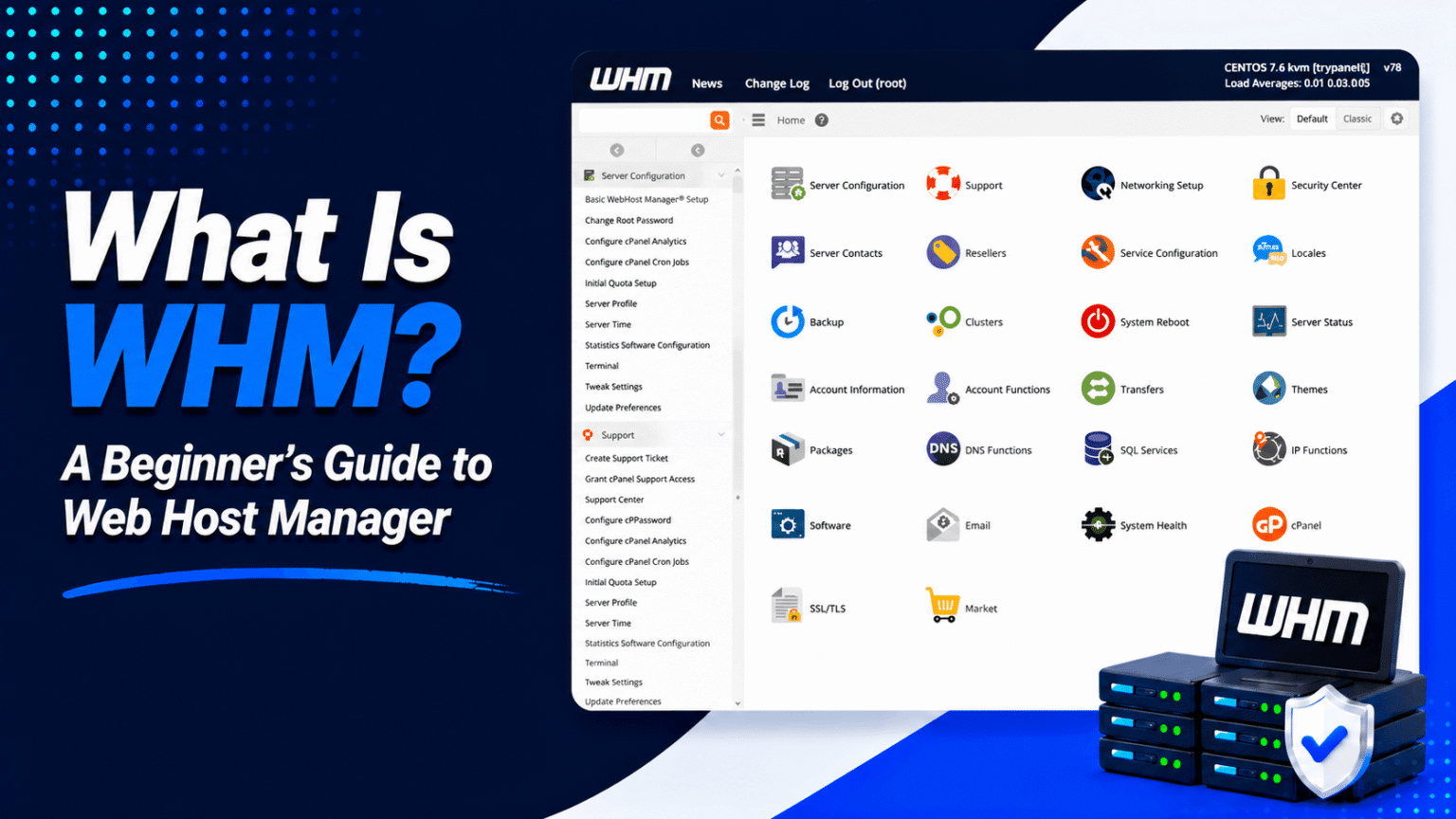
What Is WHM? WHM stands for Web Host Manager. It is a server management tool. Hosting companies use it. Resellers use it too. Administrators also rely on it. It helps them manage multiple cPanel accounts. They can do this all from one place.
You can create accounts with WHM. You can set resource limits. You can adjust server settings. You can improve security. You can also monitor server performance. cPanel is different. It is for single users. WHM is for managing many users and many websites.
This guide explains how WHM works with cPanel. It covers the main features. It covers account management tools. It also covers security settings. WHM is very useful for hosting businesses. It is also great for client site management.
What Is WHM?
WHM stands for Web Host Manager. It is the main control panel for your server. Think of it as a command center. Hosting providers use it. Web developers use it too. Resellers also rely on it. They all manage multiple websites.
Relationship Between WHM and cPanel
WHM and cPanel work together but serve different users :
- WHM is for administrators who manage the entire server – creating accounts, allocating resources, and configuring server-wide settings
- cPanel is for individual website owners who manage their own domains, email, and files
A single server can host many cPanel accounts. WHM is the tool that creates them. It manages them all from one place.
How WHM Helps Server Administrators
WHM gives you powerful tools to :
- Create, suspend, or delete cPanel accounts
- Allocate disk space and bandwidth to each user
- Monitor server performance (CPU, memory, disk usage)
- Manage SSL certificates and security settings
- Configure DNS and nameservers
- Set up hosting packages with different resource limits
- Backup and restore user data
WHM is essential for some setups. You need it for a VPS. You need it for a dedicated server. You also need it for reseller hosting.
How WHM Works
Let’s look at how WHM works behind the scenes.
- Server-Level Administration – WHM lets you monitor server performance. You can manage services and review error logs. It helps you maintain overall server health. This makes it easier to spot problems. It also keeps hosting services running smoothly.
- Account Creation and Management – WHM simplifies creating and managing cPanel accounts. You can add domains, usernames, and passwords. You can also suspend, modify, or terminate accounts when needed. This gives you full control over your users.
- Resource Allocation – WHM allows you to control resources for each account. This includes storage, bandwidth, CPU, and memory. It stops one website from using too many resources. This protects other users on the same server.
- Security and Maintenance Functions – WHM provides tools for many tasks. You can manage SSL certificates and firewall settings. You can adjust PHP configurations and run system updates. It also handles backups. These features help you maintain a secure, stable, and reliable hosting environment.
WHM vs cPanel: What’s the Difference?
Understanding the difference is essential for anyone managing a server or running a hosting business.
WHM Overview
WHM stands for Web Host Manager. It is the administrative control panel for server administrators and hosting providers. Think of it as the “server dashboard.”
- Purpose: Manage the entire server, not just one website.
- Key Functions: Create and suspend hosting accounts. Set resource limits like disk space and bandwidth. Manage server-wide PHP settings. Monitor server performance including CPU, memory, and load. Configure security settings like firewalls and SSL. Install server-level software.
- Who Uses It: Server administrators, hosting companies, resellers, and developers managing multiple websites.
- Analogy: WHM is like the landlord’s control panel for an entire apartment building. You manage all units, utilities, and building infrastructure.
cPanel Overview
cPanel is the control panel for individual website owners. It is what you see when you log into your hosting account.
- Purpose: Manage one specific website or hosting account.
- Key Functions: Upload and manage files. Create email accounts like yourname@yourdomain.com. Install applications such as WordPress and Joomla. Manage databases. View website statistics. Configure domain settings.
- Who Uses It: Website owners, bloggers, small business owners, and anyone with a single hosting account.
- Analogy: cPanel is like the control panel for a single apartment unit. You can paint the walls and change the locks. You can manage your own space. But you cannot control the building’s boiler. You also cannot decide who moves in next door.
WHM and cPanel Comparison Table
| Feature | WHM (Web Host Manager) | cPanel |
|---|---|---|
| User Access | Server administrators, hosting providers | Individual website owners |
| Key Features | Create/suspend accounts, set server-wide limits, manage PHP/SSL, monitor server health | Manage files, email, databases, install apps, view stats |
| Permissions | Full server control, can affect all accounts | Limited to one website/account |
| Typical Use Cases | Running a hosting business, reselling hosting, managing multiple sites | Managing a personal blog, business website, or single eCommerce store |
| Interface Access | Usually via port 2087 (e.g., https://yourdomain.com:2087) | Usually via port 2083 (e.g., https://yourdomain.com:2083) |
| Relationship | WHM creates and manages cPanel accounts | cPanel is a “client” within WHM |
Key Features of WHM
Let me walk you through the most important ones:
Create and Manage cPanel Accounts
WHM allows you to create, modify, suspend, or terminate cPanel accounts with a few clicks:
- Adding new hosting accounts – Set up customer accounts with assigned resources
- Modifying account settings – Adjust quotas, bandwidth, and features
- Suspending and terminating accounts – Temporarily pause or permanently remove accounts
Package Management
Create and manage hosting plans for different customer needs:
- Creating hosting plans – Define resource limits, features, and pricing
- Assigning disk space and bandwidth limits – Control resource allocation per account
- Managing resource allocations – Adjust CPU, memory, and I/O limits
DNS Zone Management
WHM provides full DNS control for your domains:
- Creating DNS records – Add A, CNAME, MX, and TXT records
- Editing DNS zones – Modify existing records and settings
- Managing nameservers – Configure custom nameservers for your hosting
Server Monitoring
Keep track of your server’s health and performance:
- Resource usage tracking – Monitor CPU, memory, and bandwidth usage
- Server health monitoring – Check service status and system logs
- Service status management – Start, stop, or restart services like Apache and MySQL
Security Tools
Protect your server and accounts with robust security features:
- SSL management – Install and manage SSL certificates for domains
- IP blocking – Block malicious IP addresses
- Security policies – Enforce password strength and other security rules
- Two-factor authentication – Add an extra layer of security to WHM access
Backup Management
WHM offers comprehensive backup solutions:
- Automated backups – Schedule regular backups for all accounts
- Full account backups – Create complete backups of individual accounts
- Restoration options – Restore accounts, files, or databases from backups
Benefits of Using WHM
Here are the key benefits that make WHM a game-changer for web hosting management:
Simplified Server Management
WHM turns complex server administration into an intuitive, point-and-click experience. You can manage Apache, PHP, and DNS settings without touching the command line.
Better Resource Control
Set per-user limits for CPU, memory, I/O, and bandwidth. Ensure fair usage across all accounts without manual monitoring. You can allocate resources and prevent any one user from overwhelming the server.
Easier Client Management
Create, suspend, terminate, or modify hosting accounts in seconds. WHM’s bulk tools let you manage many clients at once. This makes scaling your hosting business seamless.
Enhanced Security
Centralized security tools protect your entire server. Manage firewall rules and monitor login attempts. Enforce password policies and configure SSL certificates for all accounts. ModSecurity integration blocks attacks site-wide.
Scalable Hosting Operations
WHM grows with your business. Start with a few accounts and scale to hundreds or thousands. The interface remains responsive, and automation tools let you handle large-scale operations efficiently. You can manage everything with minimal human error.
Who Uses WHM?
WHM is not for everyone. It is a powerful tool for specific users. These users manage multiple hosting accounts or entire servers. Here is who typically uses WHM:
Web Hosting Companies
WHM is the backbone of professional hosting providers. They use it to create and manage customer accounts. They allocate resources and monitor server health. They also bill clients. Without WHM, managing hundreds or thousands of hosting accounts would be nearly impossible.
Hosting Resellers
Resellers buy hosting resources from a larger provider. They sell these resources to their own customers. WHM gives resellers a white-labeled control panel. This lets them manage their clients’ accounts. It does not expose the underlying server infrastructure.
Server Administrators
System administrators use WHM for many tasks. They monitor server performance and apply security patches. They configure PHP settings and manage DNS zones. They also troubleshoot issues. WHM provides a central dashboard for all server-level tasks.
Web Development Agencies
Agencies manage multiple client websites. They use WHM to create separate accounts for each client. This ensures isolation and security. They can also white-label WHM. This lets them present a professional interface to their clients.
Businesses Managing Multiple Websites
Companies with multiple brands or divisions can use WHM. They manage all their websites from a single interface. This simplifies maintenance and updates.
How to Access WHM
Getting into WHM is straightforward once you know where to look. Here’s how to access your server’s command center:
WHM Login URL Formats
WHM uses a specific port number to keep things secure. You can access it through your browser using one of these URL formats :
- Using your IP address: https://198.51.100.1:2087 (replace with your server’s IP)
- Using your domain or hostname: https://example.com:2087 or https://serverhostname:2087
Note: The port :2087 is the standard HTTPS port for WHM access . Some providers also allow access using /whm instead of the port number .
Login Credentials
You’ll need two things to log in:
- Username: Usually root for full server admin access
- Password: The root password provided by your hosting company
Access Through Hosting Providers
Access may vary depending on your hosting plan :
- Shared Hosting: Typically does not include WHM access (only cPanel)
- VPS/Dedicated Servers: You’ll receive full root WHM access. This lets you manage all aspects of your server. You can also create cPanel accounts.
You might also find a one-time login URL in your hosting provider’s client area. This bypasses the need to enter a password. It is useful for first-time setup.
Security Considerations
Remember, WHM holds the keys to your server. Keep these security tips in mind:
- Use strong passwords. Set minimum password strength to 50 or higher in WHM’s Security Center.
- Enable Two-Factor Authentication (2FA) for WHM access.
- Turn on cPHulk Brute Force Protection to block automated attacks.
- Restrict root access to only trusted administrators. Use the Manage Wheel Group Users tool.
- Add trusted IP addresses to the cPHulk whitelist. This stops you from locking yourself out.
Essential WHM Tasks for Beginners
Once you’re logged into WHM, you’ll find a powerful toolkit for managing your server. Here are six essential tasks that every beginner should master.
-
Create a New Hosting Account: This is how you add websites to your server. Go to Account Functions → Create a New Account. Then fill in the domain, username, and password. Assign a hosting package to get the site online.
-
Set Up Hosting Packages: Instead of manually configuring resources for each account, create predefined packages. These include specific disk space, bandwidth, and email limits. Go to Packages → Add a Package to define these reusable templates.
-
Manage DNS Settings: Use the DNS Zone Manager to edit records like A, MX, and CNAME. This is where you point domains to your server and configure email routing .
-
Configure Email Services : Set up email routing through the Email Routing Configuration interface. You can choose local, backup, or remote mail exchanger. This ensures messages are delivered to the right server.
-
Monitor Server Performance : Check your server’s health using the Service Status tool. It shows active services like HTTP and email. It also displays system load and disk usage. This helps you spot potential issues early.
-
Perform Backups: Protect your data by generating full account backups. Use the Backup interface to do this. You can download entire accounts or specific parts like home directories and databases.
Master these fundamentals, and you’ll have a solid grip on WHM!
WHM Reseller vs Root Access
WHM access can vary depending on your hosting plan and role. Reseller WHM provides limited permissions for managing client accounts. Root WHM gives administrators complete control over the server.
Reseller WHM Access
- Limited permissions: Create, suspend, modify, and terminate your own cPanel accounts. You cannot change server-wide settings.
- Client management: Set disk space and bandwidth limits. Create hosting packages. Manage accounts within your reseller area.
- Best for: Web designers, agencies, freelancers, and small businesses offering hosting to clients.
Root WHM Access
- Full server control: Manage Apache, PHP, MySQL, and security settings. Control software, services, and server configurations.
- Advanced administration: Install custom modules and rebuild configurations. Manage firewalls and review system logs. You can also reboot the server.
- Best for: Hosting companies, VPS owners, dedicated server users, and experienced system administrators.
Common WHM Issues and Troubleshooting
Here are the most frequent WHM issues and how to resolve them:
- Login Problems: Can’t access WHM? Clear your browser cache. Verify your root password. Check if your IP is blocked by the CSF/LFD firewall. You can also restart the cPanel service via SSH with this command: /scripts/restartsrv_cpsrvd.
- DNS Configuration Errors: If domains are not resolving, verify your DNS zone settings. Ensure nameservers are properly registered with your domain registrar. Check that the DNS service is running with this command: /etc/init.d/named status.
- Email Delivery Issues: Are outgoing emails going to spam? Set up SPF, DKIM, and DMARC records. Check the mail queue in WHM for stuck messages. Ensure your server’s reverse DNS (PTR record) matches your hostname.
- Resource Limit Warnings: If you see “out of memory” or “process exceeded” errors, monitor resource usage. Use WHM’s “Server Information” panel for this. Increase limits for specific accounts. Upgrade server hardware if it is consistently overloaded.
- Backup Failures: Failed backups are often due to insufficient disk space. Check available space. Verify the backup destination is accessible. Review the backup log for detailed error messages. You can find it in /usr/local/cpanel/logs/cpbackup/.
WHM Best Practices
Here are five key habits to build into your WHM routine:
- Keep Software Updated – Outdated software is the number one entry point for hackers. Regularly update cPanel, WHM, Apache, PHP, and all server-side applications. This patches security vulnerabilities and improves performance.
- Use Strong Security Settings – Enable two-factor authentication (2FA). Enforce strong passwords. Disable root logins via SSH. Use firewall rules like CSF to block suspicious activity. WHM’s built-in security features are powerful. Make sure you use them.
- Monitor Server Resources Regularly – Keep an eye on CPU usage, memory, disk space, and load averages. WHM’s “Server Information” and “Process Manager” help you spot issues. You can catch problems before they become outages.
- Enable Automatic Backups – You cannot afford to lose client data. Configure automated off-site backups to run daily. WHM’s backup system supports remote FTP, S3, or even local storage.
- Restrict User Permissions – Not every user needs full admin access. Limit privileges to what each reseller or end-user actually needs. Use ACLs and feature lists to control exactly what they can do.
Master these practices and your WHM environment will stay fast, secure, and reliable. On to the next section!
WHM Alternatives
WHM is a powerful choice, but it’s not the only control panel in the hosting world. Here are the most common alternatives:
DirectAdmin – Lightweight & Budget-Friendly
DirectAdmin is a fast and efficient alternative. It uses significantly fewer server resources than WHM. It is a great choice for a VPS with limited RAM. It also works well if you want to keep licensing costs low.
Plesk – Developer-Friendly & Multi-Platform
Plesk stands out because it supports both Linux and Windows servers. It features a modern interface with powerful tools. These include the WordPress Toolkit and native Docker and Git integration. This makes it a favorite among developers.
InterWorx – Built for Clustering
InterWorx is a solid and lesser-known panel. It is designed for VPS and dedicated servers. Its unique strength is built-in clustering support. This allows you to manage multiple servers from one dashboard.
Comparing Alternative Control Panels
When comparing WHM with alternatives, consider:
- Ease of use
- Hosting account management
- Server resource requirements
- Security features
- Automation options
- Pricing and licensing
- Available integrations
- Support and documentation
The right control panel depends on your hosting environment, technical requirements, budget, and level of administration.
Which One Should You Choose?
- Beginners: DirectAdmin (simple & fast) or Plesk (modern UI)
- Agencies/Resellers: InterWorx (clustering) or Plesk
- Budget-conscious: DirectAdmin (~$5/mo) or InterWorx (~$7.50/mo)
Conclusion
So understanding What Is WHM? It is a powerful control panel for managing multiple cPanel accounts from one place. You can also manage server settings, resources, security, and backups.
WHM is especially useful for hosting providers and resellers. Developers and server administrators also benefit from it. These users often manage multiple websites. Learning its basic tools can make hosting management easier and more efficient.
Ready to manage your hosting server more effectively? Start exploring WHM today. Build your confidence with its essential features.

Leave a Comment