

Paid partnership with Bluehost. I earn a commission if you buy through my links. Everything below comes from my own test, unless I say it comes from Bluehost or another company.
Bluehost AI Builder can turn one sentence into a live website. I put that claim to the test with a blog. I typed one careless prompt, made a free account and never entered a card. Later, I redesigned the whole site with a second prompt.
This review covers what worked, what it costs and where my test stopped. I also looked at how it compares with Wix, Hostinger and Framer.
Quick answers
- Is it free? You can start free. Bluehost says “$0 to start, no credit card,” and that matched my test.
- Do you need to code? No. I typed plain English and never touched code.
- What does it cost later? Paid plans from $20/mo.
- Can you use your own domain? Only on a paid plan. Free sites go live on a Bluehost subdomain, which is a web address that sits under Bluehost’s own domain.
What the builder does
Bluehost AI Builder is a no-code AI website builder. You skip the template step. You describe your idea, the AI builds a first version, and you change it by chatting.
My blog came with a home page, a blog page with topics and search, About and Contact pages, and a writing dashboard. The AI said “My Blog” was only a working name. The sample posts and About page were there to replace.
Bluehost describes the process in five steps: describe, refine, build, publish and manage. In my test, the order felt different. The quick questions came during the build, not after it. Bluehost also says the AI’s questions are free. My credit counter dropped by one after the build, and no more.
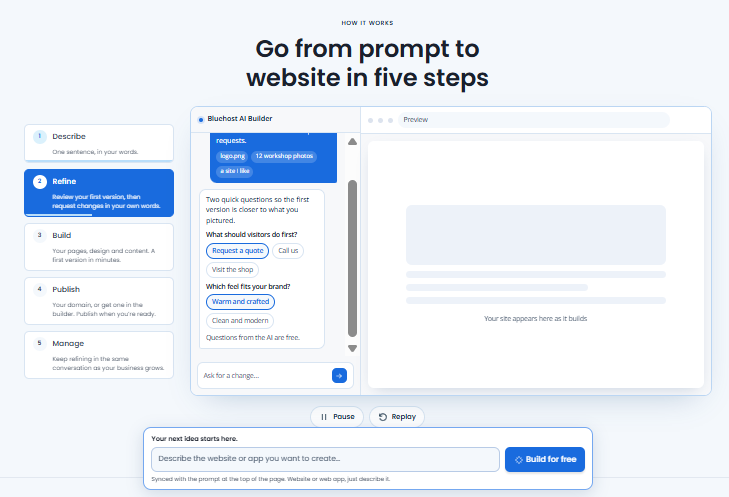
Bluehost’s own five-step overview.
Build Your Website with Bluehost AI Builder
Create a website by simply describing what you need. Let AI handle the design and content, then customize and publish your site. Get started for $0 with no credit card required.
How to use Bluehost AI Builder, step by step
This is the exact path I followed.
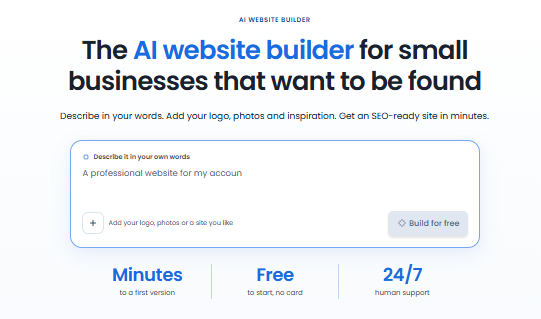
Step 1: Describe your site
Type your idea into the box on the builder page. My prompt was one line, typos and all.
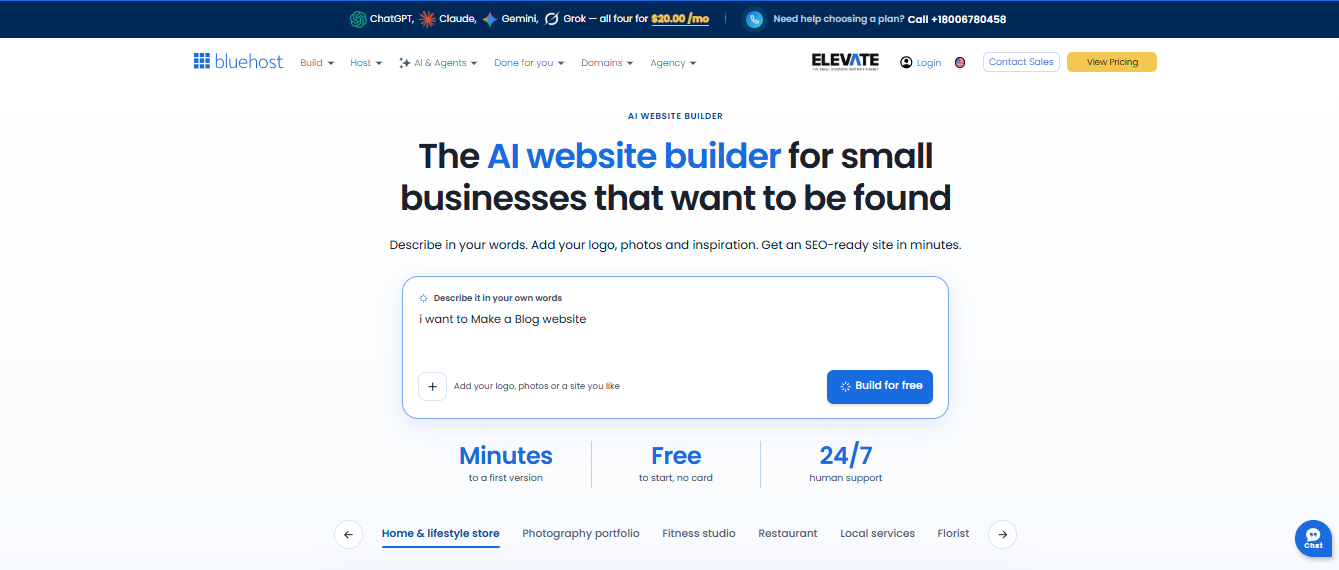
My whole brief. One sentence.
You do not have to start from a blank box. The builder page has category tabs under the prompt box, such as photography portfolio, fitness studio, restaurant, local services and florist. Click one, and the box fills with a ready-made prompt. A sample site appears below it, with a desktop view and a phone view.
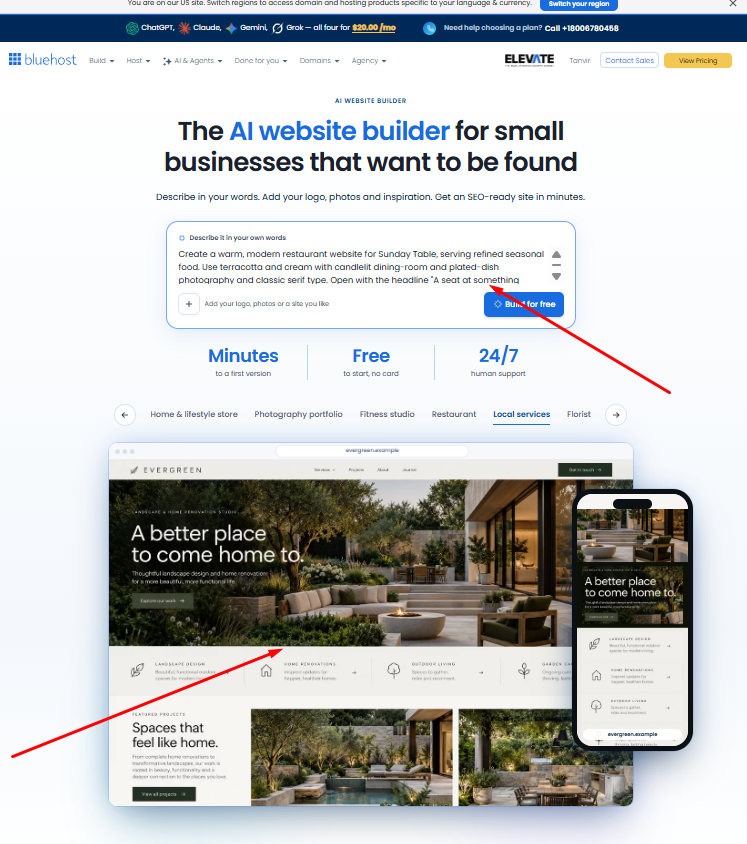
Clicking a category fills the prompt box. The arrows point to the prompt and the sample preview.
Look at how detailed that prompt is. It names the business, the food, the colors, the photo style, the type style and even the opening headline. My one-line prompt had none of that. A good move is to click a category, then edit the details to match your own business.
Step 2: Make a free account
Sign up with Google, Apple, GitHub or email. A phone number is optional. I never saw a card field.
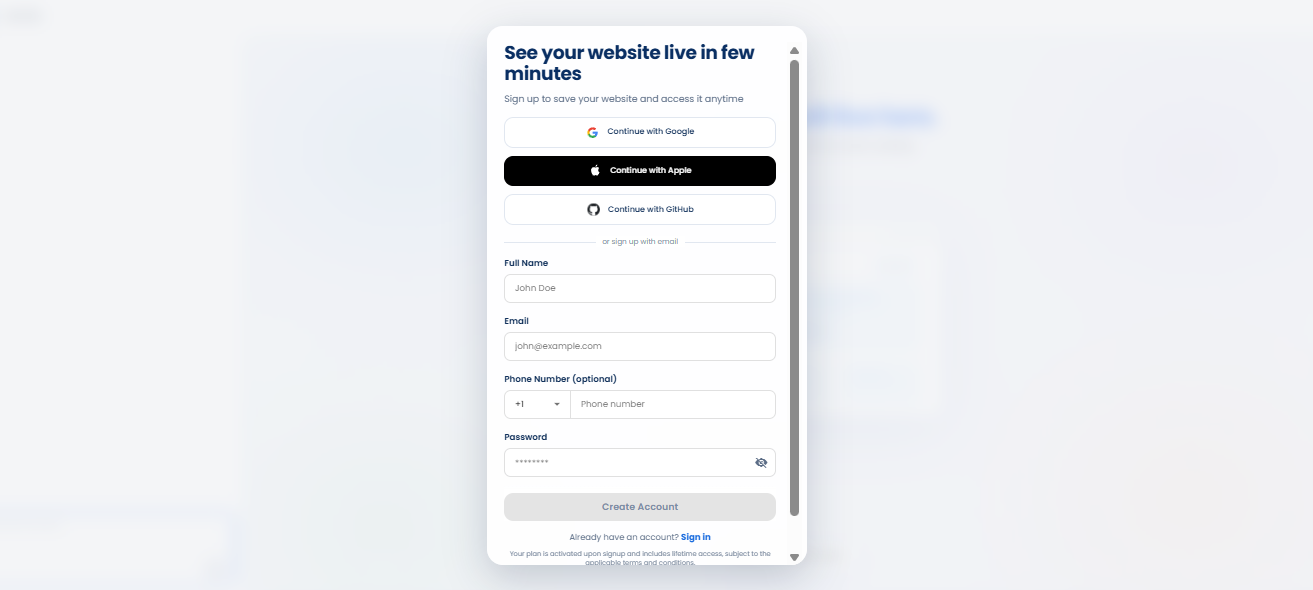
Sign-up asks for a name, email and password.

A short setup screen follows.
Step 3: Wait for the build
First, the screen says it is reading your prompt. That can take up to a minute. I did not time the whole build, so I will not guess.
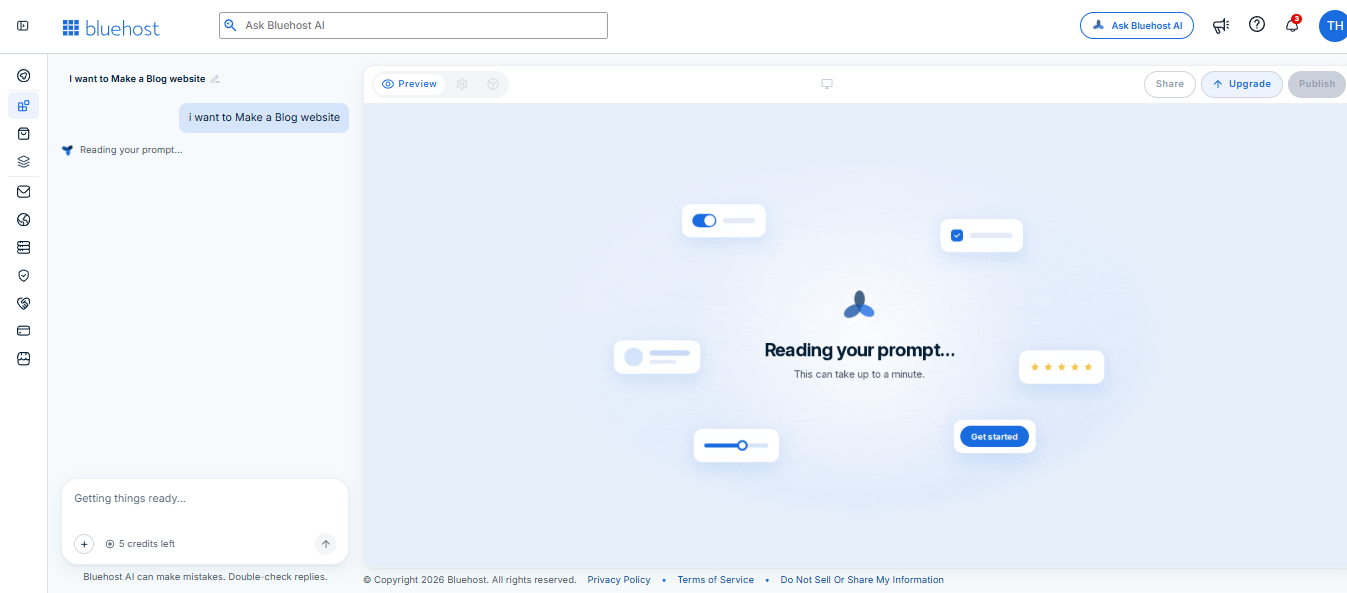
The counter shows 5 credits at this point.
Then a checklist shows the work: site look, posts and topics, dashboard and blog pages. A note says the build keeps going if you leave. While you wait, the builder asks a few quick questions, such as whether you are a business owner, freelancer, developer or hobbyist. You can skip them.
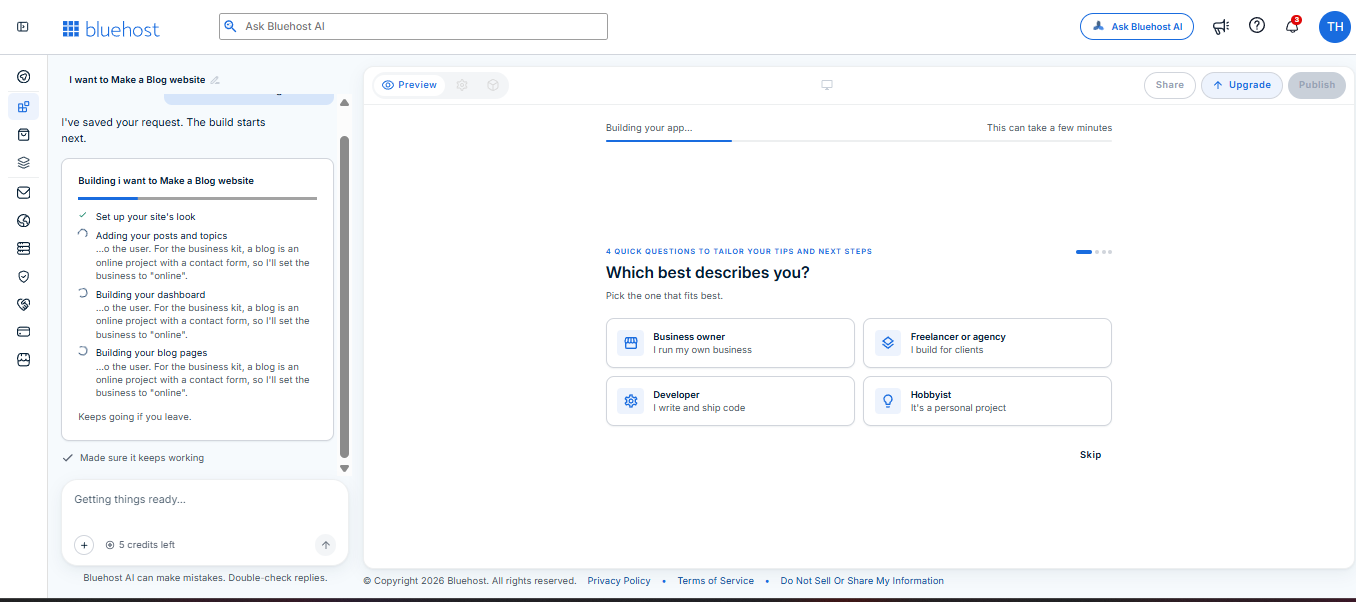
The build in progress.
Step 4: Look over the first version
When the build ends, the chat gives a short summary. The credit counter now reads 4, so one full build cost me one credit.
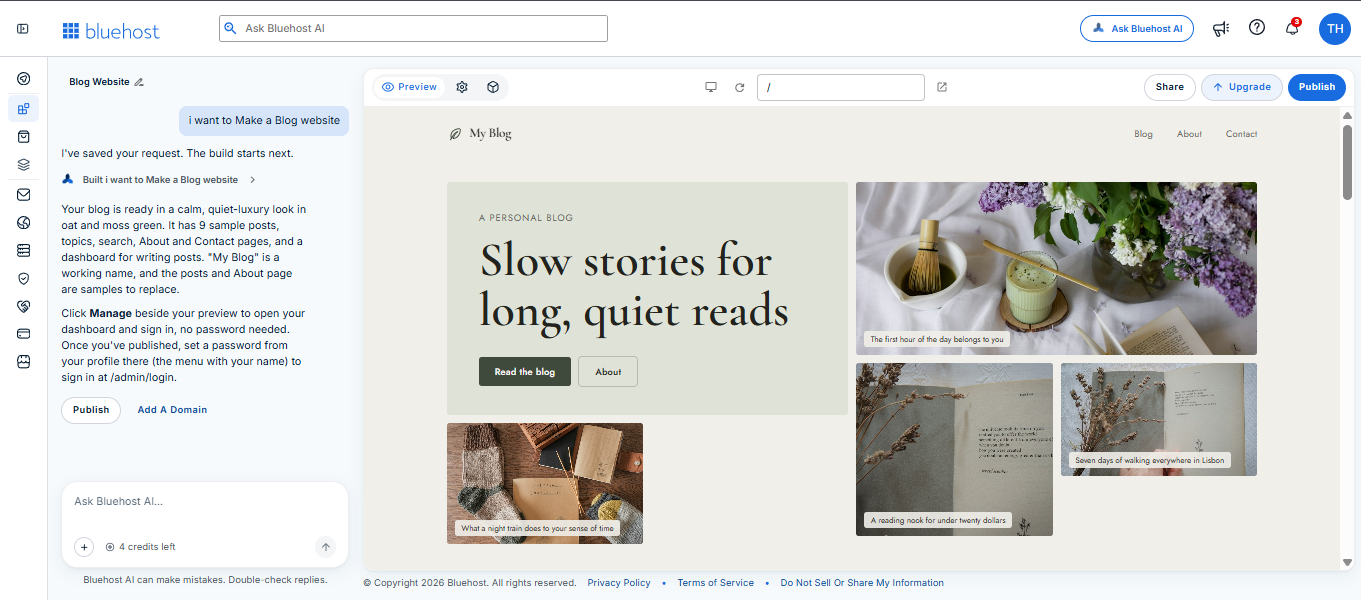
The summary after the build.
The home page opens with the headline “Slow stories for long, quiet reads” and a grid of photos.
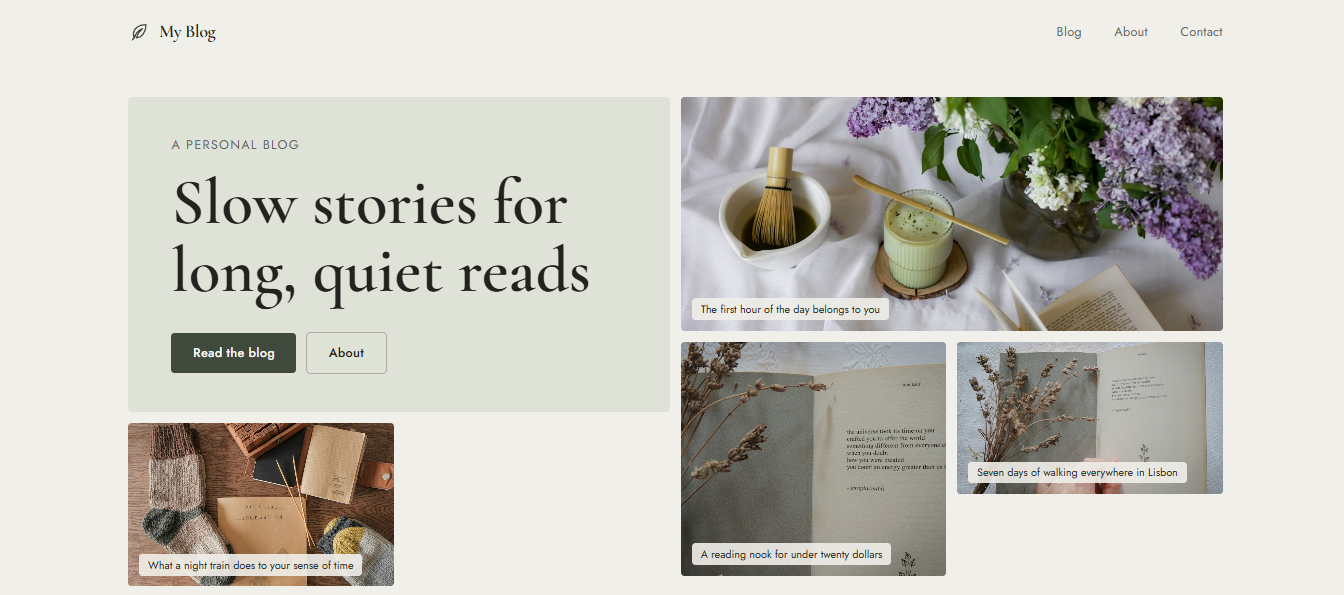
The first version of the home page.
The blog page has topics (Kitchen Table, Slow Living and Travel Notes) and a search box.
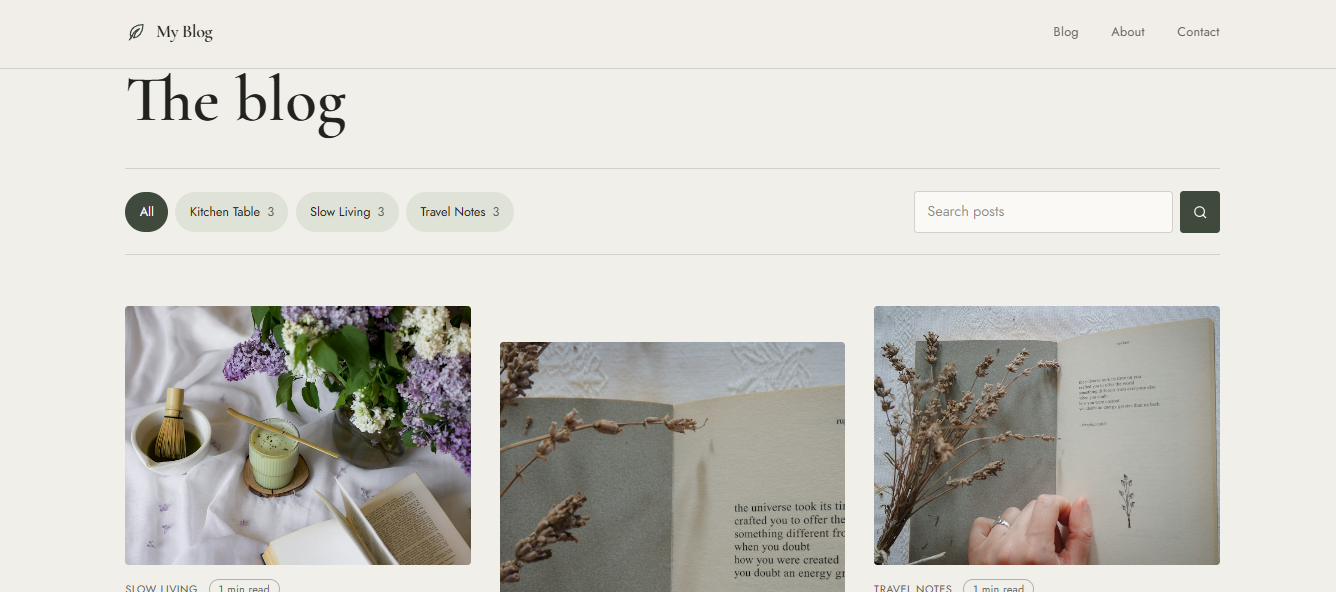
Topics and search worked right away.
Each post has a clean reading layout with a title, subheading, date and read-time badge.
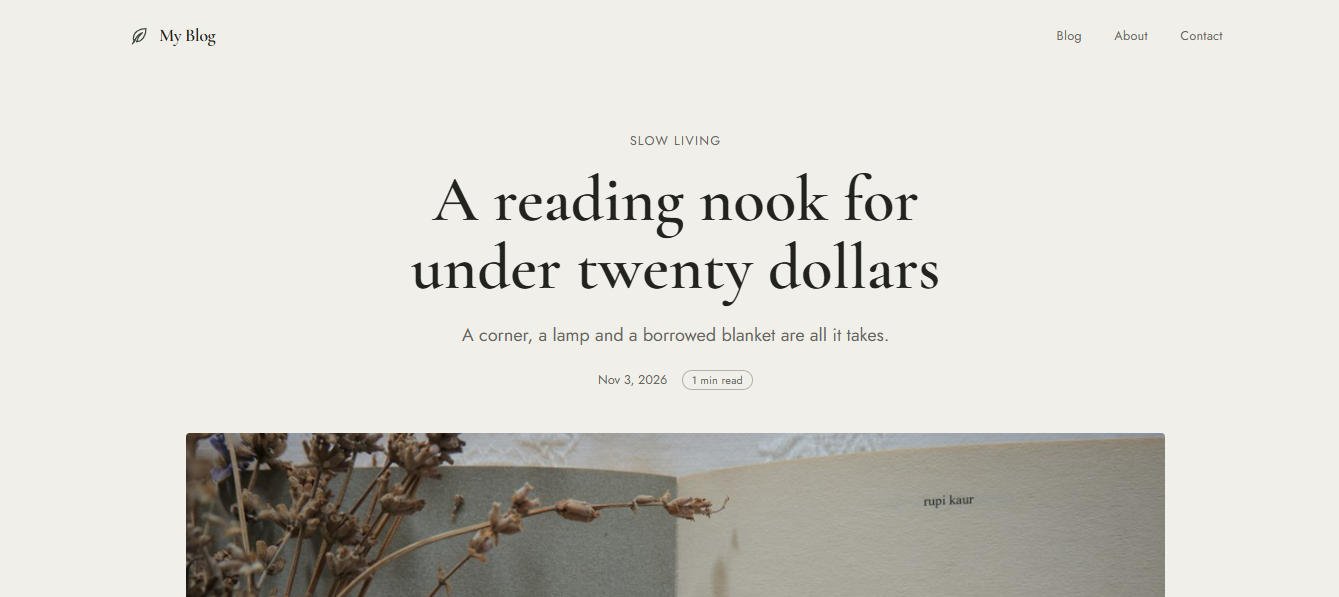
One of the sample posts.
Remember, the words and photos are samples. You still need to write your own posts and About page.
Step 5: Redesign it by chat
You do not have to keep the first design. You can ask the AI to change it in the same chat. I wrote one long prompt that asked for a more premium, editorial look. It began like this: “Redesign this blog website into a premium, modern, minimalist editorial-style blog.”
The prompt went on to ask for elegant serif type, warm cream backgrounds, muted sage green accents and spacious layouts. I also asked for an asymmetric hero section and a cinematic featured article banner.
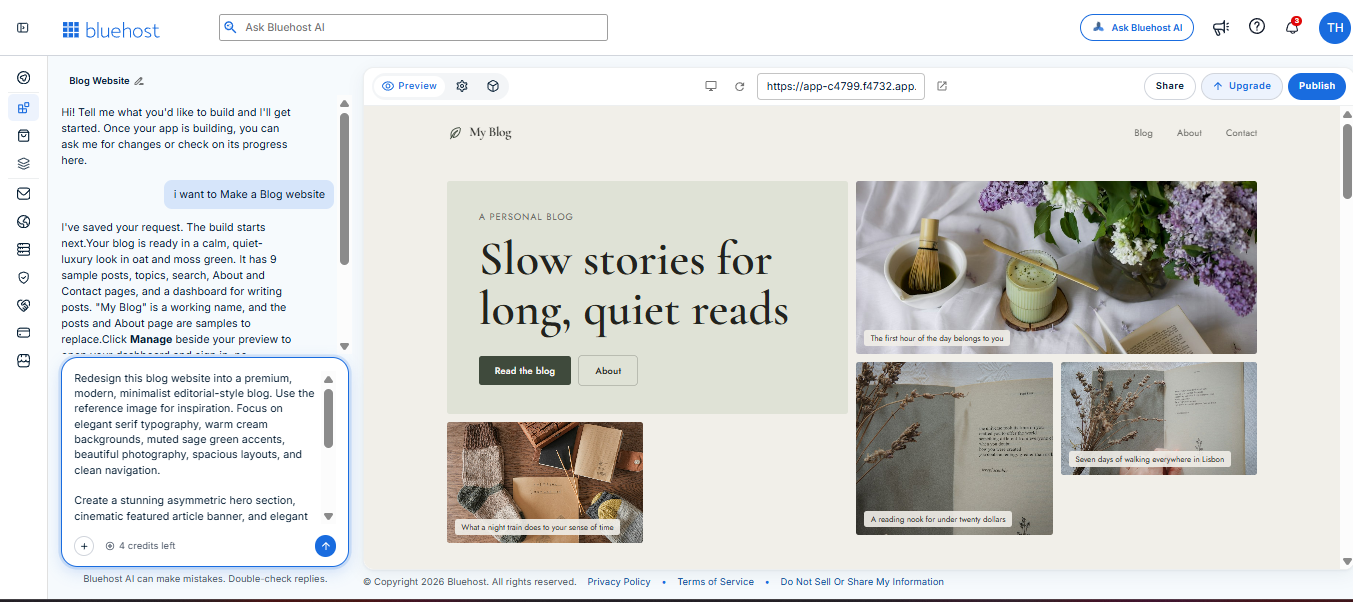
My redesign prompt, ready to send. The counter still shows 4 credits.
The AI rebuilt the site. When it finished, the counter read 3. So the redesign cost one credit, the same as the first build.
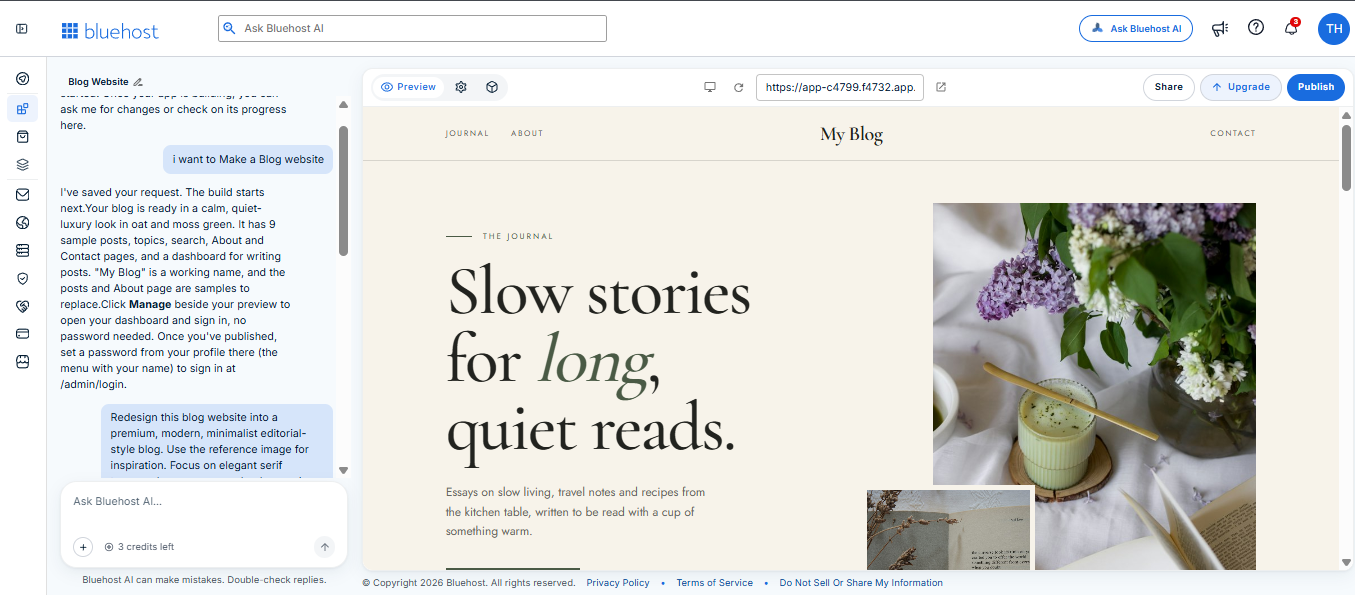
The new hero in the preview, with 3 credits left.
The new look is very different from the first one. The logo moved to the center. The home page now has an asymmetric hero, a full-width featured banner, a “Latest stories” grid, a Topics section and a dark contact block.
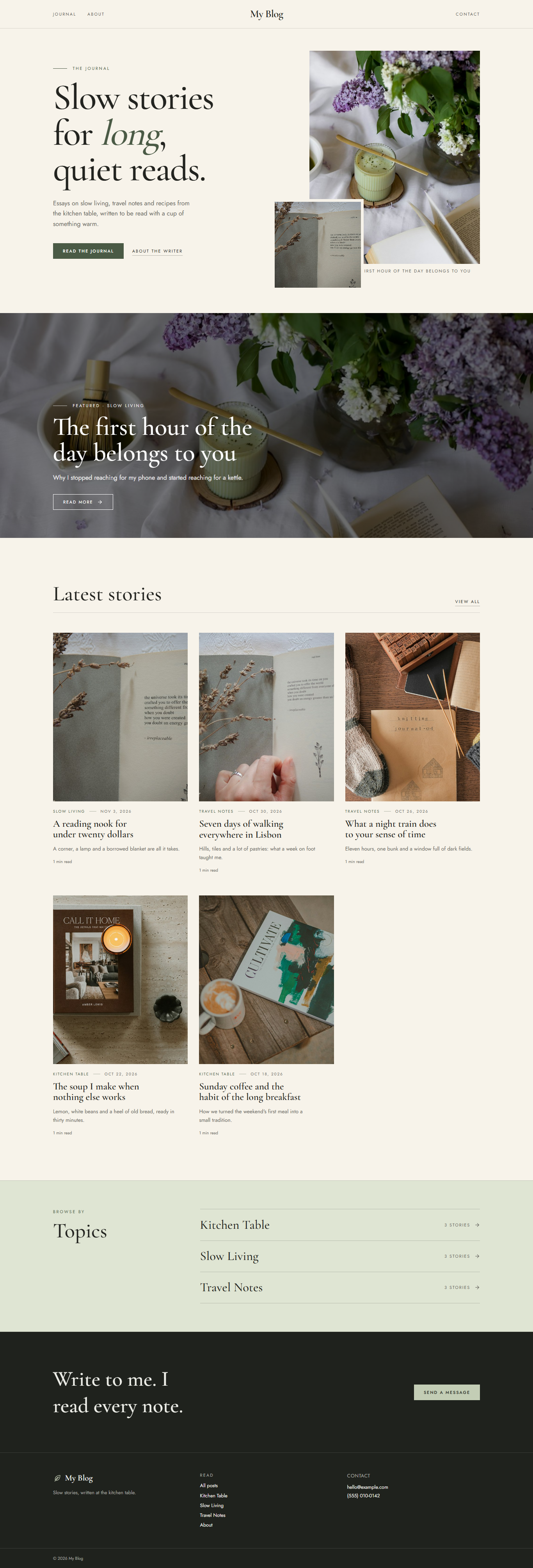
The full home page after the redesign.
Post pages changed too. They now end with a “Keep reading” row of related posts.
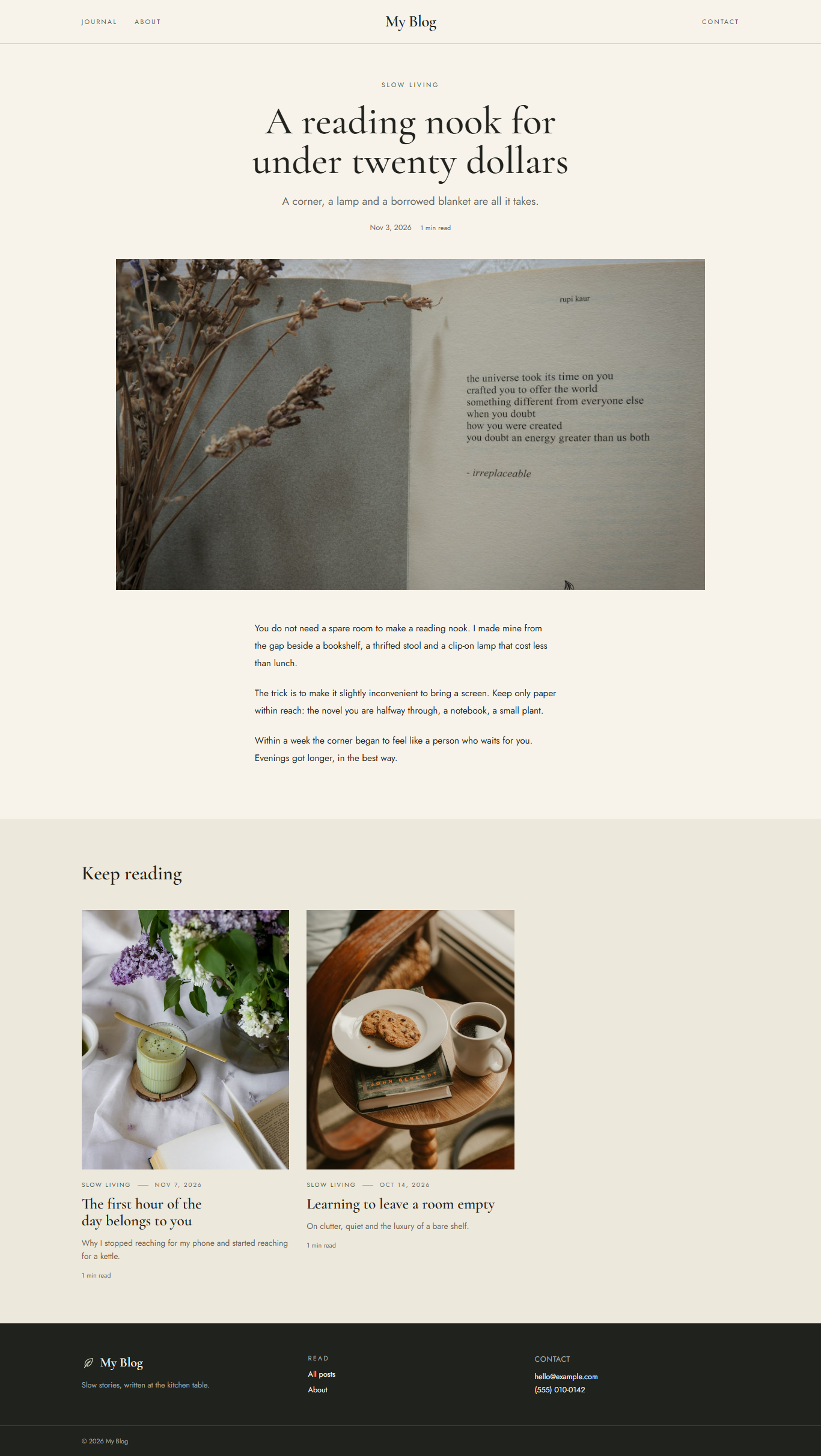
A post page after the redesign.
One warning. The footer still shows sample contact details. Change them before you share your site.
Bluehost says edits show in a live preview, save on their own and stay private until you publish again. So after a redesign, check that your public site shows the new look.
Step 6: Check phone and tablet
[ADD AFTER YOUR TEST: switch the preview between desktop, tablet and mobile. Say what looked good and what needed a fix. Add a screenshot.]
Step 7: Publish
Press Publish at the top right, or use the button under the AI’s summary.
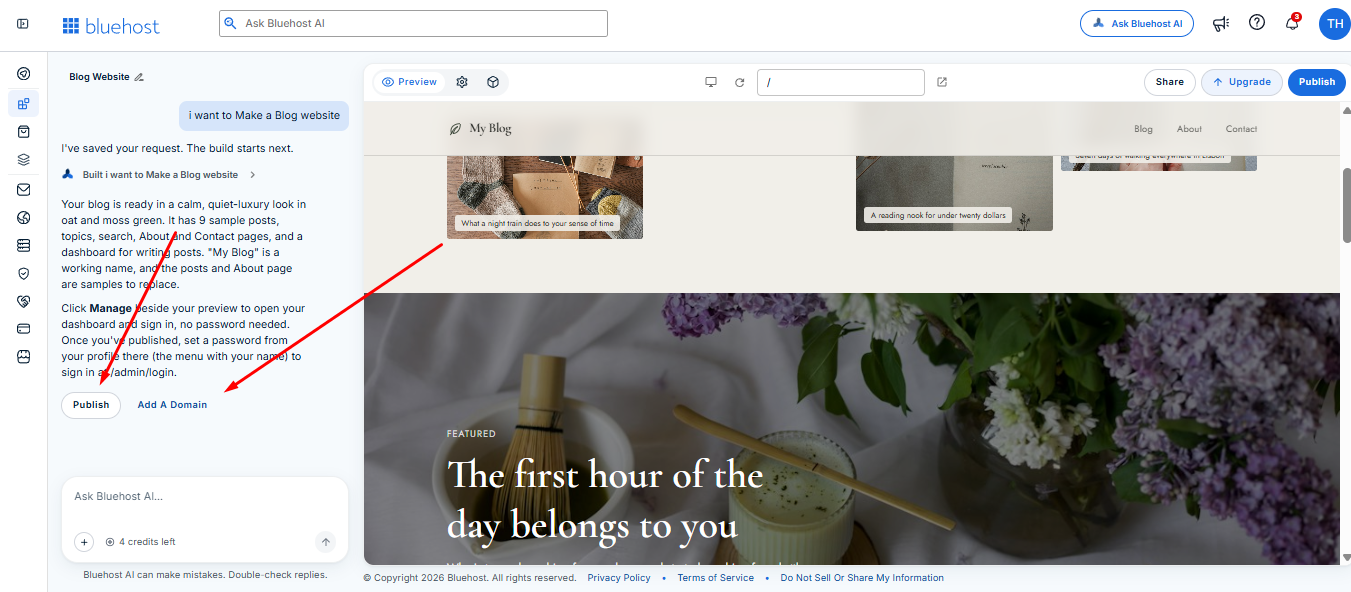
Both buttons sit in the chat.
A panel opens with your free subdomain and three options: Buy a domain, Connect a domain and Publish now.
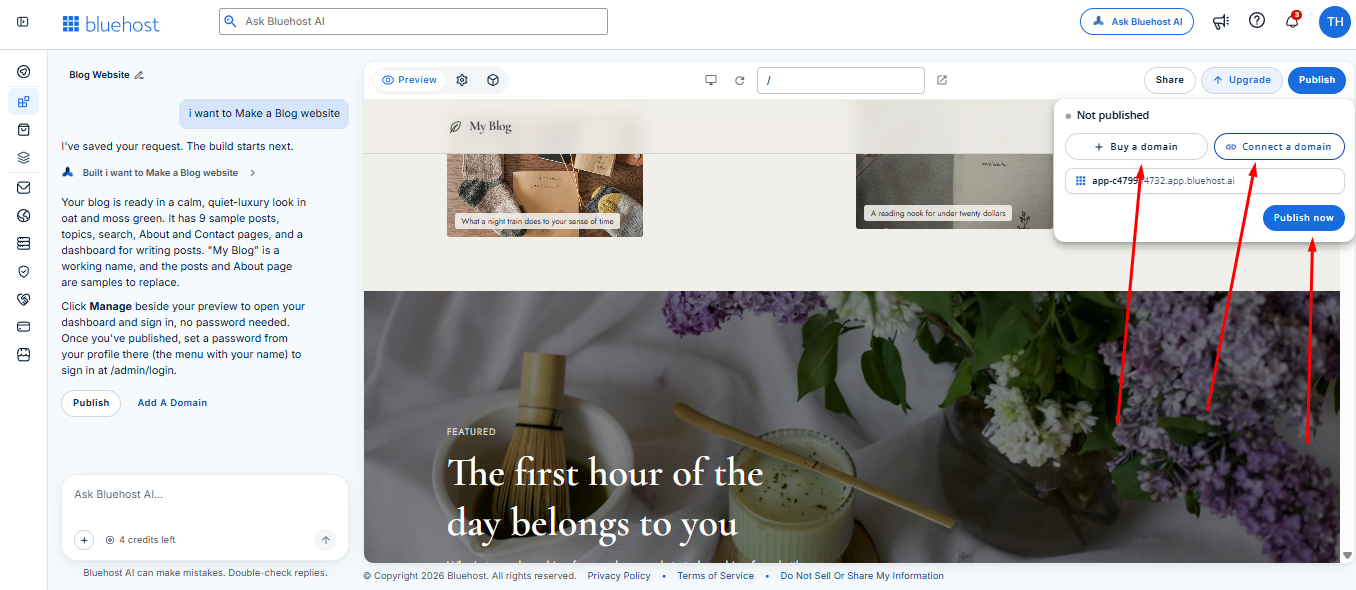
Nothing is live until you press Publish now.
I pressed Publish now.
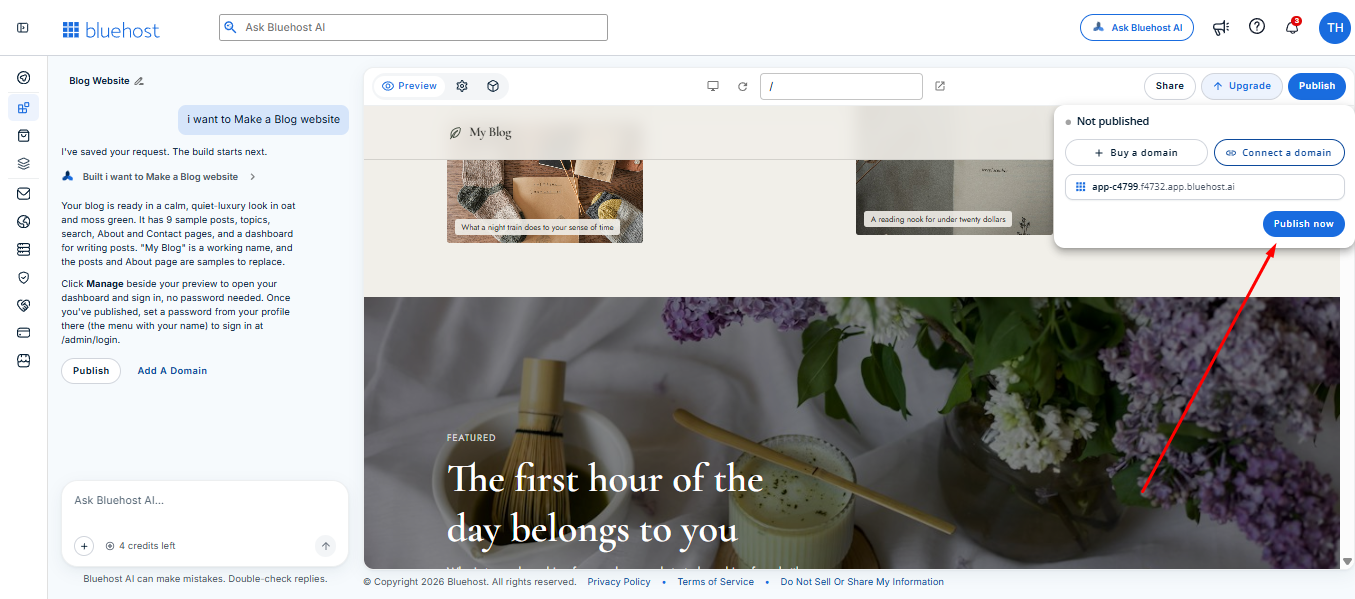
One click.
The panel then said Published and showed an Open site link. My blog went live at app-c4799.f4732.app.bluehost.ai.
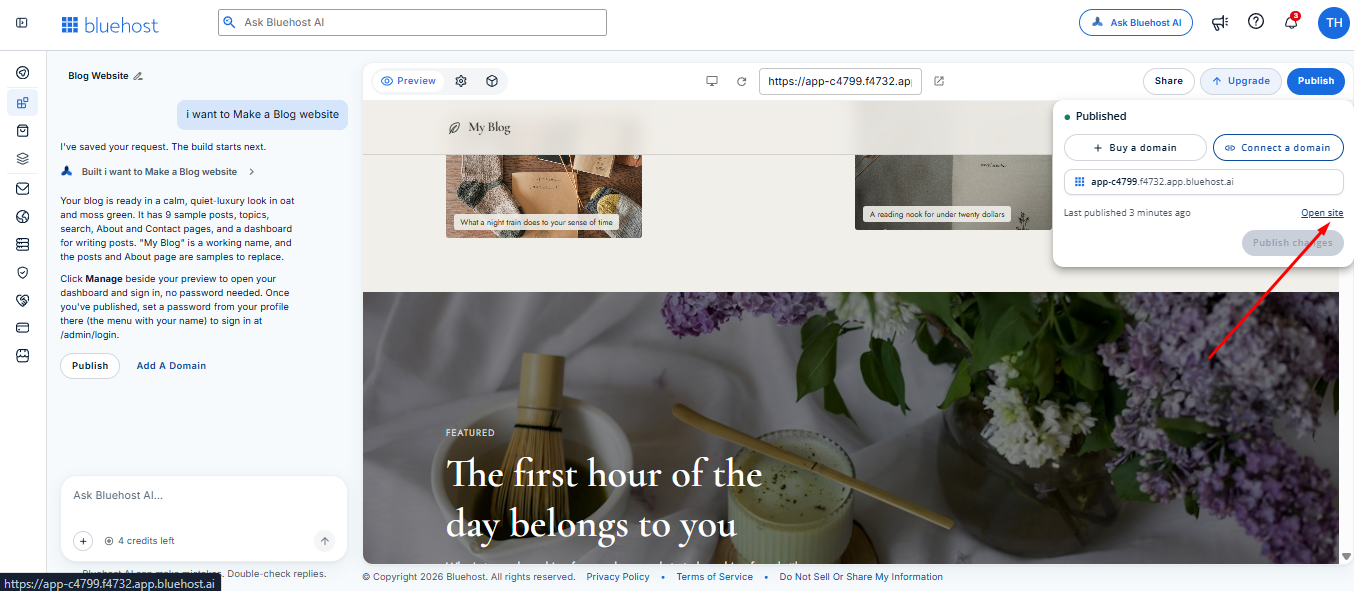
Live on the free plan. No card needed.
Step 8: Find your builds or start a new one
Everything you build lives in one place. Open AI Builder from the left menu.
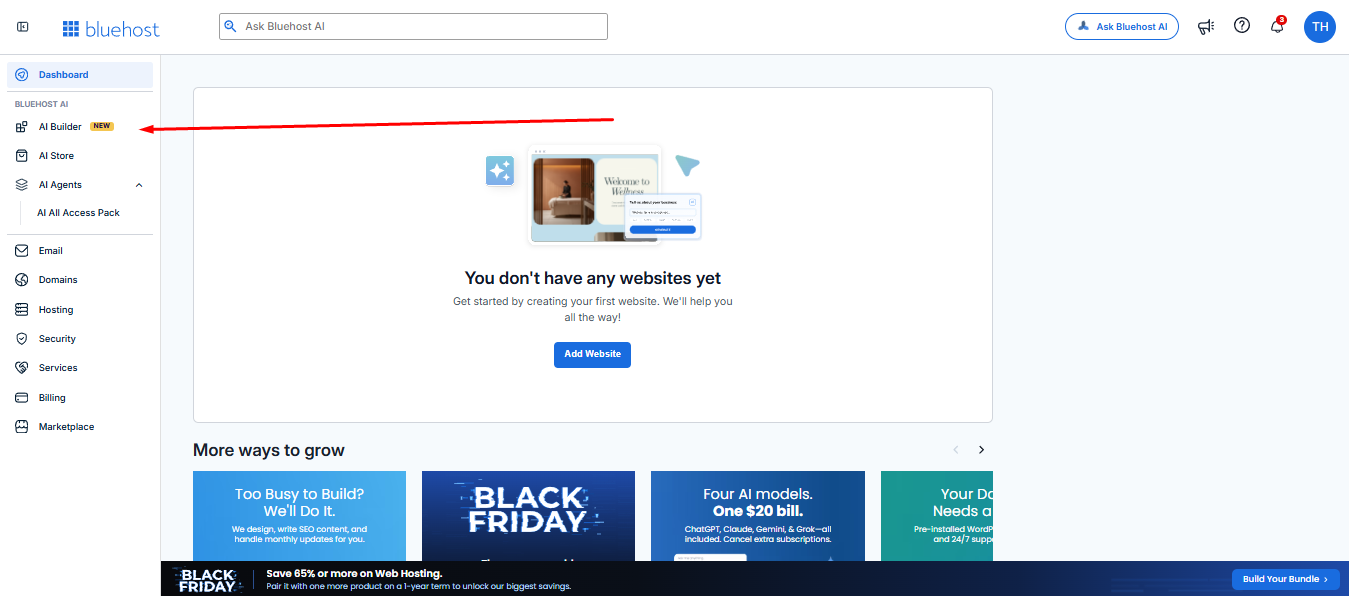
AI Builder sits in the left menu, marked NEW.
That page opens with a box that asks what you want to build. You can start a brand new design from here. Under the box, a list called “Your apps” shows each build with its status and last edit time. I have one so far, and it says Published.
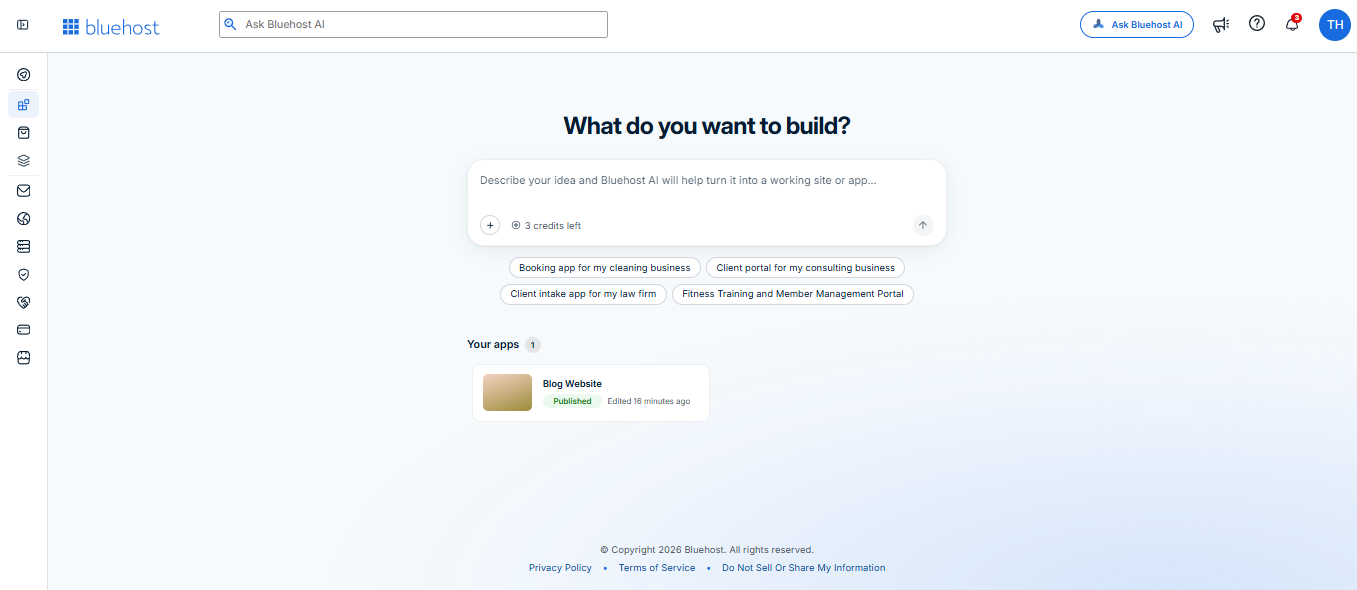
The build box and my list of apps. The counter shows 3 credits.
The sample ideas under the box include a booking app and a client portal. So it is not only for blogs.
Bluehost AI Builder pricing and credits
Credits pay for every AI action. I started with 5. Bluehost says one message uses one credit, and that matched my test: the build cost one, and so did the redesign. I ended at 3.
The upgrade screen says the free setup gives you 5 daily credits. Paid plans add more monthly credits and let you connect your own domain.
| Plan | Price | Credits |
|---|---|---|
| Free | $0 to start, no credit card | 5 a day, up to 30 a month |
| Lite | $20/mo | Up to 100 per month |
| Standard | $40/mo | 200 per month |
| Pro | $80/mo | 400 per month |
Need more credits? Top-ups cost $0.30 per credit. I saw packs of 50 credits for $15, 100 for $30 and 200 for $60. Plan credits get used first, and top-ups last 30 days.
I did not buy a plan. Prices can change, so check the live page before you decide: see the current plans (I earn a commission if you buy through this link).
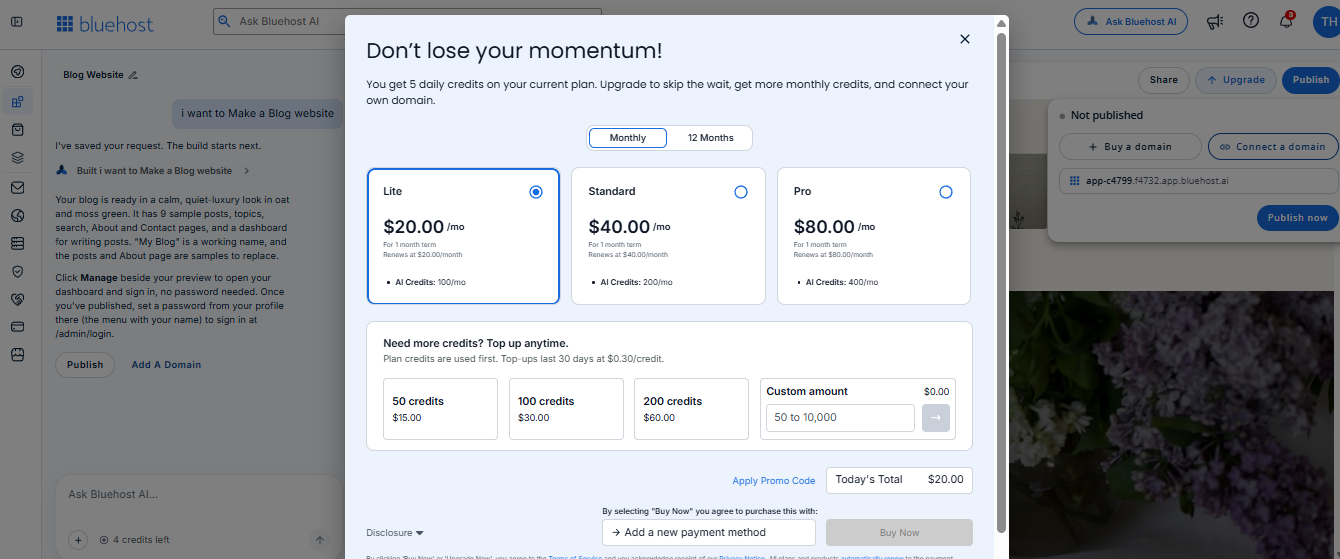
The upgrade screen.
What Bluehost’s pricing page adds
Bluehost’s own pricing page shows a few details I did not see in my test. I have not verified them, so read them as Bluehost’s claims. Plans can change, so check the live page for current numbers.
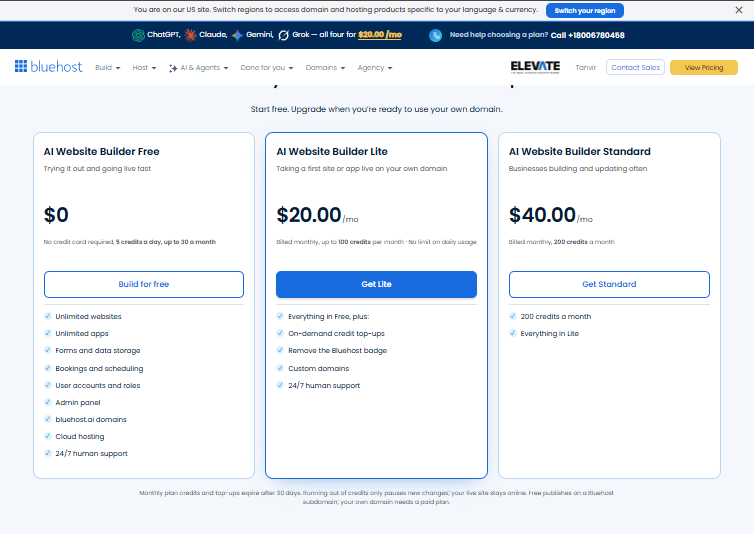
Bluehost’s pricing page, as I saw it on Nov 11, 2026.
- Free: $0, no card, 5 credits a day and up to 30 a month. It lists unlimited websites and apps, forms, bookings, user accounts, an admin panel, cloud hosting and 24/7 human support.
- Lite: $20/mo for up to 100 credits a month. It adds credit top-ups, no Bluehost badge, custom domains and 24/7 human support.
- Standard: $40/mo for 200 credits a month.
- Credits expire after 30 days.
- Running out of credits pauses new changes. Bluehost says your live site stays online.
- Domain registration and renewal are billed separately from your plan.
Bluehost also says one message uses one credit. That fits what I saw. My build used one credit, and so did my redesign.
What Bluehost says about search
Bluehost says the AI writes real copy for each page. It also sets the page title, page description, headings and image alt text. Those are the basics search engines read.
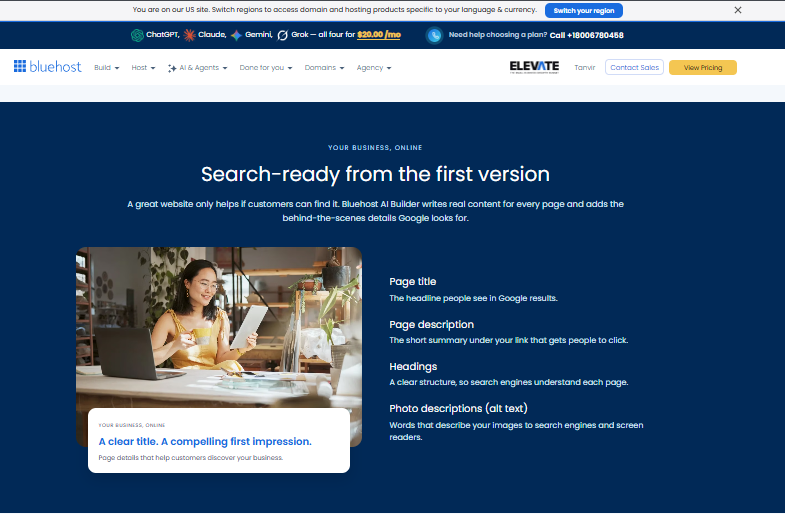
What Bluehost says it sets up for you. I did not check these in my own build.
This is not a ranking promise. Bluehost’s own FAQ says ranking still depends on competition, location and how often you update. Good content is still your job.
What I tested, and what I did not
My test was small: one blog, one free account and one big redesign.
What I tested:
- Turning one prompt into a full, multi-page blog
- Signing up with no card
- Publishing on the free subdomain
- Redesigning the whole site with one chat prompt
- Watching credits go from 5 to 4 to 3
What I did not test:
- Phone and tablet views
- Page speed
- Writing and publishing my own post in the dashboard
- The page titles and alt text Bluehost says it adds
- Connecting my own domain
- Support
- A business site, or any other builder
Anything in this review that comes from Bluehost’s pages is Bluehost’s claim, not my result.
Bluehost AI Builder alternatives: Wix, Hostinger and Framer
I did not test these three. The notes below come from each company’s own pricing page, which I checked on Nov 16, 2026. Plans change often, so check again before you buy.
Wix’s pricing page says you can create a site for free. A Premium plan lets you connect your own domain and remove Wix branding. Wix also has a drag-and-drop editor, which gives you more hands-on control than a chat-first builder.
Hostinger’s AI Builder page shows plans with a monthly AI credit limit, much like Bluehost. It says hosting comes at no extra cost if you do not already have a hosting plan, and it lists a 30-day money-back guarantee. I did not find a free plan there.
Framer’s pricing page lists a free plan on a Framer address. It says you need a paid plan to connect your own domain, and it calls the free plan ideal for non-commercial use. Framer is a visual design tool first, so it suits people who want to shape the layout themselves.
In my test, Bluehost stood out for its free start with no card and a live site in one sitting. If you want hands-on layout control, Wix or Framer may suit you better. I did not compare monthly prices, so do that yourself.
Is Bluehost AI Builder worth it?
For a first draft of a site, I think it is worth a try. It costs nothing to start, and you see a real result fast.
It suits beginners who want a site without coding. It also fits freelancers who need a simple page and small businesses testing an idea.
Can it make a business website? I only built a blog, so I will not promise more than I saw. Bluehost’s own examples cover business and consulting, restaurant, local services, photography, florist and fitness studio sites. Those are Bluehost’s samples, not my results.
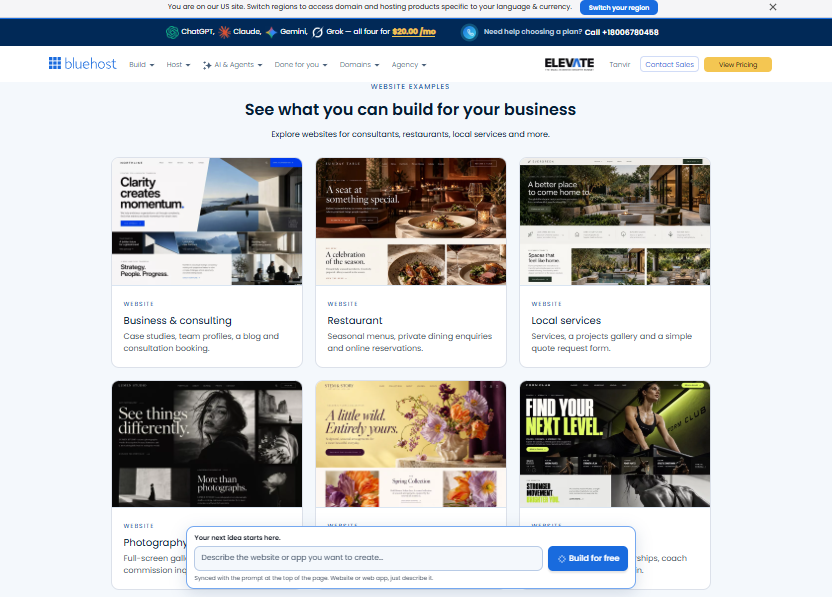
Sample sites from Bluehost’s examples page.
If you want to sell products, look at Bluehost AI Store instead.
If you need exact control over every detail, try small edits too. I only tested one big redesign prompt.
My verdict
I expected a rough sketch. I got a clean blog, live in one sitting. The real work starts after that: replacing the samples and making the site yours.
Curious? Try Bluehost AI Builder free (I earn a commission if you buy through this link). It is “$0 to start, no credit card,” with paid plans from $20/mo.
Paid partnership with Bluehost. I earn a commission on purchases made through my links.
Related Articles
- AI Website Builder Hosting Compared
- How to Choose the Right Hosting for Your First Website
- Website Launch Checklist You Will Ever Need
- Top WordPress Web Hosting Themes
- How Web Hosting Affects Website Speed and SEO
- Fastest WordPress Hosting Providers in 2026
- How Does Web Hosting Work?
- What Is a Web Hosting Service? Complete Guide
- Bluehost Hosting Halloween Deals
- Black Friday Web Hosting Deals


Leave a Comment