
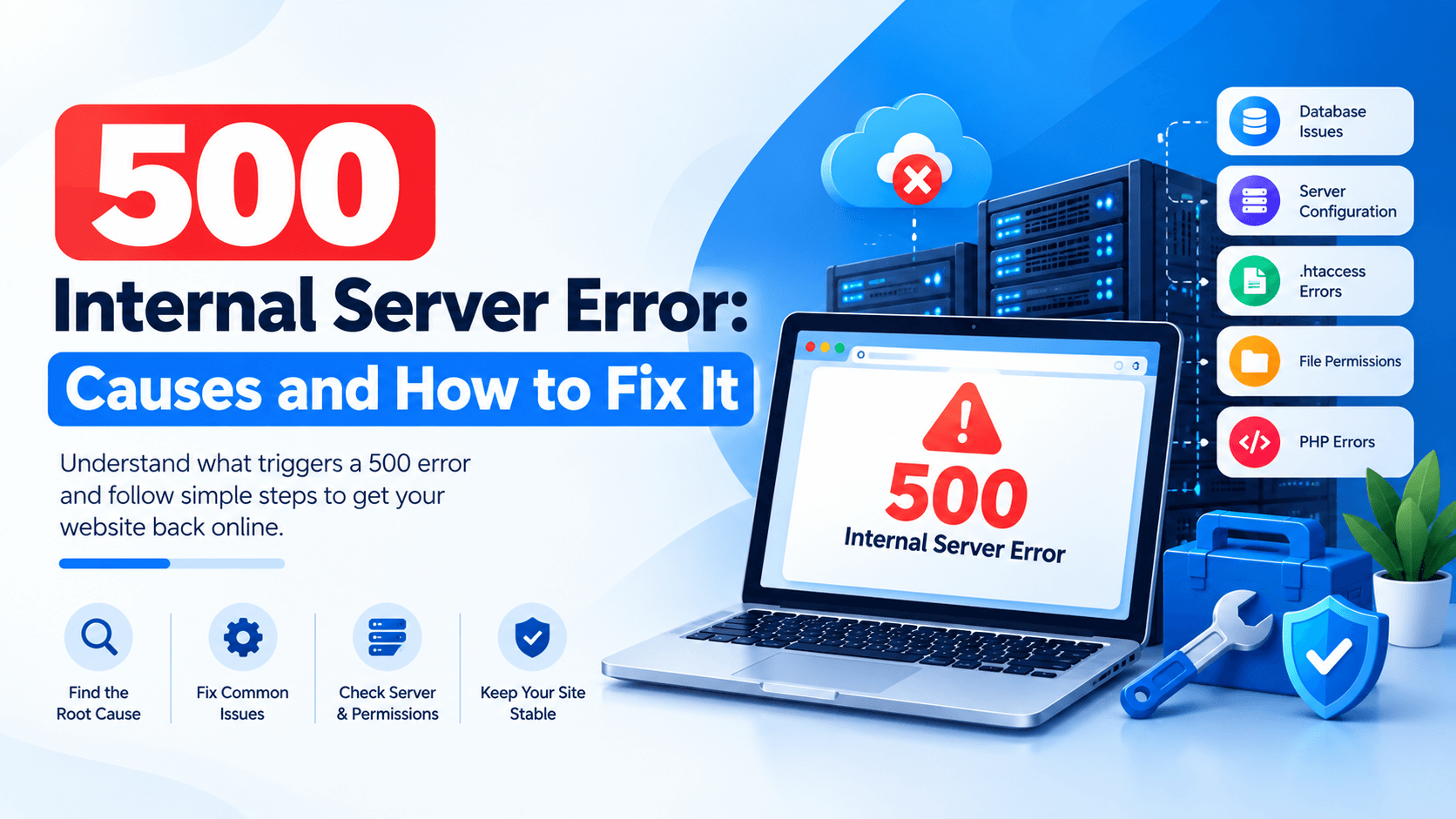
A 500 Internal Server Error appears when a website’s server faces an unexpected problem. This happens while processing a request. It can frustrate website owners. It also annoys visitors.
Common causes include plugin issues and PHP errors. Incorrect .htaccess settings can trigger it too. Server configuration problems may be the reason. Limited resources also play a role. The error might affect your entire website. Sometimes only certain pages show it.
Fortunately, you can fix most 500 Internal Server Error issues. Start by checking error logs. Look at recent changes you made. Review your plugins and themes. Check file permissions. Examine your server settings.
What Is a 500 Internal Server Error?
The HTTP 500 Internal Server Error is a generic error message. It shows that something has gone wrong on the website’s server. However, the server cannot pinpoint the exact issue. It acts as a “catch-all” response for unexpected server-side problems.
How It Works:
The 5xx class of HTTP status codes indicates server-side failures. When your browser sends a request to a website, the server tries to process it. If the server crashes, it returns a 500 error. If it times out, you see the same message. Misconfigurations also trigger this error. You get a 500 Internal Server Error instead of your requested page.
What Happens to the Request:
- The server cannot complete the request due to a configuration issue
- A script fails or times out
- File or database permissions block access
- The server runs out of resources (memory, CPU)
Common Messages Visitors See:
- 500 Internal Server Error (most common)
- HTTP 500 Internal Server Error
- 500 – Internal Server Error
- The server encountered an unexpected condition
- There was an issue processing your request
Common Causes of a 500 Internal Server Error
This section breaks down the usual suspects behind a 500 error. You can diagnose and resolve the problem quickly with this information.
A.Broken .htaccess File
- Incorrect rewrite rules (like those for SEO-friendly URLs) can crash your site.
- Syntax errors in the file will stop Apache from processing it.
- Common with WordPress permalink changes. WordPress stores rewrite rules in .htaccess.
B.PHP Errors
- Fatal PHP errors: Code that halts execution entirely.
- Unsupported PHP functions: A function your site uses may not exist in your current PHP version.
- PHP version incompatibility: Your site may need PHP 8.1, but you are running PHP 7.4.
- Missing PHP extensions: Required extensions (like mysqli, curl, or gd) may be disabled.
C.Plugin or Theme Conflicts
- A recently installed plugin may have a bug.
- Outdated plugins often cause conflicts after a WordPress core update.
- An incompatible theme may use deprecated functions.
- Failed updates can leave files in an inconsistent state, triggering errors.
D.Insufficient PHP Memory
- PHP memory limits are set in your server configuration.
- If your site or script exceeds this limit, the request fails with a 500 error.
- This is common on media-heavy sites or when running complex functions.
- You can increase the limit via wp-config.php or your hosting panel.
E.Incorrect File and Folder Permissions
- Files should typically be 644; folders should be 755.
- Overly restrictive permissions can prevent scripts from running.
- Overly permissive permissions can be a security risk.
- Change permissions via FTP or a file manager.
F.Corrupted or Missing Website Files
- Failed uploads or interrupted updates can cause files to be missing or incomplete.
- Damaged WordPress core files can also trigger a 500 error.
- Try re-uploading the wp-admin and wp-includes folders (for WordPress) to restore missing files.
G.Server Configuration Problems
- Incorrect PHP configuration settings (e.g., memory_limit, max_execution_time).
- Web server (Apache/Nginx) misconfiguration (like invalid httpd.conf).
- Hosting environment changes (a recently applied security patch or updated server module).
H.Database Problems
- Database connection failures (server down, network issues).
- Corrupted database tables (often caused by a crash during a write operation).
- Incorrect database credentials in your configuration file (e.g., wp-config.php).
- Database server issues (overloaded, disk full, or offline).
How to Find the Real Cause
A 500 Internal Server Error is frustrating because it’s generic. The server knows something went wrong. But it won’t tell you exactly what. To fix it, you need to uncover the real cause. Here’s how to investigate systematically.
Check Website Error Logs
Your hosting control panel usually has an error logs section. This includes cPanel, Plesk, or custom dashboards. Look for “Error Logs” or “Raw Access Logs.” These logs record every problem the server encounters. Look for entries with “500” or “Internal Server Error.” This shows which file or script triggered the issue.
Enable WordPress Debugging
If you’re using WordPress, you can reveal hidden PHP errors by enabling WP_DEBUG. Add this to your wp-config.php file:
php
define( ‘WP_DEBUG’, true );
define( ‘WP_DEBUG_LOG’, true );
define( ‘WP_DEBUG_DISPLAY’, false );
This logs errors to wp-content/debug.log without displaying them to visitors . Check this file for clues. You can also use plugins like BugTrace or Debugger & Troubleshooter to toggle debugging from your dashboard .
Check PHP Error Logs
If your site runs PHP, check the PHP error log directly. This is often found in your website’s root directory as error_log or php_error.log . You can also enable PHP error logging via cPanel’s MultiPHP INI Editor . A typical error entry includes:
- Timestamp – when the error occurred
- Error Type – e.g., “Fatal error” or “Parse error”
- Error Message – specific details like “Call to undefined function”
- File Location – exact file and line number
Review Recent Changes
A 500 error often appears after you’ve made changes . Ask yourself:
- Did you update any plugins or themes?
- Did you edit your .htaccess file?
- Did you change PHP versions?
- Did you modify file permissions?
Revert recent changes one by one to identify the culprit .
Check Hosting Control Panel Logs
Most hosting dashboards provide access to server logs. This includes cPanel, Plesk, and similar tools. You can find access logs, error logs, and Apache or Nginx logs. Look in the “Metrics” or “Logs” section. Some control panels offer built-in error monitoring. AdminBolt is one example with firewall logs.
Look for Errors Immediately Before the 500
This is the most important step. Scan the logs for the timestamp just before the 500 response occurred. The error that caused the 500 will often appear in the log entries right before it. This is your most direct path to the root cause.
What Is a 500 Internal Server Error in WordPress?
A 500 Internal Server Error is a generic message. It basically says “something went wrong.” The server can’t explain the problem. It may affect your entire site. Sometimes only specific pages show the error. Don’t panic—here is the step-by-step troubleshooting sequence.
Step-by-Step Fixes
Here are the most common solutions to resolve a 500 error in WordPress.
1.Clear Website and Server Cache
Sometimes the error is temporary. You can start by refreshing the page. For more persistent issues, clear your browser’s cache. Also clear your cookies. Clear any server-side caching plugins you have installed.
2.Rename the .htaccess File
A corrupted .htaccess file is a frequent cause . You can reset it by:
- Accessing your site’s root directory via FTP.
- Locating the .htaccess file and renaming it to .htaccess_old .
- Reloading your website. If this fixes the error, go to your WordPress Settings > Permalinks and click “Save Changes” to generate a new .htaccess file.
3.Disable All Plugins
Plugin conflicts are one of the most common causes . To test this, deactivate all plugins from the WordPress dashboard. If the error disappears, reactivate them one by one to find the culprit .
4.Switch to a Default Theme
Your active theme may be the source of the conflict. Temporarily switch to a default WordPress theme like Twenty Twenty-Four. If this resolves the error, the issue lies with your original theme.
5.Increase PHP Memory Limit
Running out of PHP memory can cause a 500 error. You can increase the memory limit. Add this code to your wp-config.php file: define(‘WP_MEMORY_LIMIT’, ‘256M’);
6.Check PHP Version
Incompatibility with your current PHP version can cause errors. Access your hosting control panel. Try downgrading or upgrading to a different PHP version. See if this resolves the issue.
7.Reinstall WordPress Core Files
Corrupted core files can trigger the error. Reinstall the latest version of WordPress from your dashboard. Go to Updates and click Reinstall Now. Or upload fresh copies of the wp-admin and wp-includes folders via FTP. Exclude the wp-content folder. This preserves your themes and plugins.
8.Review Error Logs
Server error logs contain the specific error that occurs. Access your hosting control panel to view these logs. This helps you identify the exact problem. You might see a PHP fatal error. This points you to the specific file and line number causing the issue.
How to Fix a 500 Error on cPanel Hosting
The key is knowing where to look and what to check. Below is a clear step-by-step guide to help you resolve a 500 error on a cPanel-hosted website.
Step-by-Step Fix Guide
1. Open File Manager
Log into your cPanel dashboard and open the File Manager. Navigate to the root folder of your website (usually public_html). This is where you’ll access the files that could be causing the issue.
2. Check .htaccess
The .htaccess file controls server directives. A small syntax error can trigger a 500 error.
👉 Rename the file (e.g., to .htaccess_backup) and reload your site. If the error disappears, the .htaccess file is corrupted. You can then generate a new one by resaving your permalinks (for WordPress) or restoring a backup.
3. Review Error Logs
cPanel provides error logs that show exactly what caused the error. Go to Errors or Raw Access Logs in cPanel. Look for the most recent entry. It often tells you whether it’s a PHP memory issue, a file permission problem, or a corrupted script.
4. Check PHP Version
An outdated or incompatible PHP version can break your site. Go to the Select PHP Version section in cPanel and switch to a newer or more stable version (like PHP 7.4 or 8.0). Also, ensure all necessary extensions are enabled.
5. Check Resource Usage
High CPU or memory usage can also trigger a 500 error. Navigate to Resource Usage in cPanel to see if your account is using too much server power. If you see spikes, you may need to optimize your site or upgrade your hosting plan.
6. Verify File Permissions
Incorrect file permissions can cause server errors. Files should typically be set to 644 and folders to 755. You can adjust these directly in File Manager (right-click → Change Permissions).
7. Contact Hosting Support
If you’ve tried all the above steps and the error persists, reach out to your hosting provider’s support team. They have backend access and tools to diagnose issues you can’t see from the cPanel interface.
How to Fix a 500 Error on VPS or Dedicated Hosting
VPS and dedicated hosting give you full control. This means you also take on more server management responsibility. When a 500 error appears, here is your systematic troubleshooting plan.
Check Web Server Status
Start with the basics. Run systemctl status nginx or systemctl status httpd to verify Apache/Nginx is running. A stopped or failed service is a quick find.
Review Apache/Nginx Logs
The error logs are your best friend. Check /var/log/nginx/error.log or /var/log/apache2/error.log. They often contain specific error messages that point directly to the problem .
Check PHP-FPM
If your site uses PHP, ensure PHP-FPM is active. Use systemctl status php-fpm. A misconfigured pool or exhausted resources here can trigger a 500 error .
Check Server Resources
VPS and dedicated servers have limits. High CPU, full RAM, or a completely filled disk can cause this error. Use htop or free -m to check current usage. If resources are maxed, you may need to upgrade or optimize .
Review Recent Configuration Changes
A 500 error often appears after a recent change. Think: did you just update PHP, edit .htaccess, or install a new module? Rolling back the recent change is a quick way to test if it’s the culprit.
Restart Affected Services When Appropriate
After making fixes, restart the relevant service. This applies when you correct file permissions. It also applies after editing configs. Use sudo systemctl restart nginx as an example. This applies to the changes you made.
Common 500 Error Variations
You might encounter the 500 Internal Server Error under different names. Each variation means the same thing: something went wrong on the server, but the exact cause isn’t clear. Here are the most common variations you may see:
- 500 Internal Server Error – The most common version you’ll see in your browser.
- HTTP 500 Error – Often appears in developer tools or server logs.
- 500 Server Error – A shorter version, common in mobile browsers or simple error pages.
- Internal Server Error – Generic message that provides no specific details.
- 500 – Internal Server Error – Often shown in IIS (Windows servers) or with a status code.
- The website cannot display the page – Sometimes shown instead of a numeric code.
- This page isn’t working – HTTP ERROR 500 – Common in Chrome and other modern browsers.
What NOT to Do When Fixing a 500 Error
When panic sets in, the temptation to try anything is strong. But reacting without a plan can turn a simple fix into a full-blown disaster. Here is what to avoid—so you do not make things worse.
❌ Don’t randomly delete website files. You might delete something critical that was not the problem. Stick to what you can verify.
❌ Don’t change server settings without a backup. If you break something else, you will have no way to revert. Always back up your .htaccess and configuration files first.
❌ Don’t repeatedly reinstall WordPress. Reinstalling does not fix a 500 error—it will just erase your customization and could corrupt your database. Diagnose first, reinstall only as a last resort.
❌ Don’t ignore error logs. The error log is your roadmap. Skipping it means you are guessing—and guessing is not fixing.
❌ Don’t assume the hosting provider is always responsible. Many 500 errors come from faulty plugins, themes, or code you or your developer added. Check those before you call your host and waste valuable time.
How to Prevent Future 500 Errors
Here’s how to keep your website running smoothly and error-free:
Keep WordPress, Plugins, and Themes Updated
Outdated software is one of the leading causes of 500 errors. Updates often include bug fixes and security patches that prevent compatibility issues. Enable automatic updates where possible, or check for updates weekly.
Use Compatible PHP Versions
Always run the PHP version recommended by your CMS and hosting provider. PHP 8.x is now standard for most platforms. Using outdated or unsupported PHP versions can cause fatal errors.
Maintain Regular Backups
Backups are your safety net. If a change triggers a 500 error, you can restore your site to a working state quickly. Use automated backup solutions and store copies offsite or in the cloud.
Monitor Server Resources
Keep an eye on CPU usage. Watch your memory and bandwidth too. Upgrade your hosting plan before you hit limits. This prevents crashes and 500 errors caused by overload.
Test Major Changes Before Applying Them
Always use a staging environment for major updates. This applies to theme changes and new plugin installations. Test thoroughly before pushing to your live site.
Use Reliable Hosting
Choose a hosting provider with strong uptime guarantees, fast support, and server monitoring. Avoid cheap, overcrowded hosts that cut corners on performance and security.
Keep Website Security Properly Configured
Misconfigured security settings can trigger 500 errors. This includes overly strict .htaccess rules. File permission issues cause problems too. Conflicting security plugins also create issues. Regularly audit your security setup. Make adjustments as needed.
Frequently Asked Questions (FAQ)
What causes a 500 Internal Server Error?
This error means the server faced an unexpected condition. But it can’t identify the specific problem. Common causes include:
- Corrupt .htaccess file on Apache servers
- PHP script errors or memory/timeout limits
- Faulty plugins or themes (especially in WordPress)
- Incorrect file or folder permissions
- Server misconfiguration or incompatible PHP version
How do I fix a 500 error in WordPress?
Start by disabling all plugins. If that fixes it, reactivate them one by one to find the culprit . If plugins aren’t the issue, switch to a default WordPress theme to rule out theme conflicts .
Can a plugin cause a 500 error?
Yes. Faulty or poorly coded plugins are one of the most common causes of 500 errors in WordPress . Always keep plugins updated and remove any you’re not using.
Can .htaccess cause a 500 error?
Yes. A corrupted or misconfigured .htaccess file can trigger this error. Rename it to .htaccess_old or .htaccess.bak—if your site loads again, you’ve found the issue .
How do I check server error logs?
Access your hosting control panel like cPanel. Look for the error_log file in your site’s root directory. This log shows the exact cause of the error. This is the fastest path to a fix. OVHcloud also recommends checking logs first.
Does changing the PHP version fix a 500 error?
Sometimes. An incompatible PHP version with your themes or plugins can cause this error. Try switching to a different PHP version through your hosting panel .
Is a 500 error caused by hosting?
It can be. Hosting issues are less common but possible. Server resource limits like memory or execution time can trigger it. Server misconfigurations also cause problems. If you have tried all other fixes, contact your hosting provider.
How long does it take to fix a 500 Internal Server Error?
It depends on the cause:
- 10-15 minutes – If it’s a corrupt .htaccess file
- 15-30 minutes – If it’s a faulty plugin (deactivate/test/reactivate)
- 1-2 hours – If it’s file permission issues across many folders
- Varies – If it’s server-side and requires hosting provider intervention
Conclusion
A 500 Internal Server Error means something went wrong. This happens while the server processes a request. It can seem serious at first. But the cause is often identifiable. Most issues are also fixable.
Start by checking error logs. Then review recent changes you made. Look at your .htaccess file. Check PHP settings and plugins. Examine themes and permissions. Review databases and server resources. WordPress users can often troubleshoot through File Manager. cPanel users can use their hosting control panel too.
Always create a backup before making major changes. This protects your site from data loss. Use systematic troubleshooting steps. Perform regular website maintenance. This helps you resolve 500 Internal Server Error problems safely. It also reduces the chance of future errors.

Leave a Comment