
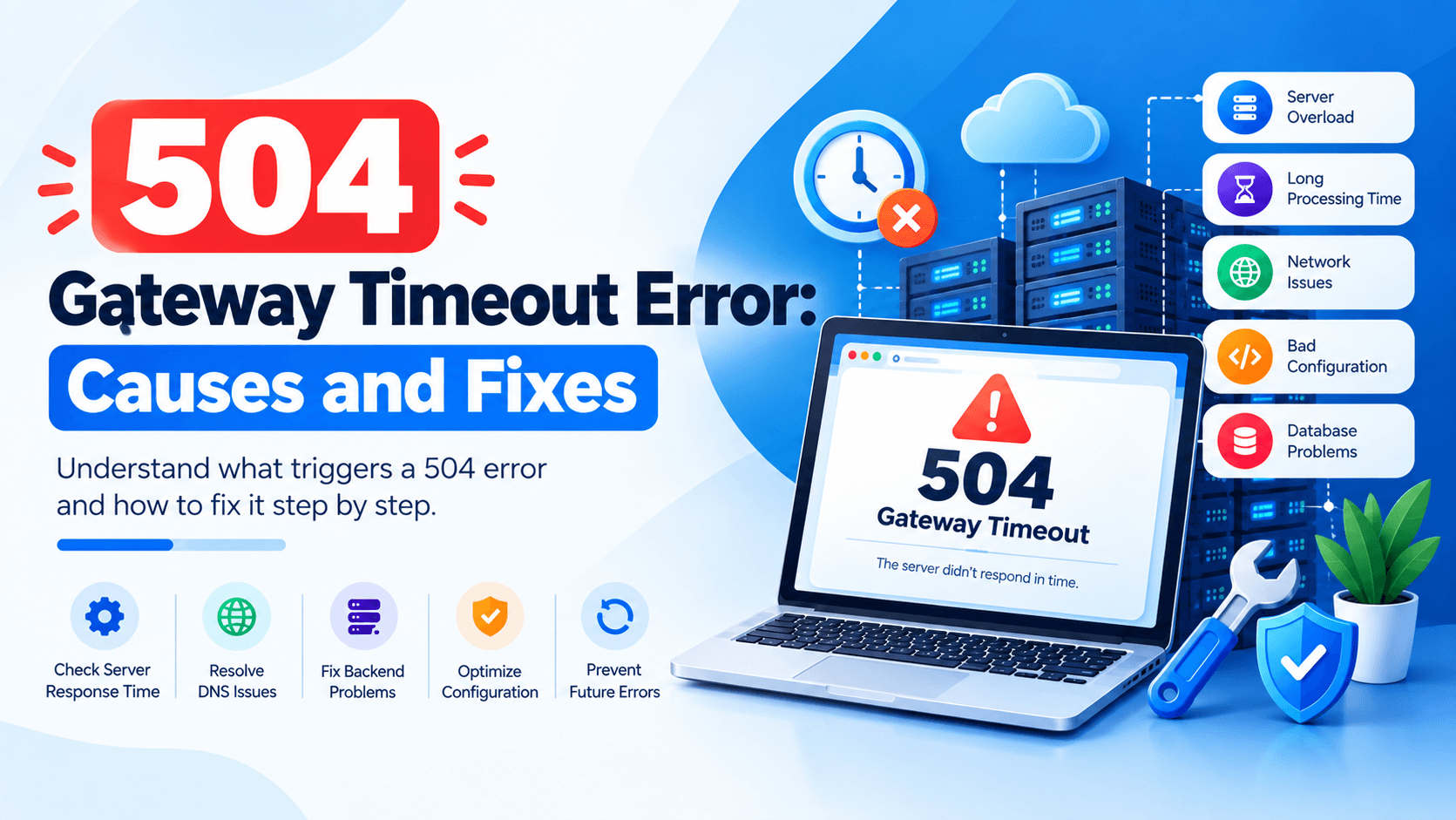
A Gateway Timeout Error happens when a server responds too slowly. The 504 status code appears when a gateway or proxy fails to get a reply from the upstream server on time.
Several factors cause this error. These include server overload, slow databases, PHP-FPM issues, network problems, and external APIs. Some issues resolve quickly on their own. Others need a closer look.
This error typically points to server-side problems. Fixing the root cause boosts website uptime. It also enhances performance and user satisfaction.
What Does 504 Gateway Timeout Mean?
A 504 Gateway Timeout is an HTTP status code. It means one server waited for another server but got no reply in time. Imagine calling a friend who does not answer. The phone rings and rings. Then the call drops. The same thing happens online.
How It Works:
- A gateway acts as a middleman. It sits between your browser and the host server. The host server actually stores the website. This is also called the upstream server.
- When you visit a site, your browser sends a request. It goes through the gateway. Then it passes to the upstream server.
What Goes Wrong:
- The upstream server is given a specific timeframe to respond.
- If it fails to respond within that time limit, the gateway server gives up and shows you the 504 Gateway Timeout error.
Common 504 Error Messages
Different websites display the error differently. You might see:
- 504 Gateway Timeout
- 504 Gateway Timeout Error
- 504 Timeout
- HTTP 504
- Gateway Timeout (504)
- 504: Gateway Timeout
- The server didn’t respond in time
These all mean the same thing: the gateway gave up waiting for the upstream server.
Common Causes of a 504 Gateway Timeout
Knowing the root causes helps you fix the error faster. Below are the most common triggers in 2026.
Slow or Overloaded Server
When your server is overwhelmed, it cannot respond quickly enough. Common culprits include:
- High CPU usage – The server works too hard. It has no capacity for new requests.
- Low RAM – Not enough memory forces the server to swap data to disk. This slows performance dramatically.
- Too many visitors – Traffic spikes during sales or promotions can overwhelm your server.
- Too many simultaneous requests – Even with moderate visitors, long requests cause issues. Complex database queries take time. The server quickly becomes congested.
Slow Database Queries
Database bottlenecks cause many 504 errors. This is especially true for dynamic sites like WordPress.
- Large or poorly optimized queries – Queries scan thousands of rows without proper indexes. They take seconds to complete.
- Database connection problems – The application cannot connect to the database quickly. This leads to timeouts.
- Slow MySQL/MariaDB queries – Inefficient joins cause delays. So do lack of indexing and outdated database engines.
- Large WordPress databases – A site with thousands of posts can overwhelm the database. So can too many comments or custom fields.
PHP-FPM Problems
PHP-FPM handles PHP requests. When it misbehaves, 504 errors appear.
- PHP-FPM workers are overloaded – All available workers are busy. New requests must wait.
- Too many PHP processes – High process counts eat RAM and CPU. This slows the entire server.
- PHP scripts taking too long – Heavy scripts exceed processing time limits. Examples include complex calculations and large loops.
- Incorrect PHP-FPM settings – Max children may be misconfigured. So may max requests or timeout values for your traffic.
Long-Running PHP Scripts
Some tasks naturally take longer. They can trigger timeouts.
- Large imports or exports – Migrating data takes time. So does bulk-importing large datasets.
- Backup processes – Running backups during peak traffic hogs server resources.
- Image processing – Resizing or compressing large images uses CPU and memory.
- WooCommerce tasks – Complex cart calculations take time. So do stock updates and order processing.
- Heavy API requests – External APIs with slow responses hold up PHP execution.
Nginx or Apache Timeout Settings
Your web server has built-in timeouts. If they are too low, the server gives up too early.
- proxy_read_timeout – This is Nginx’s limit for waiting on the upstream server.
- fastcgi_read_timeout – This is Nginx’s timeout for FastCGI responses from PHP-FPM.
- Connection timeout settings – Apache’s Timeout directive may be too low. So may KeepAliveTimeout.
- Incorrect server configuration – Default settings suit low traffic. They do not suit busy stores.
External API Problems
Your site may rely on third-party APIs. Slow responses from them can cause timeouts.
- Third-party API responding slowly – A payment gateway takes too long. So may a shipping service or social media API.
- Payment gateway timeout – Stripe or PayPal may be experiencing delays.
- Shipping API timeout – Real-time shipping rate calculations depend on external services.
- External service temporarily unavailable – The third-party service is down. It may be degraded. Your request hangs as a result.
Cloudflare or CDN Issues
Content Delivery Networks like Cloudflare act as intermediaries. They sit between visitors and your server. If the CDN cannot reach your origin server, a 504 appears.
- CDN cannot reach the origin server – Your server may be offline. It could be misconfigured. It might also block Cloudflare’s IPs.
- Origin server responds too slowly – Cloudflare caches some content. But some requests must still go to your origin.
- Incorrect proxy configuration – Firewall rules may block Cloudflare’s traffic. So may SSL settings.
- Cloudflare timeout limitations – Cloudflare has its own timeouts. If your origin takes over 100 seconds, a 504 occurs.
Network or DNS Problems
Sometimes the issue is not your server. It is the network connecting servers.
- Connectivity issues between servers – Your web server and application server struggle to communicate.
- Incorrect DNS configuration – DNS lookups are slow. They may even fail. This causes connection timeouts.
- Routing problems – Network routes between servers are suboptimal. They may be congested.
- Temporary network failures – Internet routing issues cause problems. So do packet loss and ISP problems. These can lead to intermittent 504 errors.
How to Fix a 504 Gateway Timeout Error
A 504 Gateway Timeout error is frustrating. But most cases are fixable without a developer. Follow these steps in order. Test your site after each one. This helps you find the root cause. You can get your website back online.
Step 1: Refresh the Website
- Reload the page – Sometimes the timeout is temporary and a simple refresh resolves it.
- Try a hard refresh – Use Ctrl + F5 (Windows) or Cmd + Shift + R (Mac) to clear your browser cache for that page.
- Test another page – If only one page errors, the problem is likely script‑specific.
- Check whether the issue is temporary – Wait 2‑3 minutes and reload again; it might be a short traffic spike.
Step 2: Check Server Resource Usage
- Monitor CPU – High CPU usage (e.g., >90%) indicates your server is overwhelmed.
- Check RAM – Low available memory can cause processes to stall.
- Check disk usage – A full disk can prevent new processes from starting.
- Check active processes – Too many concurrent processes can hit system limits.
- Look for hosting resource limits – Shared hosting plans often have strict limits. These trigger 504 errors during traffic surges.
Step 3: Check Server and Application Logs
- Nginx logs – Look for upstream timeout errors (/var/log/nginx/error.log).
- Apache logs – Check for Timeout or ProxyTimeout entries.
- PHP‑FPM logs – Slow request logs often point to the exact script causing delays.
- WordPress debug logs – Enable WP_DEBUG to see if a plugin or theme is hanging.
- Laravel application logs – Check storage/logs/laravel.log for stack traces.
Step 4: Increase Server Timeout Limits
- When increasing timeout is appropriate – Only if you confirm that a legitimate process (e.g., a large data export) genuinely needs more time.
- Nginx timeout settings – Increase fastcgi_read_timeout and proxy_read_timeout.
- Apache timeout settings – Adjust Timeout and ProxyTimeout directives.
- PHP execution limits – Raise max_execution_time and memory_limit in your php.ini.
- Why this may not be enough – If the root issue is a slow query, longer timeouts just delay the error. They do not fix it.
Step 5: Optimize Slow Database Queries
- Identify slow queries – Enable slow query logging in MySQL/MariaDB.
- Add or optimize database indexes – Indexes can speed up read operations by orders of magnitude.
- Clean unnecessary data – Remove spam comments. Delete expired transients. Remove old revisions, especially in WordPress.
- Optimize WordPress database – Use a plugin like WP-Optimize or run OPTIMIZE TABLE queries.
- Check database server resources – Ensure your database has enough CPU, RAM, and I/O capacity.
Step 6: Check PHP-FPM Configuration
- Check available workers – If all workers are busy, new requests will time out.
- Review pm.max_children – This setting controls the maximum number of PHP processes.
- Check process usage – Use htop or top to see if PHP‑FPM processes are piling up.
- Restart PHP-FPM when necessary – sudo systemctl restart php8.x-fpm can clear stuck processes.
Step 7: Optimize Your Website/Application
- Enable caching – Use page caching, object caching, and browser caching. This reduces server load.
- Optimize images – Compress images. This decreases page size and load time.
- Reduce heavy plugins – Deactivate plugins that use lots of resources. Remove ones that are not essential.
- Optimize API requests – Reduce external API calls. Cache their responses when possible.
- Improve slow application code – Profile your code to find bottlenecks. Use tools like Xdebug or Blackfire.
Step 8: Check External APIs
- Test third‑party services – An API your site depends on may be slow or down.
- Review API response times – Monitor how long external calls take.
- Add proper request timeouts – Set a reasonable timeout of 5‑10 seconds. This stops your site from hanging.
- Use fallback methods – Cache API responses. Serve cached content if the API is unavailable.
Step 9: Check Cloudflare or CDN
- Verify DNS settings – Ensure your domain points to the correct origin server.
- Check origin server connection – Test direct access to your server. Bypass Cloudflare to isolate the issue.
- Review SSL/TLS configuration – Mismatched settings cause handshake delays.
- Temporarily bypass the proxy – Put Cloudflare in “Development Mode.” Pause it to see if the 504 persists.
Step 10: Upgrade Hosting Resources
- Increase CPU and RAM – If resource usage stays high, upgrading your plan is the most direct fix.
- Move from shared hosting to VPS – VPS gives you dedicated resources. It eliminates “noisy neighbor” problems.
- Consider cloud hosting for high traffic – Cloud hosting offers auto‑scaling. This handles sudden spikes.
- Know when an upgrade is needed – If all optimizations are exhausted and you still hit limits, it is time to scale your infrastructure.
How to Fix 504 Gateway Timeout in WordPress
A 504 Gateway Timeout error in WordPress can be frustrating. It means your server didn’t get a response from another server quickly enough. The upstream server took too long to reply. Let’s walk through the fixes step by step.
Check Hosting Resources
Start by checking your server resources. Is your site using too much memory? Is your disk space full? These issues often trigger 504 errors. You may need a bigger hosting plan. Or you might need to optimize your site better. Not sure about your current usage? Contact your hosting provider for help.
Identify Slow Plugins
Use a tool like Query Monitor to identify which plugins are causing slowdowns . In some cases, a plugin may be making external API calls that timeout, triggering the 504 error .
Disable Problematic Plugins
If you recently installed or updated a plugin, try deactivating it. If the site loads fine afterward, you’ve found the culprit . You can also switch to a default WordPress theme to rule out theme-related conflicts .
Optimize the WordPress Database
Optimizing your database can improve query performance and reduce server load. Consider removing post revisions, spam comments, and trashed items. Use plugins like WP-Optimize or Advanced Database Cleaner for this task.
Increase PHP Limits Where Appropriate
If PHP scripts are timing out, you may need to increase memory limits and execution time. Add these lines to your wp-config.php file:
php
define(‘WP_MEMORY_LIMIT’, ‘256M’);
define(‘WP_MAX_MEMORY_LIMIT’, ‘512M’);
Then set max_execution_time and memory_limit in your php.ini file to higher values .
Check WooCommerce Background Processes
For WooCommerce sites, background processes like order syncs or inventory updates can cause timeouts. Check the WooCommerce > Status > Scheduled Actions section for stuck tasks.
Review WordPress and Server Logs
Enable WordPress debugging to get detailed error information . Add to wp-config.php:
php
define(‘WP_DEBUG’, true);
define(‘WP_DEBUG_LOG’, true);
Then check the debug.log file in your /wp-content/ directory. Also review your server’s error logs.
Check CDN/Cloudflare Configuration
Using a CDN or Cloudflare? The timeout might be happening there. Check your CDN dashboard for timeout settings. Increase them if needed. You can also temporarily bypass your CDN. This helps you test if it’s causing the problem.
How to Fix 504 Gateway Timeout in Laravel
Fixing a 504 error in Laravel takes some detective work. But a structured approach makes it manageable. Follow these steps to pinpoint and resolve the issue.
Your Step-by-Step Fix List
Step 1: Check Logs
Start by looking at storage/logs/laravel.log. This is your first clue . If you see errors like “Connection timed out” to services like MeiliSearch, you’ll know where to look .
Step 2: Hunt Slow Code
Identify controllers or jobs that take too long . Look for inefficient database queries (use indexing and caching) and heavy loops . If the validator seems to hang, it might be a complex rule causing the issue .
Step 3: Defer Heavy Tasks
For slow operations like sending emails or generating reports, move them to queues. Use php artisan queue:work and a process monitor like Supervisor .
Step 4: Check PHP-FPM
Look for warnings in your PHP-FPM logs about reaching the pm.max_children limit. If you see this, increase the setting in your php-fpm.conf file .
Step 5: Adjust Web Server Timeouts
This is especially relevant for applications that perform long-running processes, large data operations, or resource-intensive tasks.
- If your app legitimately needs more than 60 seconds to run, increase the timeouts.
- In your Nginx config file, add or update the proxy_read_timeout and fastcgi_read_timeout directives (e.g., set them to 300 seconds) .
Step 6: Review External API Calls
A 504 can occur if an API your app depends on is slow or timing out . Set appropriate timeouts for your HTTP clients to handle these failures gracefully.
Step 7: Monitor Server Resources
Check your server’s CPU and memory usage. If resources are maxed out, your server simply cannot keep up with the requests, leading to timeouts .
How to Fix 504 Timeout in Nginx
A 504 Gateway Timeout error appears when Nginx gives up waiting. Your backend server took too long to respond. The backend could be PHP-FPM, Node.js, or Apache. It might be slow. It might be down. This guide will help you fix Nginx 504 errors step by step.
Step 1: Check Nginx error logs: Start by examining your Nginx error logs. These logs confirm the timeout happened. They also identify which upstream server is causing problems. This could be PHP, Node, or another backend. Watch the error log in real-time with this command:
bash
tail -f /var/log/nginx/error.log
Look for messages like upstream timed out or Connection timed out. The log will often point to the culprit, such as fastcgi://unix:/var/run/php/php-fpm.sock for a PHP-FPM backend.
Step 2: Review proxy_read_timeout and fastcgi_read_timeout
Sometimes your backend processes a slow request. This could be generating a PDF report. It could be importing a large file. In these cases, you need to give it more time. Increase the timeout values.
- For proxy backends (Node.js, Java, Python): Increase the proxy_read_timeout directive inside the server or location block.
nginx
proxy_read_timeout 300s;
proxy_connect_timeout 75s;
- For PHP backends (FastCGI): Increase the fastcgi_read_timeout directive in the location block handling PHP files.
nginx
location ~ \.php$ {
fastcgi_pass unix:/var/run/php/php-fpm.sock;
fastcgi_read_timeout 300s;}
Remember to test and reload your Nginx configuration (nginx -t && sudo systemctl reload nginx) after making any changes.
Step 3: Check your upstream server : If the logs show the upstream server is unreachable (e.g., Connection refused), it’s not running.
- For PHP: Ensure PHP-FPM is running (ps aux | grep php-fpm) and is not crashing.
- For MySQL: Check if the database is processing a long query or if the connection pool is full.
- Step 4: Verify PHP-FPM availability
If you are using PHP, confirm that the PHP-FPM service is active and that its pool settings are sufficient to handle your current load.
Step 5: Test Nginx configuration: Before restarting, always test your configuration for syntax errors to prevent service interruptions.
bash
nginx -t
Step 6: Restart services : After any change, restart or reload Nginx. This makes your changes active. Use this command:
bash
sudo systemctl reload nginx
How to Fix 504 Gateway Timeout in Apache
Check Apache Error Logs
Start by checking the Apache logs. They help find the root cause. Look at /var/log/apache2/error.log on Debian or Ubuntu. On CentOS or RHEL, check /var/log/httpd/error_log. Search for patterns like AH01075. This means a proxy timeout. Also look for MaxRequestWorkers limits. Watch for specific script failures too.
Review & Adjust Timeout Settings
Find your Apache configuration file. It is called httpd.conf or apache2.conf. Look for the Timeout directive. The default is often 60 to 300 seconds. Increase it for long operations. Try Timeout 600. Are you using PHP-FPM? Then adjust ProxyTimeout in Apache’s config as well.
Check PHP Execution Limits
Open your php.ini file. Find max_execution_time. The default is often 30 seconds. Raise it to 300 seconds or more. Use max_execution_time = 300. This gives scripts more time to finish.
Check Backend Services
Make sure your upstream services are running. These include PHP-FPM, databases, and external APIs. Check if PHP-FPM workers are exhausted. See if database queries are slow. Test if third-party API calls are timing out. Each service must be responsive.
Review Server Resource Usage
Monitor your server resources. Check CPU, RAM, and Apache worker usage. Are resources below 60% usage? Then you can safely increase MaxRequestWorkers and ServerLimit in Apache. This handles more concurrent requests. Are resources at 80% or higher? Consider upgrading your server hardware.
Restart Apache After Configuration Changes
After making any changes, restart Apache to apply them:
bash
sudo service apache2 restart # Debian/Ubuntu
sudo systemctl restart httpd # RHEL/CentOS
“` [citation:2][citation:4]
504 vs Other HTTP Errors
Not all HTTP errors are the same. But people often group them together when a site goes down. Knowing the difference helps you find problems faster. It also helps you explain issues to your hosting provider. Here is a quick breakdown.
| Error | Meaning | What It Feels Like |
| 500 Internal Server Error | The server crashed. It hit an application error. | “Something went wrong, but no one knows exactly what.” |
| 502 Bad Gateway | The gateway got an invalid response from the upstream server. | “The middleman got confused by what the backend said.” |
| 503 Service Unavailable | The server is overloaded. It might be under maintenance. | “The server is too busy to take your call right now.” |
| 504 Gateway Timeout | The gateway waited too long. The upstream server did not reply in time. | “The backend took too long to reply, so the gateway gave up.” |
Why it matters:
- 500 errors point to application code problems. They can mean database issues. They can also mean permission problems.
- 502 errors suggest upstream server miscommunication. This often points to proxy issues. DNS problems can also cause this.
- 503 errors indicate traffic overload. They can also mean scheduled maintenance. The server is temporarily unavailable.
- 504 errors mean your server is alive. But it is too slow to respond in time. These are often the easiest to fix. You can adjust timeouts. You can optimize scripts.
How to Prevent 504 Gateway Timeout Errors
Prevention is better than cure. This is true for 504 errors too. Monitor your website performance continuously. Do not wait for visitors to report problems. Follow these best practices to stay ahead.
Best Practices for Prevention
- Choose reliable hosting: Pick a hosting provider with a good track record. Uptime matters. Speed matters too.
- Monitor CPU and RAM usage: Keep an eye on your server resources. Spot high usage early. Upgrade before problems start.
- Optimize database queries: Slow queries cause delays. Index your tables properly. Remove unnecessary queries. Use query optimization tools.
- Use caching: Caching reduces server load. Use browser caching. Use server-side caching. Try Redis or Memcached. Cache static resources.
- Optimize PHP applications: Write efficient PHP code. Remove unused functions. Use opcode caching. Enable PHP’s built-in optimizations.
- Configure PHP-FPM properly: Set correct pool settings. Adjust max children. Set request limits. Match settings to your server resources.
- Avoid unnecessarily long API requests Keep API calls short. Set reasonable timeouts. Use pagination for large data sets. Break large requests into smaller ones.
- Use background jobs for heavy tasks: Offload heavy processing. Use cron jobs. Use queue systems. Process large files in the background. Do not keep users waiting.
- Monitor server and application logs: Check logs regularly. Spot errors early. Identify patterns. Fix issues before they become problems.
- Keep WordPress and plugins updated: Updates fix bugs. Updates patch security holes. Updates improve performance. Stay current.
- Keep server software updated: Update Nginx. Update Apache. Update PHP. Update MySQL. Each update brings improvements.
- Monitor uptime and response times: Use monitoring tools. Set up alerts. Know when your site slows down. Act quickly.
When Should You Contact Your Hosting Provider?
Contact your hosting provider when the problem continues despite basic troubleshooting.
You should consider contacting support if:
- 504 errors happen frequently
- Multiple websites on the same server are affected
- Server resources are constantly maxed out
- PHP-FPM repeatedly fails
- Nginx or Apache repeatedly becomes unavailable
- Network connectivity appears to be the problem
- You do not have access to server configuration
- You suspect a problem with the hosting infrastructure
Your hosting provider can spot server-level issues. These problems are often hidden from your control panel.
Frequently Asked Questions
What causes a 504 Gateway Timeout error?
A 504 error involves two servers. One server acts as a gateway. It sends a request to another upstream server. The upstream server takes too long to reply. Common causes are slow scripts, exhausted PHP workers, database delays, overwhelmed servers, and network issues.
How do I fix a 504 error on WordPress?
Start by restarting your PHP service. Increase PHP memory and execution time limits. Deactivate all plugins. Check your database performance. If these steps fail, contact your hosting provider.
Can slow hosting cause a 504 error?
Absolutely. Slow or locked database queries delay server responses. Optimize your queries regularly. Check your database performance. Consider indexing large tables for faster access.
Can Cloudflare cause a 504 Gateway Timeout?
Yes. Cloudflare acts as a reverse proxy. If your origin server is too slow to respond to Cloudflare’s request, Cloudflare may return a 504 error. Check your origin server’s performance.
How do I fix a 504 error in Nginx?
Adjust the fastcgi_read_timeout and proxy_read_timeout directives in your Nginx configuration, then restart Nginx. This gives PHP and upstream servers more time to respond.
Can a slow database cause a 504 error?
Absolutely. Slow or locked database queries can delay server responses. Optimize your queries, check database performance, and consider indexing large tables.
What is the difference between 502 and 504 errors?
A 502 Bad Gateway means the upstream server sent an invalid response. A 504 Gateway Timeout means the upstream server took too long to respond. Time is the key difference.
Will increasing the timeout fix a 504 error?
It often helps. Increase max_execution_time, fastcgi_read_timeout, and Nginx timeouts. Your server gets more time to process long-running requests. But this only works around the problem. It does not fix the root cause.
Can high traffic cause a 504 Gateway Timeout?
Yes. Traffic spikes exhaust PHP workers and database connections. They also drain server resources. Upstream servers delay their responses as a result. Use caching to handle traffic surges. Choose scalable hosting for better results.
Conclusion
A Gateway Timeout Error means a gateway or proxy waited too long for an upstream server to respond. It may be temporary sometimes. But repeated timeouts can indicate performance problems. They can also point to application or server issues.
Check server resources and PHP-FPM. Review databases and application code. Look at external APIs and web-server settings. Examine CDN configuration too. Logs and resource monitoring can help identify the cause.
Increasing timeout limits may help with legitimate long-running tasks. But optimizing the slow process is usually better. This is the better long-term solution for a fast and reliable website.
Need Help Fixing Gateway Timeout Errors?
Do not let 504 errors keep hurting your visitors. Contact our web development team today. We offer expert troubleshooting, speed optimization, and steady website support.

Leave a Comment