
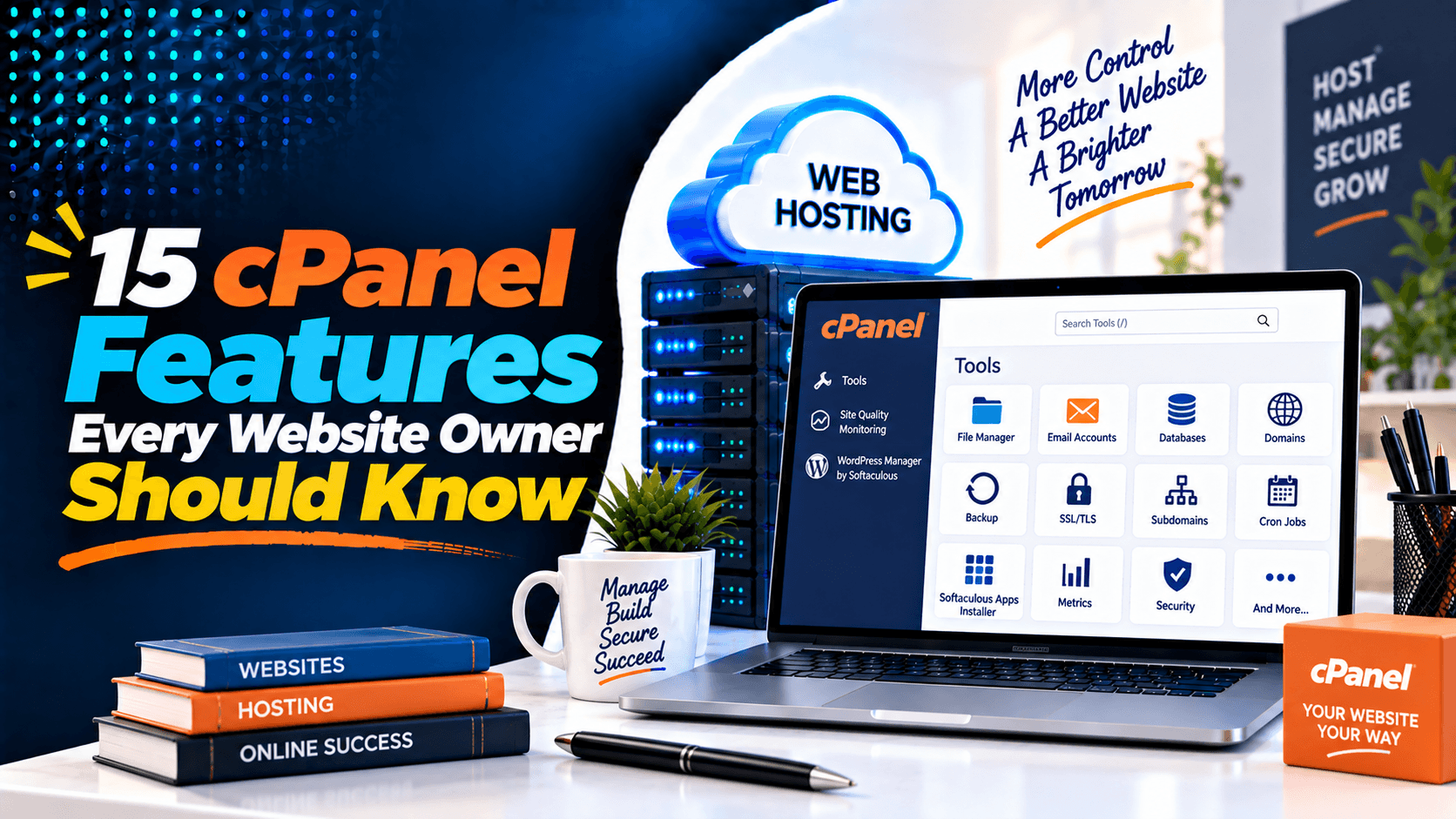
Do you run a blog? Maybe you have an online store. Or perhaps you manage a business website or portfolio. If so, your hosting account matters. Good news! cPanel makes website management easy. You don’t need advanced technical skills.
cPanel gives you a simple dashboard. From there, you can handle many tasks. You can manage files, domains, and emails. You can also control databases, backups, and security. All your hosting settings live in one place. This helps you finish daily tasks faster.
Learning the cPanel Features Every Website Owner Should Know saves you time. It boosts your website’s security. You will need less technical support. Your website will stay reliable too. These skills pay off every day.
1. File Manager
The File Manager in cPanel helps you handle website files directly from your browser. You can upload, edit, delete, move, and organize files without extra software. You don’t need FTP programs anymore. This makes managing your website faster and easier.
Before you start making edits, it’s crucial to follow a few best practices :
- Show Hidden Files: Go to File Manager Settings. Turn on “Show Hidden Files (dotfiles)”. This reveals important system files like .htaccess that you might need.
- Backup Before Editing: Always save a copy of any file before you change it. If something goes wrong, you can restore the original quickly. You can also back up your whole website using cPanel’s Backup tool.
- Know Your Document Root: Place your main website files in the public_html folder. This is where your domain looks for files. Check your “Document Root” in the cPanel “Domains” section if you are unsure.
- Manage Permissions Carefully: File permissions decide who can read, write, or run your files. Wrong permissions can break your site or create security risks. Set files to 644 and folders to 755 as a general rule.
2.Email Account Management
- Create professional email addresses: cPanel makes it easy to create business email accounts. Go to Email Accounts, click + Create, and choose a username and secure password. You can also use the Generate option for a strong password.
- Configure webmail: cPanel Webmail lets you check emails from any browser. Tools like Roundcube help you send, receive, and organize messages. You do not need to install extra software. You can also set up filters, forwarders, and autoresponders.
- Set mailbox quotas: You can control how much storage each email account uses. Under Manage, choose a custom limit or select Unlimited. Setting quotas stops one mailbox from taking too much server space.
Email forwarding and autoresponders
- Email forwarders: Forwarders automatically send incoming emails to another address. This makes it easier to handle multiple accounts. It also helps share messages with team members.
- Autoresponders: Autoresponders send automatic replies to incoming emails. They work well for out-of-office messages. They are also useful for customer questions and confirmation notices. This ensures people get a quick response.
3. One-Click App Installer (Softaculous)
Most hosting companies include Softaculous, which allows installing applications with one click.
Popular Applications
- WordPress
- Joomla
- Drupal
- Magento
- OpenCart
- PrestaShop
- Moodle
- phpBB
Benefits
- Installation takes only a few minutes.
- No coding required.
- Automatic updates available.
- Easy backups.
- Faster website deployment.
For most beginners, Softaculous is the easiest way to launch a website.
4. Backup and Restore
Every website should have a backup strategy.
cPanel makes backups simple.
Types of Backups
- Full account backup
- Home directory backup
- Database backup
- Email backup
- Partial backup
Restore Options
You can restore:
- Website files
- MySQL databases
- Email accounts
- Email forwarders
Why Regular Backups Matter
Backups protect your website from:
- Accidental deletion
- Malware infections
- Failed updates
- Server issues
- Human error
Many experts recommend daily or weekly backups depending on how often your site changes.
5. SSL/TLS Management
cPanel’s SSL/TLS Manager provides several key capabilities:
- Install free SSL certificates: Most cPanel setups include AutoSSL. This tool issues and installs free SSL certificates from Let’s Encrypt™ automatically. You can also upload certificates from other providers manually.
- Enable HTTPS: After installation, you can force HTTPS redirection. This makes sure all visitors access your site securely. Go to the “Install and Manage SSL for your site (HTTPS)” section. Select your domain and install the certificate there.
- Renew certificates: AutoSSL usually handles renewal automatically. Let’s Encrypt certificates renew every 90 days. cPanel & WHM version 136 now supports short-lived certificates too. These also renew automatically through the ACME protocol.
- Improve website trust and SEO: SSL certificates encrypt data and build customer trust. Google also confirms SSL as a ranking factor. Browsers mark sites without SSL as “Not Secure”. This can scare away visitors.
6. Domain Management
7. DNS Zone Editor
The DNS Zone Editor controls how your domain connects to websites, email servers, and third-party services.
Supported DNS Records
- A Record
- AAAA Record
- CNAME
- MX Record
- TXT Record
- SRV Record (if supported)
Common Uses
- Verify domain ownership
- Connect Microsoft 365
- Connect Google Workspace
- Configure email providers
- Set CDN services
- Connect marketing tools
Understanding DNS can save hours when configuring external services.
8. Database Management
This section covers the essential database management tasks every website owner should know.
- Create MySQL Databases: Use the Database Wizard for step-by-step setup. Or use MySQL Databases for manual control. You can create databases, users, and set permissions. cPanel may add your account username as a prefix automatically.
- Manage Database Users: Create database users with strong passwords. Assign the privileges they need. Most websites use ALL PRIVILEGES. Some custom applications need specific permissions instead.
- Access phpMyAdmin: phpMyAdmin gives you a web-based tool to manage MySQL databases. You can view tables, edit records, and run SQL queries. You can also manage database settings without using command-line tools.
- Common Database Tasks: You can export databases for backups. Import them to restore or migrate data. Create tables and edit records easily. Run custom SQL queries directly through phpMyAdmin.
9. Security Features
Security should never be ignored.
cPanel includes several built-in protection tools.
Security Options
- Password-protected directories
- IP Blocker
- Hotlink Protection
- SSL enforcement
- Two-Factor Authentication (2FA)
- Directory privacy settings
Why They Matter
These features help prevent:
- Unauthorized access
- Image theft
- Brute-force attacks
- Password guessing
- Data interception
A few minutes spent configuring security can prevent major problems later.
10. Resource Usage Monitoring
cPanel helps you monitor your hosting resources. This keeps your website stable and responsive.
- CPU Usage: This shows how much processing power your website uses. Frequent spikes or high CPU usage may mean your site needs optimization. You might also need a more powerful hosting plan.
- Memory Usage: This displays the amount of RAM your account consumes. Too much memory usage can slow down your website. It can also cause scripts to fail.
- Entry Processes: This tracks active connections and running scripts at the same time. Reaching the limit can cause errors. You may see a 508 Resource Limit Is Reached message.
cPanel also provides historical data and graphs. These make it easier to spot resource usage patterns. If your account often reaches its limits, take action. Optimize your website or upgrade your hosting plan.
11.Cron Jobs
Think of Cron Jobs as your website’s personal assistant. They work behind the scenes to handle essential maintenance. This lets you focus on your business.
- Automate Repetitive Tasks: Cron Jobs can run scripts in many languages. These include PHP, Python, Perl, and Node.js. They automate tasks like database backups and cache clearing. They can also generate sitemaps and send email reports.
- Schedule scripts – cPanel’s Cron Jobs interface makes scheduling simple. You can pick preset intervals like “Once Per Day”. Or you can define custom timing with five fields: minute, hour, day, month, and weekday. For example, 0 2 * * * runs a job daily at 2:00 AM. This happens during off-peak hours.
- Common cron job examples – Typical uses include automating database backups every night. You can run WordPress’s WP-Cron with */15 * * * * php /home/user/wp-cron.php. Clear cache files regularly. Process scheduled email distributions too.
12. FTP Account Management
FTP helps you transfer files between your computer and web server.
- Creating FTP Users: Go to the FTP Accounts interface in cPanel. Find it under the Files section. Enter a username and select the domain. Set a strong password using the Password Generator for secure, random passwords. Click Create FTP Account to finish.
- Restricting Folder Access: The Directory field is important for security. It defines where the FTP user can access files. For example, entering public_html/developer/ restricts them to that folder and its subfolders. Users cannot access directories outside this path.
- Secure FTP Practices: For better security, use FTPS or SFTP instead of standard FTP. FTPS means FTP over SSL/TLS. SFTP works well for external collaborators. However, it typically needs shell access. It may not be available for subusers. Also, set disk quotas to prevent users from exceeding storage limits.
13. Metrics and Website Statistics
Knowing how your website performs helps improve user experience.
- Visitors: Get a quick look at recent traffic. See IP addresses, pages visited, and timestamps. This helps you spot real-time activity. You can also identify search engine bots and flag potential security issues.
- Bandwidth Usage: View how much data your site transfers. Check daily, weekly, and monthly periods. This information breaks down by service like HTTP, FTP, and Email. It helps you track data consumption and avoid overage charges.
- Error Logs: Access the last 300 errors on your site. These include 404 page not found errors and 500 server errors. Check these logs regularly. This helps you find broken links and fix script issues.
- AWStats and Webalizer: These are comprehensive reporting tools. They offer in-depth analytics about your site. They provide data on unique visitors and popular pages. You can also see visitor locations and referral sources. This gives you a complete picture of your audience.
By using these tools, you can track traffic patterns. You can diagnose technical problems quickly. Make data-driven decisions to improve your site’s health and performance.
14.PHP Version and Configuration
Using a supported PHP version boosts your website’s security, performance, and compatibility.
- Select PHP Version: cPanel lets you change your PHP version through the Select PHP Version tool. Choose the version that works with your website. Click Set as current to apply it.
- Enable PHP Extensions: PHP extensions add extra features to your site. These include database connections, image processing, and caching. Only enable the extensions your website or application actually needs.
- Improve Compatibility and Performance: You can adjust settings like memory_limit, upload_max_filesize, and max_execution_time. These changes support larger uploads and resource-heavy scripts. Always test your website after changing PHP versions or settings. This helps you avoid compatibility problems.
15. WordPress Toolkit (If Available)
The WordPress Toolkit makes managing WordPress websites faster, safer, and more convenient from within cPanel.
Key Features:
- Manage multiple WordPress websites from one dashboard
- One-click login to the WordPress admin area
- Automatic WordPress core, plugin, and theme updates
- Security checks and one-click hardening recommendations
- Create staging sites to test changes safely
- Backup and restore WordPress websites
- Clone existing WordPress installations
- Enable maintenance mode during updates
- Check website health and update status
- Manage plugins and themes without logging into each site separately
For WordPress users, this toolkit can save significant time.
Bonus Tips for Getting the Most Out of cPanel
To maximize the value of your hosting account:
- Keep WordPress, plugins, and themes updated.
- Enable automatic backups.
- Use strong, unique passwords.
- Activate two-factor authentication.
- Monitor resource usage regularly.
- Remove unused applications.
- Keep SSL certificates active.
- Review security settings every few months.
- Update PHP when supported.
- Regularly clean unnecessary files and databases.
Common cPanel Mistakes to Avoid
Many website issues result from avoidable mistakes.
Avoid these common errors:
- Skipping regular backups
- Deleting important website files
- Ignoring SSL certificate warnings
- Using outdated PHP versions
- Giving FTP access to too many users
- Leaving unused plugins installed
- Setting incorrect file permissions
- Ignoring high resource usage alerts
- Forgetting to update passwords
- Making live changes without testing
Avoiding these mistakes can prevent downtime and security risks.
Frequently Asked Questions
What is cPanel Features used for?
cPanel is a control panel for web hosting. It helps you manage your website through a simple screen. You can handle files, domains, emails, and databases. You can also set up security, SSL certificates, and server settings.
Is cPanel beginner-friendly?
Yes. cPanel has an easy-to-use design. Beginners can do common tasks without typing any commands. It is very intuitive.
Does every hosting provider include cPanel?
No. Many hosts offer cPanel. But some use other control panels. These include Plesk, DirectAdmin, or their own custom dashboards.
Can I manage WordPress entirely from cPanel?
You can do many WordPress tasks from cPanel. For example, you can install it, make backups, and manage databases. You can also edit files and set up SSL. But you build content and style your site in the WordPress dashboard.
Is cPanel secure?
Yes. cPanel has strong security tools. These include SSL management and IP blocking. You can also password-protect folders and use two-factor authentication. For the best protection, keep software updated and use strong passwords.
How often should I back up my website?
Back up daily if you update your site often. For smaller sites that change less, back up weekly. Always back up before you make major changes.

Leave a Comment