
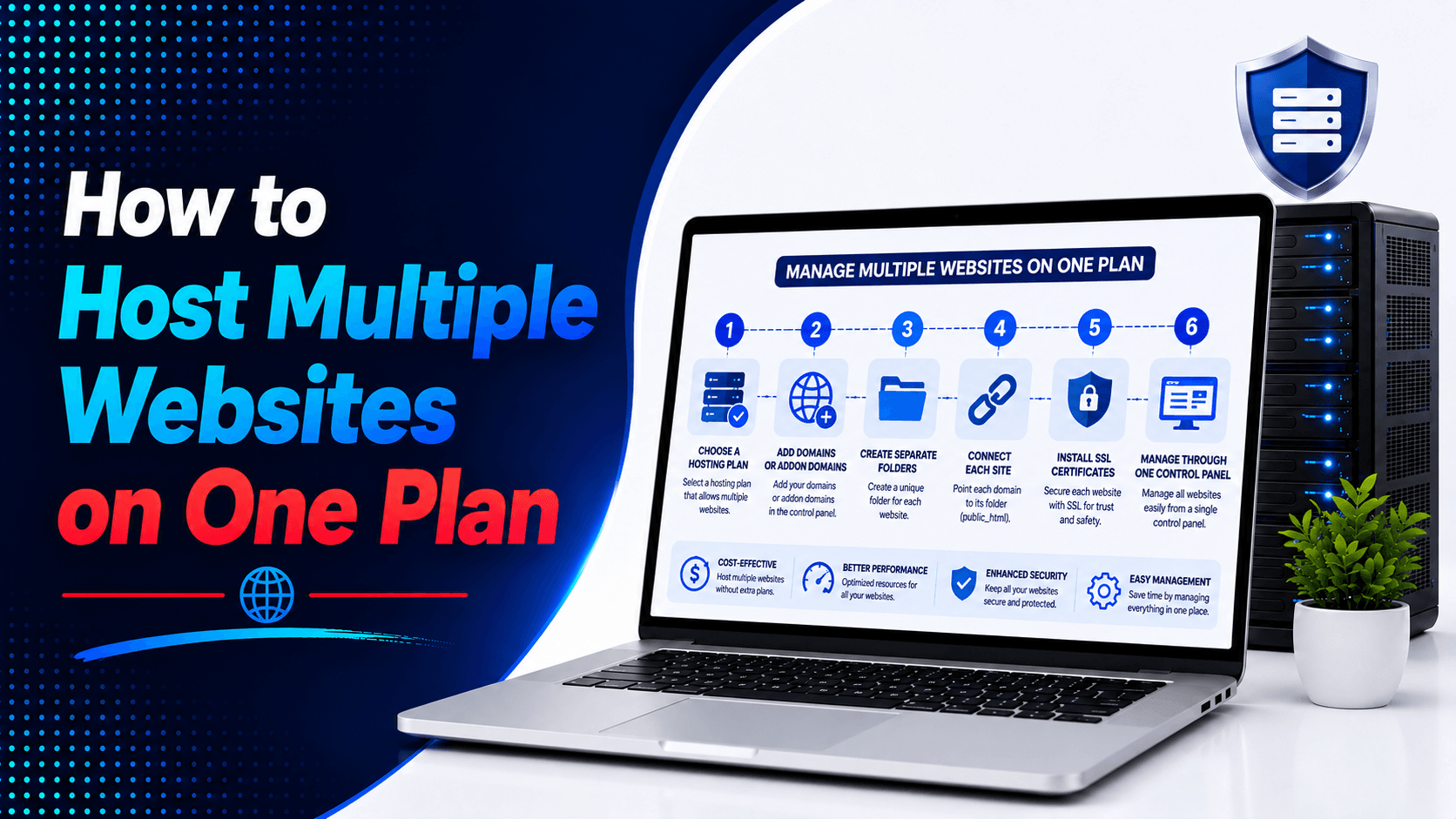
Running multiple websites can feel expensive. But you don’t always need separate hosting accounts. Many modern hosting providers let you host several websites under one plan. This makes How to host multiple websites on one plan a practical option. It works well for bloggers, freelancers, agencies, and small businesses.
Multiple website hosting helps you manage all your sites from one dashboard. You can share hosting resources across sites. Costs go down significantly. Billing becomes simpler. Routine maintenance gets easier too.
This guide will show you how multiple website hosting works. You’ll learn which features to look for. We’ll cover how to set it up. You’ll also find out how to keep all your websites running smoothly.
What Does Hosting Multiple Websites Mean?
Hosting multiple websites means you manage more than one domain. You do it all from a single hosting account. You don’t have to buy a new plan for each site. Instead, you can put several sites on one plan. They all share the same resources. These resources include storage, bandwidth, and memory.
Addon Domains
An addon domain links a new domain to your current hosting account. It works like an extra site. For example:
- websiteone.com
- websitetwo.com
- websitethree.com
Every site keeps its own files, databases, and emails. It also has its own content. But all sites use the same hosting resources. This is a cost-effective way to manage many projects.
Subdomains
A subdomain is a part of your main domain. It acts like an extension. Here are some examples:
- blog.example.com
- shop.example.com
- support.example.com
Subdomains help you organize parts of one website. They are good for sections like a blog or a store. They are not ideal for fully separate websites. Use them for structure, not for isolation.
Separate Hosting Accounts
Separate accounts give each site its own resources. Each site has its own hosting plan. Here is what that means:
- Each website gets dedicated resources.
- Billing and management are separate for each site.
- Websites have better security and isolation.
- It is easier to scale each site when needed.
Separate accounts cost more money. But they can be worth it. They are a smart choice for large sites. They also work well for high-traffic sites. Business-critical websites benefit too.
Check If Your Hosting Plan Supports Multiple Websites
Not every hosting package lets you host unlimited sites. You must check before you buy or upgrade. Look for these important features.
- Addon domain support: Your plan must allow addon domains. These let you host separate domains in different folders. You do it all within the same account. Check your control panel for this feature. It could be cPanel or Plesk. Look for options like Addon Domains or Domains.
- Website limit: Hosting plans often cap how many sites you can add. Basic plans might only support 1 to 3 websites. Better plans may give you 10, 25, or even unlimited sites. Know your limit before you start.
- Storage capacity: Every website uses disk space. You need room for files, images, and databases. Backups also take up space. Pick a plan with enough SSD or NVMe storage. Make sure it covers your current sites and future growth.
- Bandwidth: Multiple websites can use more bandwidth. Traffic increases as you add more sites. Check if your plan has a monthly limit. Some plans offer unmetered bandwidth. Know what you are getting.
- Database allowance: Websites like WordPress need databases. Each dynamic site usually needs at least one. Make sure your plan provides enough databases. Count all the sites you plan to host.
- Email accounts: You may want professional email addresses for each domain. Check how many email accounts your plan allows. This matters a lot for business websites. Each site might need its own email setup.
Choosing the Right Hosting Plan for Multiple Websites
Different hosting types give you different performance and room to grow. Pick the one that fits your needs.
Shared Hosting
Shared hosting is the most affordable choice. It is also great for beginners. You can host several smaller sites with ease.
Advantages:
- Low monthly cost
- Easy-to-use control panel
- Simple website management
- One-click WordPress installation
Limitations:
- Shared CPU and RAM
- Limited performance during traffic spikes
- Less suitable for high-traffic websites
Best for:
- Personal blogs
- Portfolio websites
- Small business websites
Cloud Hosting
Cloud hosting pulls resources from many servers. It offers better reliability than shared hosting. It also scales better when you grow.
Benefits:
- Faster and more consistent performance
- Improved uptime
- Better handling of traffic spikes
- Flexible resource scaling
Ideal for:
- Growing businesses
- Web agencies
- Multiple WordPress websites
VPS Hosting
VPS hosting gives you dedicated resources. It runs in a virtualized server environment. You get more control and better performance.
Advantages include:
- More CPU power
- Dedicated RAM
- Root access
- Better resource isolation
- Greater customization
VPS hosting works best for advanced users. It handles high-traffic sites well. It also suits resource-intensive websites. Business-critical sites benefit too. You get more control and reliable performance.
Step-by-Step: Add Multiple Websites to One Hosting Plan
Setting up multiple websites is easier than many beginners expect.
Step 1: Buy a Hosting Plan
- Choose a plan that supports multiple websites: Not all shared hosting plans allow multiple domains. Some only let you host one site. Look for plans that include “unlimited websites” or “addon domains.” Some plans specify a set number of allowed domains. Plans that mention “one website” limit you to a single domain. Even if you have plenty of disk space, you cannot add another site.
- Check resource limits: Even with a plan that supports multiple websites, there are limits. These include memory (RAM), CPU usage, and inode count. If you plan to host many sites, think about upgrading. A VPS or reseller plan offers dedicated resources. These options give you more control and better performance.
Step 2: Add Your New Domain
- Login to your hosting panel: Access your account through your provider’s portal. This is usually yourdomain.com/cpanel. Or it could be a custom dashboard link. You’ll find this link in your welcome email.
- Go to the Domains section: Look for “Domains,” “Addon Domains,” or “Domain Manager.” These labels vary by hosting provider. Find the one that lets you manage domain settings.
- Add addon domain: Click “Add Domain” or “Create Addon Domain.” Enter your new domain name (e.g., newsite.com). The system will prompt you to choose a subdomain. It will also ask for a folder name for the new site. The subdomain is for internal routing only. Visitors will see the main domain name in their browser.
Step 3: Create Website Folder
Assign a separate folder for each website: During the addon domain setup, you will choose a folder name. Use a name that matches your domain. For example, use “newsite” or “newsite.com.” This keeps your files organized and easy to find.
Keep files organized: A clean structure helps you manage multiple sites. Here is a simple example:
text
public_html/
├── website1.com/ (your main site)
├── website2.com/ (first addon domain)
└── website3.com/ (second addon domain)
When a visitor types newsite.com, the server automatically serves files from the corresponding folder.
Step 4: Install WordPress or Upload Website Files
- Use a one-click installer: Many hosting plans include Softaculous or another installer. Select your domain from the list. Install WordPress in the folder you created. The installer will set up the database automatically. It also handles basic configuration for you.
- Upload files using FTP: Use an FTP client like FileZilla. Connect to your hosting account using your credentials. Open the website’s folder once connected. Upload your HTML, PHP, images, and other files. For an existing WordPress site, upload the files first. Then import the database separately.
- Configure the database: For a manual WordPress setup, you need a new database. Create a MySQL database and user from your hosting panel. Then add the database name, username, and password to the wp-config.php file. This step helps WordPress connect to the correct database.
Step 5: Connect Domain DNS
- Update nameservers: Your domain may be registered with Namecheap, GoDaddy, or another provider. Log in to your registrar account. Replace the current nameservers with those from your hosting company. These often look like ns1.yourhost.com and ns2.yourhost.com.
- Point the domain to hosting: You can also update the domain’s A record instead. Use your hosting server’s IP address for this. Your hosting provider will give you the correct IP.
- Wait for DNS propagation: DNS changes take time to update worldwide. This process may take several hours. During this time, not everyone can access your website. Use a DNS checker tool to confirm the domain is pointing correctly. This helps you know when the site is ready.
Managing Multiple Websites From One Dashboard
Most hosting control panels make this task simple. They let you handle many websites from one place.
Common management features include:
File Manager
The file manager gives you access to each website’s files. You can open separate folders for each site. Upload files when you need to. Edit content directly from the panel. Remove files that are no longer needed. All of this happens in one central location.
Database Management
Each website can have its own database. You do not need to share one database across sites. Tools like phpMyAdmin are available in most panels. These tools let you create new databases easily. You can manage tables and run SQL queries. Import or export data when needed. All from the same dashboard.
SSL Installation
Many hosting panels offer automatic SSL installation. Services like Let’s Encrypt make this possible. You can secure each domain with a few clicks. The system handles the technical work for you. Certificates renew automatically. This keeps every website safe and trusted.
Backups
Centralized backup tools are a great feature. You can schedule backups for all websites. Manage them from one location. Restore any site quickly if something goes wrong. Some hosting providers let you store backups remotely. This gives you extra protection against data loss.
Email Management
You can create email accounts for each domain. All from the same dashboard. Features often include email forwarding. Spam filtering helps keep inboxes clean. Autoresponders are available for automated replies. Webmail access lets you check emails from any browser.
How to Improve Performance When Hosting Multiple Websites
Hosting several websites on one server requires proper optimization.
Optimize Resources
Improve website speed by:
- Enabling page caching
- Compressing images
- Using a Content Delivery Network (CDN)
- Removing unused plugins and themes
- Keeping software updated
These optimizations reduce server load and improve page speed.
Strengthen Security
Protect every website by:
- Keeping separate website folders
- Performing regular backups
- Running malware scans
- Using strong passwords
- Enabling two-factor authentication where available
Good security practices help prevent one compromised website from affecting others.
Common Problems When Hosting Multiple Websites
Even well-managed hosting accounts can run into trouble. Multiple websites bring multiple challenges. Knowing these problems helps you avoid them.
Website Becomes Slow
Cause: Multiple websites compete for server resources. These include CPU, RAM, storage, and bandwidth. One site with high traffic can slow everything down. Resource-heavy plugins cause similar issues.
Solution: Upgrade to a plan with more resources. Cloud hosting or VPS hosting are good options. Enable caching to boost speed. Compress images for faster loading. Minimize CSS and JavaScript files. Remove plugins you do not need. These steps help your sites run better.
One Website Affects Others
Cause: Shared hosting means shared resources. All websites use the same server power. A sudden traffic spike on one site can hurt others. Poorly optimized scripts cause similar problems.
Solution: Consider VPS or cloud hosting. These options offer better resource isolation. Each website gets its own allocated resources. This prevents one site from stealing from the others.
SSL Issues
Cause: Every domain needs a valid SSL certificate. This provides HTTPS security for visitors. Incorrect DNS settings can break SSL installation. Expired certificates trigger security warnings.
Solution: Install SSL for every domain using your hosting panel. Many providers offer Let’s Encrypt. This service gives you free SSL certificates. It also handles automatic renewal. This keeps all your websites secure.
How Many Websites Can You Host on One Plan?
How to host multiple websites on one plan There is no fixed number. The actual limit depends on several factors. Your hosting provider sets some rules.
Depends On
- CPU resources: Dynamic websites need more processing power. Online stores and membership sites are good examples. Simple static websites use much less.
- RAM: High-traffic websites use significant memory. WordPress plugins can increase RAM usage. Complex applications also require more memory.
- Storage: All websites share the plan’s available storage. Images take up space quickly. Videos and backups add to the total. Databases also consume storage.
- Website traffic: Several low-traffic sites often run well together. A few high-traffic sites can exhaust resources fast. Traffic spikes make this worse.
- Hosting limits: Some plans allow only 1 or 5 websites. Others permit 25 sites. Many plans support unlimited websites within resource limits.
Example
Small blogs: Multiple websites can usually share one hosting plan. For example, five low-traffic blogs work well together. They use lightweight themes and few plugins. Shared hosting handles this setup easily.
Large eCommerce sites: Separate hosting is often better. A busy WooCommerce store needs more power. It consumes significant CPU and RAM. Traffic spikes and sales events increase usage. Hosting it alone improves performance and reliability.
Best Practices for Hosting Multiple Websites
Follow these recommendations to keep every website secure and performing well:
- ✅ Keep separate backups for every website
- ✅ Monitor CPU, RAM, and storage usage
- ✅ Update WordPress core, plugins, and themes regularly
- ✅ Install reliable security and malware protection tools
- ✅ Track website speed and uptime frequently
- ✅ Remove unused plugins and files
- ✅ Use strong passwords and enable SSL for every domain
Following these practices reduces downtime, improves performance, and simplifies long-term website management.
Conclusion
Learning how to host multiple websites on one plan saves money. It helps bloggers, freelancers, and agencies. Small businesses benefit too. You can manage several websites from one dashboard. The right hosting plan makes this possible. Organized files keep things tidy. Proper resource management ensures smooth operation.
Monitor your websites as they grow. Check CPU, RAM, storage, and traffic regularly. These metrics tell you when to upgrade. Cloud hosting offers more flexibility. VPS hosting gives you dedicated resources. Both options keep your websites fast. They also improve security and reliability.
Ready to host multiple websites? Choose a reliable hosting plan. Look for one that supports multiple domains. Start managing all your websites today. Everything is available from one convenient dashboard.

Leave a Comment